
Most households now keep things they could never replace in digital form: family photos, passports and insurance policies scanned or photographed on a phone, years of documents. The National Cyber Security Centre (NCSC), the UK's official cyber security body, advises every household to safeguard its most important data, such as photos and key documents, by backing it up to an external hard drive or cloud storage1. A backup is simply a copy of your important data kept in a separate safe location, either on the internet or on removable media such as a USB stick, SD card or external hard drive2.
The reason is that data is lost in ordinary ways, not just dramatic ones. The NCSC lists the common causes: a device is lost or stolen, it breaks, data is accidentally deleted or becomes unreadable, malware such as ransomware erases or blocks it, or a hard drive has to be wiped or replaced3. Any of these can take a decade of photos with it. A backup made beforehand turns that into an inconvenience instead of a loss.
Why your files belong in a household emergency plan
Emergency planners across the UK treat documents and contact details as part of household preparedness, not as a separate technical subject. Local resilience guidance on preparing for emergencies advises safeguarding your most important data, such as photos and key documents, by backing it up1. The same logic appears in flood and evacuation planning: Wiltshire and Swindon Prepared advises being able to pick up key pieces of information quickly, such as insurance documents and passports, if you have to leave your home suddenly6.
A household emergency plan is a short written document agreed with the people you live with, covering emergency contacts and details for your insurance and utility providers7. Official guidance is to keep it with important documents such as passports and insurance, and to save a copy to your phone8. Scotland's Readiness campaign adds a warning that matters here: criminals may take advantage of emergencies by sharing scams or false information, so keep your devices and personal information secure9. A backup is one half of that, and knowing how to spot scam messages is the other.
The connection runs both ways. If a cyber incident takes out services you rely on, offline copies of accounts, medicines and contacts keep you functioning; our guide to keeping key records offline covers that side. This page covers the copies themselves: what to copy, where to keep them, how often, and how to check they work.
What to back up first: documents, photos and contacts

The NCSC's rule of thumb is to back up anything that you value, meaning anything that would inconvenience you if you could no longer access it3. For most households that comes down to three groups.
Documents. Passports, insurance policies, birth certificates, bank and utility details, and your household emergency plan itself. Hampshire Fire and Rescue Service's grab bag guidance is specific: keep photographs or digital copies of essential paperwork such as passports and insurance policies on your mobile phone as a back-up to the paper originals10. Dumfries and Galloway's emergency pack advice similarly includes copies of important documents like birth certificates and insurance policies11.
Photos. Family photographs are the item households most often say they regret losing, and they exist nowhere else. They belong at the front of the queue, and old paper prints deserve the same treatment: photograph or scan them, because a print lost in a flood cannot be re-downloaded.
Contacts. Wiltshire and Swindon Prepared advises keeping important numbers, such as family or your insurer, written down somewhere safe in case you cannot access them on your phone or online5. A phone that is lost, stolen or out of battery takes your contact list with it, and in an emergency you may be using a borrowed phone.
| What | Copy to | Why it is first |
|---|---|---|
| Photos, including scans of old prints | Cloud and external drive | Irreplaceable, and often stored on a single phone3 |
| Passports, insurance, birth certificates | Photos on your phone, plus copies in your grab bag | Needed quickly when leaving home or making a claim10 |
| Bank, utility and insurance details | Written list kept dry and safe | Needed during floods and outages when systems are down12 |
| Family and emergency contacts | Written list, and a copy with your plan | A lost phone should not cost you your contacts5 |
| Household emergency plan | Printed copy plus a copy on your phone | Everyone in the home needs to find it fast8 |
Backing up to an external drive at home
An external drive backup means copying your files onto media you keep at home. The NCSC lists the options: an external hard drive, a USB stick or thumb drive, an SD card, or DVD or CD-R discs2. An external hard drive suits large photo collections; a USB stick suits a smaller set of documents; discs suit an occasional frozen copy of the things that matter most.
The practical steps are simple:
- Plug the drive into your computer or phone.
- Copy across the folders that matter: photos, documents, anything you would be upset to lose3.
- Check the copy contains your most recent photos and files before you put the drive away2.
- Protect the backup with a strong password, so someone who finds or steals the media cannot read your data2.
- Disconnect the drive when you have finished.
That last step is the one people skip, and it is the one that matters most. The NCSC is explicit: when removable media is not in use, disconnect it, because viruses and other malware such as ransomware can move to attached media automatically and infect the backup3. Its ransomware guidance repeats the point: make sure the device containing your backup is not permanently connected to your computer13. A drive that lives plugged into a PC is not a backup against ransomware, because the same attack that encrypts your computer can encrypt the drive too.
The same guidance appeared during the WannaCry ransomware outbreak of 2017, which hit the NHS and home users alike. The NCSC's advice for home users then was to regularly create a backup copy of important files such as photos and documents, and not to leave backup media connected or anywhere on your network, or it may also be attacked14. Our page on WannaCry explains that incident, and our page on ransomware explains the threat in general.
Cloud backup or a home drive: how each one protects you
The two approaches protect against different things, and the strongest position is to use both.
Cloud backup means your files are copied to storage on the internet, usually run by a large provider. The NCSC notes that you can create cloud-based backups automatically, which means you are more likely to have an up-to-date copy of your data2. That is its great strength: it happens without you remembering, and it survives a fire, flood or burglary at your home because the copy is elsewhere. Its weakness is that anyone who can access your cloud account also has access to your backups, so the NCSC advises protecting cloud accounts with strong passwords and two-factor authentication2.
A home drive is the opposite. It only stays current if you remember to update it, and it can be lost in the same fire or flood that takes your computer. But it is offline, which is exactly what protects it from ransomware, and you can password-protect the media itself2.
| Cloud backup | External drive at home | |
|---|---|---|
| Stays up to date | Yes, can run automatically2 | Only when you copy files yourself |
| Survives fire, flood, theft at home | Yes, the copy is elsewhere2 | No, unless kept at another location |
| Protected from ransomware | Only if the account is secure2 | Yes, if disconnected when not in use3 |
| Works without internet | No | Yes |
| Main risk | A hacked cloud account exposes your backups3 | Loss, theft or damage of the media2 |
Whichever you use, the account security side matters. Our guides to protecting email and bank accounts and to turning on 2-step verification cover that in detail. If you want to weigh the two options for your own household, our comparison page on cloud backup or an external drive goes deeper.
Keeping copies of key documents for a flood, fire or evacuation
Flooding is the emergency most likely to put your paperwork at risk, and UK flood guidance is consistent about what to do. Nottinghamshire Council's flood advice is to make sure important documents are safe and will stay dry, including details of your home insurance15. Dover's damage limitation guidance goes further: personal documents, insurance and bank details and essential contact telephone numbers should be collected and kept in polythene bags and stored somewhere safe from floodwater12.
Where "somewhere safe" is matters as much as the bag. Householders interviewed for Derbyshire's property flood resilience case studies speak from experience. One, whose property flooded near Hebden Bridge, advises never storing items of value in low ground floor cupboards or drawers, including those in the garage16. Another advises keeping precious memories and documents upstairs, noting that keeping receipts for new purchases upstairs was handy when making a flood insurance claim16.
For evacuation, the aim is speed. Greater Manchester's resilience guidance advises preparing a household emergency plan containing all the information you need to leave the property quickly and calmly if evacuated17, and Wiltshire and Swindon Prepared frames the goal as being able to pick up key pieces of information quickly, such as insurance documents and passports6. Digital copies on your phone, as Hampshire Fire and Rescue Service recommends for grab bags10, mean you can leave with the essentials even if the paper originals are lost.
Where a backup drive should never be kept
Two places fail for opposite reasons.
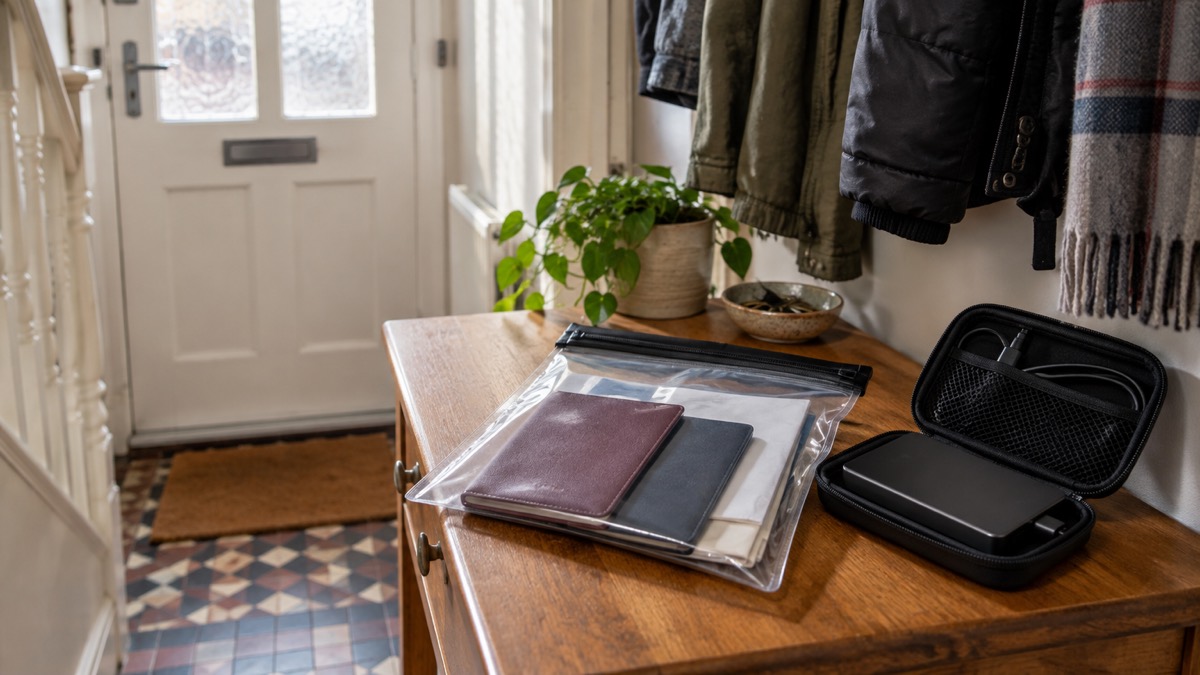
Plugged in. A backup drive left permanently connected to your computer or network is not protected from malware. The NCSC warns that ransomware can move to attached media automatically, and its ransomware recovery guidance says to make sure the device containing your backup is not permanently connected13. Disconnect it between backups.
Downstairs, in a low cupboard or the garage. Floodwater reaches ground-floor storage first. The Derbyshire case studies are blunt: never store items of value in low ground floor cupboards or drawers, including those in the garage, and keep precious memories and documents upstairs16. A backup drive in a drawer under the TV survives nothing that a power surge, a burst pipe or a flood would not also survive.
The strongest arrangement is to keep one copy upstairs at home, disconnected, and one copy somewhere else entirely: with a trusted relative, or in cloud storage. Renfrewshire's home emergency guidance captures the wider habit: make sure you have household insurance that meets your needs and store important documents safely18. Scotland's Readiness campaign adds that your household plan should be kept as a printed or handwritten copy somewhere handy, with everyone in the home knowing where it is9.
How often should I back up my files?
Back up on a schedule you will actually keep, and let automation do the rest. The NCSC's position is that cloud backups created automatically mean you are more likely to have an up-to-date copy2, and its ransomware guidance advises turning on auto-backup so that data on your smartphone is automatically copied to the cloud13. For phones, that single setting answers most of the question.
For a home drive, the honest answer is that a backup you have not refreshed is only as good as its last copy. The NCSC's long-standing advice, dating from its WannaCry guidance in 2017, is to regularly create a backup copy of your important files, such as photos, documents and other files that cannot be replaced14. Our page on how often to back up works through the trade-offs.
If you work from home, save your work regularly and enable your computer's auto-save function if it has one, as power cut preparation guidance advises19. And keep the devices themselves healthy: the NCSC advises installing security updates as soon as they are available, ideally set to install automatically, because an infected device can put a malware infection into your next backup20. Our page on software updates covers that.
One related figure is worth knowing if your household relies on a landline. Under Ofcom rules, if you do not have a working mobile phone or a reliable mobile signal, your landline provider must offer you a free back-up solution such as a battery unit, which must last at least one hour in a power cut, though some providers' units last up to seven hours21. That keeps your phone alive long enough to reach help; it does nothing for the files on it, which is why the backup itself matters.
Checking a backup actually works before you need it
A backup nobody has checked is a hope, not a backup. The NCSC's instruction is plain: once you have made your backup, check that it contains all your important data, such as recently taken photos or recently created files or folders2. Open the drive or the cloud folder, and look for something you know you created in the last month. If it is there, the backup is current. If it is not, you have been copying the wrong folders or nothing at all.
Do the same check after any change: a new phone, a new computer, a reorganised photo library. And check the media itself. Drives and discs fail quietly, so the NCSC's advice to verify the contents rather than trust the device applies however new it is2.
While you are checking, check your exposure too. The NCSC advises using online tools such as haveibeenpwned.com to see if your details have appeared in public data breaches22. If an email address tied to a cloud backup account has been breached, that account needs a new strong password and two-factor authentication before it can be trusted with your files. Our page on checking whether your email was in a breach explains how.
Ransomware, scam emails and restoring safely
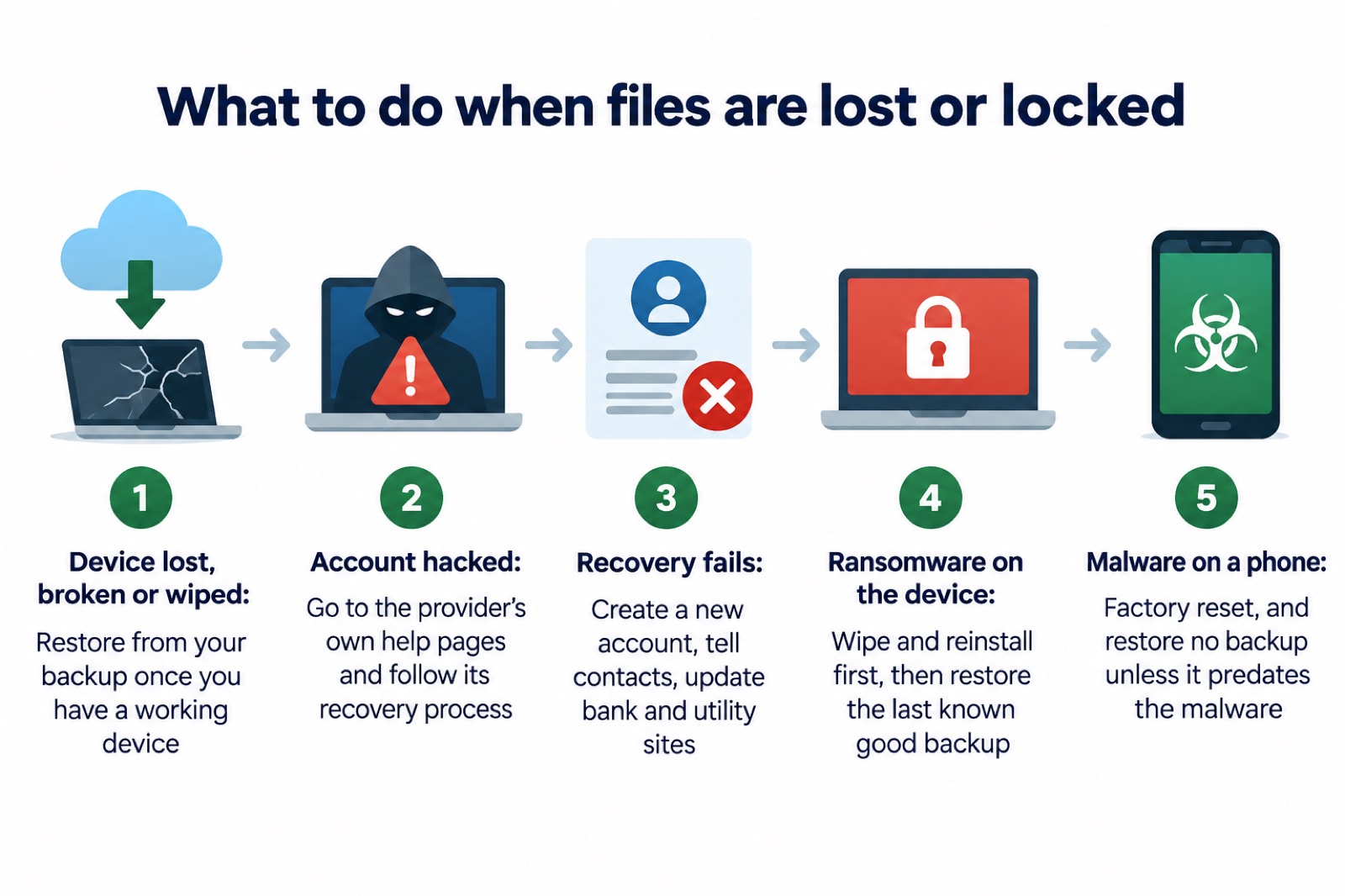
If the worst happens and ransomware locks your files, the backup is what saves you, but only if you restore it in the right order. The NCSC's ransomware guidance stresses that you should always have a recent offline backup of your most important files and data4. It also warns plainly about paying: there is no guarantee that you will get access to your data or computer4. Our page on whether to pay a ransom examines that decision.
Restoration has a rule of its own. The NCSC advises restoring your backed-up data from the "last known good" backup: you will lose any data that was not backed up, but trying to rescue data while the device is still infected risks carrying the infection through after wiping and reinstalling23. Its guidance on hacked devices repeats the same instruction24. In other words, clean the device first, then restore.
The same caution applies to phones hit by malware. NCSC guidance on scam "missed parcel" text messages, which install malware on Android phones, warns: do not back up your data before performing a factory reset, as the backup will also contain the malware, and only restore backups if you are confident the backup was created before you installed the malware; if you cannot be sure, factory reset and restore no backups25. Our pages on malware, on factory resetting an infected phone and on restoring files after ransomware walk through this.
Scam emails often target exactly the accounts that hold your backups. The NCSC advises protecting your email with a strong and separate password, because criminals can use your email to access many of your personal accounts, leaving you vulnerable to identity theft1. After a data breach, it warns to look out for official-sounding emails about "resetting passwords", "receiving compensation" or "confirming identity", emails full of tech speak, and being urged to act immediately22. Our page on spotting scam messages after a data breach covers these.
"It's important that you don't back up your data before you perform a factory reset, as the backup will also contain the malware."
Where to get help recovering lost files
If an account holding your backups has been taken over, start with the provider. The NCSC's advice is to go to the account provider's website and search its help or support pages to find the account recovery process26. Each cloud service has a different process, either by yourself or with the provider's support, and providers may publish step-by-step guides27. Follow the provider's own pages rather than links in emails, which may be phishing.
If recovery fails, the NCSC sets out the fallback: create a new account, give your contacts the new details, tell them you have abandoned the old account, and update any bank, utility or shopping websites with your new details28. Then force all devices and apps to log out, usually from the Settings menus of the app or website, so anyone attempting to use the account is prompted to supply the new password28. Our page on recovering a hacked email account covers this step by step.
For an infected computer, the NCSC's recovery guidance is to restore your backed-up data from the last known good backup, accepting that anything not backed up is lost24, and to make sure you have antivirus and install security updates automatically before you reconnect23. Our after infection checklist gathers those steps in order.
Sharing copies with family
A copy kept only in one house is one fire away from not being a copy. Giving a trusted relative or friend a spare drive, or a folder of scanned documents, means a house fire, flood or burglary cannot take the last version of your family photographs. It also gives you somewhere to turn if your own copies fail.
Inside the household, make sure everyone knows where things are. Scotland's Readiness campaign advises keeping a printed or handwritten copy of your household plan somewhere handy and making sure everyone in your home knows where it is9. London's guidance suggests the plan should contain emergency contact details for your family or the people you live with, as well as details for insurance and utility providers7, and the Scottish emergency kit guidance says to include a copy of the plan in the kit29. The same habit applies to backups: the people you live with should know the drive exists, where it lives, and what the password is, or your careful backup is useless to them if you are the one unavailable.
Sources (29)
- Cyber security: protecting your family, Essex Prepared
- Backing up your data (infographic), National Cyber Security Centre, 2026
- Backing up your data, National Cyber Security Centre, 2021
- What to do if you're a victim of a ransomware attack, National Cyber Security Centre, 2026
- Personal resilience: yourself, Wiltshire and Swindon Prepared, 2026
- Reservoir collapse, Wiltshire and Swindon Prepared, 2026
- Household emergency plans, Greater London Authority, 2026
- Household emergency plan, London Borough of Hillingdon, 2026
- Home emergency plan, Readiness Scotland, 2026
- Reduce the risk of wildfire damage to your property, Hampshire and Isle of Wight Fire and Rescue Service, 2026
- Create a household emergency life-saving plan, Dumfries and Galloway Council, 2026
- Damage limitation guide, Dover District Council, 2001
- Ransomware prevention and recovery, National Cyber Security Centre, 2026
- WannaCry guidance for home users and small businesses, National Cyber Security Centre, 2017
- During a flood, Nottinghamshire County Council, 2025
- Property flood resilience case studies, Derbyshire County Council, 2024
- Prepare yourself, Greater Manchester Combined Authority, 2026
- Prepare your home for emergencies, Renfrewshire Council, 2025
- 12 tips to prepare for a power cut, Horsted Keynes Parish Council, 2026
- Install the latest software and app updates, National Cyber Security Centre, 2021
- Future of landline calls, Ofcom, 2026
- Data breaches infographic, National Cyber Security Centre, 2023
- What to do if you have a sole infected device, National Cyber Security Centre, 2026
- Hacked device: action to take, National Cyber Security Centre, 2021
- Scam 'missed parcel' SMS messages, National Cyber Security Centre, 2021
- Recovering a hacked account, National Cyber Security Centre, 2022
- Recovering a hacked account or service, National Cyber Security Centre, 2024
- Recovering hacked accounts (infographics), National Cyber Security Centre, 2026
- Emergency kit, Readiness Scotland, 2026
 Accounts to Protect With 2-Step
 After Fixing an Infected Device
 Home Online Security Checklist
 Antivirus Software
 Council Online Services Down
 Your Details in a Data Breach
 FluBot Fake Parcel Texts
 Hacked Online Accounts
 How Services Respond
 Malware Signs and Removal
 National Cyber Security Centre
 NHS Services During an IT Outage
 Keeping Key Records Offline
 Shopping Online Safely
 Paying for Essentials