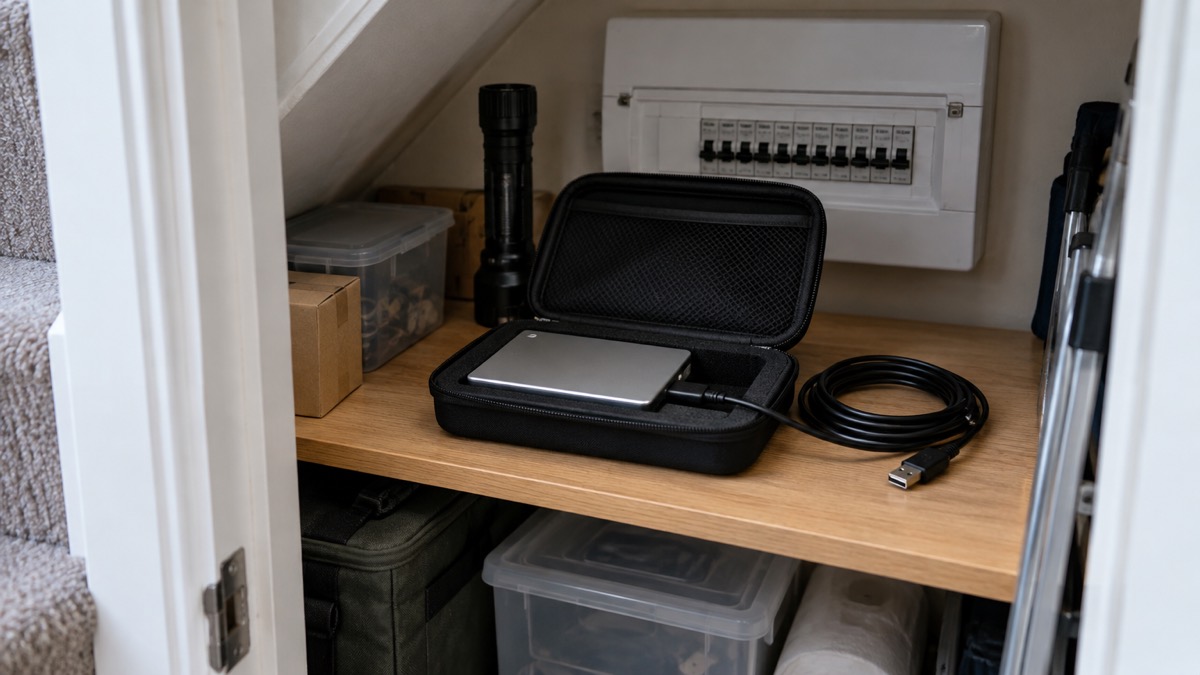
Back up your most important data regularly, and make a fresh backup before anything goes wrong: before a repair, a factory reset, a big software update or a house move. The National Cyber Security Centre (NCSC) describes a backup as a copy of your important data stored in a separate safe location, usually on the internet (cloud storage) or on removable media such as a USB stick, SD card or external hard drive1. What matters is that the copy exists, that it is recent, and that you could get your files back from it.
For most households the practical routine is simple. Set cloud backups to run automatically so the copy stays up to date, and keep an offline copy of your most important files that ransomware cannot reach1. Check the backup actually contains your recent photos and files, and protect the account that holds it with a strong password and two-step verification1.
The rest of this page sets out what to back up first, how the two main methods compare, how to restore files after an infected device, and what to check and change after a data breach.
Back up regularly, and again before anything goes wrong
The NCSC's core advice is to back up your most important data, and to do it often enough that the copy is worth having6. A backup made a year ago will not bring back this month's photographs. Automatic cloud backups help here because they run without you remembering, which means you are more likely to have an up-to-date copy of your data1.
The second half of the rule is the one people forget: make a backup before a known risk, not after. The clearest example is a device you are about to reset. The NCSC warns that you should not back up your data before you perform a factory reset on an infected device, because the backup will also contain the malware5. In that situation the backup you rely on must be one made earlier, when the device was clean.
A sensible household rhythm looks like this:
- Automatically, continuously: cloud backup for photos, documents and anything you would miss1.
- Regularly, by hand: plug in the external drive and let it copy across, then unplug it1.
- Before a risky step: a repair, a reset, a major update or handing a device on. Check the last good backup is complete first4.
- Before an emergency: keep digital copies of key documents with your household paperwork, so they are ready if you have to leave in a hurry7.
That last point connects backups to the rest of your household planning. The emergency kit guidance for grab bags suggests keeping photographs or digital copies of important documents on your mobile phone as a back-up7. A phone backup that includes those images is doing double duty.
Keep a copy that ransomware cannot reach
Ransomware is malicious software that blocks access to your data or computer system, usually by encrypting it, until a ransom is paid9. In an attack you simply cannot open your files2. The NCSC's advice is blunt: it is important that you always have a recent offline backup of your most important files and data2.
"Offline" is the key word. A backup that is permanently connected to your computer, or permanently signed in on the same account, can be encrypted along with everything else. An external drive that you plug in, copy to, and then unplug is out of reach when an attack happens. The National Cyber Security Centre advises that you always have a recent offline backup of your most important files and data1.

The same principle applies to your backup account as to your email. The NCSC advises protecting cloud accounts, and access to your backups, with strong passwords and two-factor authentication1. If a criminal can get into the account that holds your only copy, you have no backup at all. Turn on two-step verification for your email, your cloud storage and any password manager you use; the NCSC describes it as the first and most important step for protecting an account if your password is phished or otherwise compromised11.
For more on how these attacks work and what they mean for households, see Ransomware: What It Is and How It Affects Households and How to Protect Your Backups From Ransomware.
What to back up first: photos, documents and account details
You do not need to back up everything at once. The NCSC's test is simple: back up anything that you value, meaning anything that would inconvenience you if you could no longer access it1. For most households that means a short list, and it is worth working through it in order.
| Priority | What to back up | Why it comes first |
|---|---|---|
| 1 | Photos and family videos | Named by the National Cyber Security Centre as an example of your most important data to safeguard6 |
| 2 | Key documents: passports, insurance policies, essential paperwork | Needed quickly in an emergency or a flood7 |
| 3 | Account details and login information | Anything you value, meaning anything that would inconvenience you if you could no longer access it12 |
| 4 | Work, school and financial files | Anything you value, meaning anything that would inconvenience you if you could no longer access it12 |
The NCSC specifically names photos and key documents as the most important data to safeguard, backing them up to an external hard drive or a cloud-based storage system6. Local emergency planners make the same point from the other direction: when advising households to prepare a grab bag, they suggest keeping photographs or digital copies of important documents such as passports and insurance policies on your mobile phone as a back-up7. Flood advice is to ensure important documents are safe, including your home insurance details8, and reservoir emergency guidance stresses being able to pick up key pieces of information such as insurance documents and passports quickly14.
Account details deserve their own line because they are what let you get back into everything else. If a criminal can access your email account, they could reach private information about you, including banking details, send messages pretending to be from you, and reset your other account passwords15. A backup of your account recovery information, kept somewhere safe and offline, is part of protecting the rest.
Cloud storage or an external drive: which suits your home?
The National Cyber Security Centre sets out both routes, backing your most important data up to an external hard drive or to a cloud-based storage system1. The choice comes down to your circumstances rather than to any product.
| Cloud storage | External drive or removable media | |
|---|---|---|
| What it is | A copy held on the internet in a separate location1 | A copy on a USB stick, SD card or external hard drive1 |
| Upkeep | Can be set to run automatically, so more likely to be up to date1 | Runs when you plug it in and copy across |
| Needs | A reliable internet connection; not suitable if yours is slow, unreliable or metered1 | No connection needed |
| Ransomware | Protected if the account has a strong password and two-factor authentication1 | Protected while unplugged and out of reach2 |
| Best suited to | Households with a stable broadband connection who want the copy to look after itself1 | Households on slow, unreliable or metered connections, or who want a copy that is physically out of reach1 |
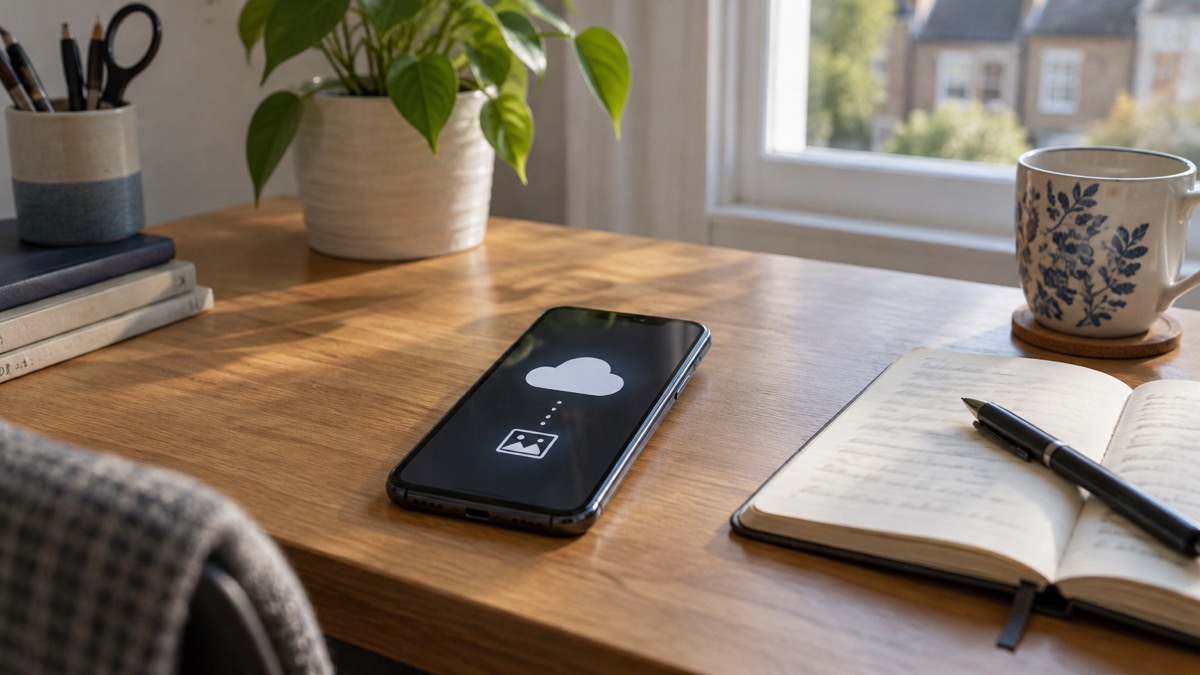
Many households end up with both, and that is the strongest position: an automatic cloud copy for everyday, and an offline drive for the copy ransomware cannot touch1. If you are weighing them up for your own home, Cloud Backup or External Hard Drive: Which Suits Your Home? goes through the comparison in more detail, and Backing Up Files and Photos at Home covers the practical steps.
Whichever you choose, check the result. Once you have made your backup, the NCSC says it is important to check that it contains all your important data, such as recently taken photos or recently created files or folders1. A backup you have never opened is a hope, not a copy.
Restoring your files after an infected device
If a device has been infected, the backup is what makes recovery possible, but the order of steps matters. The NCSC's guidance is to restore your backed-up data from the last known good backup4. You will lose any data that was not backed up, but trying to rescue data while the device is still infected risks carrying the infection through after wiping and reinstalling4.
That is the trade-off to accept calmly: some recent files may go, and that is better than reinstalling malware along with them.
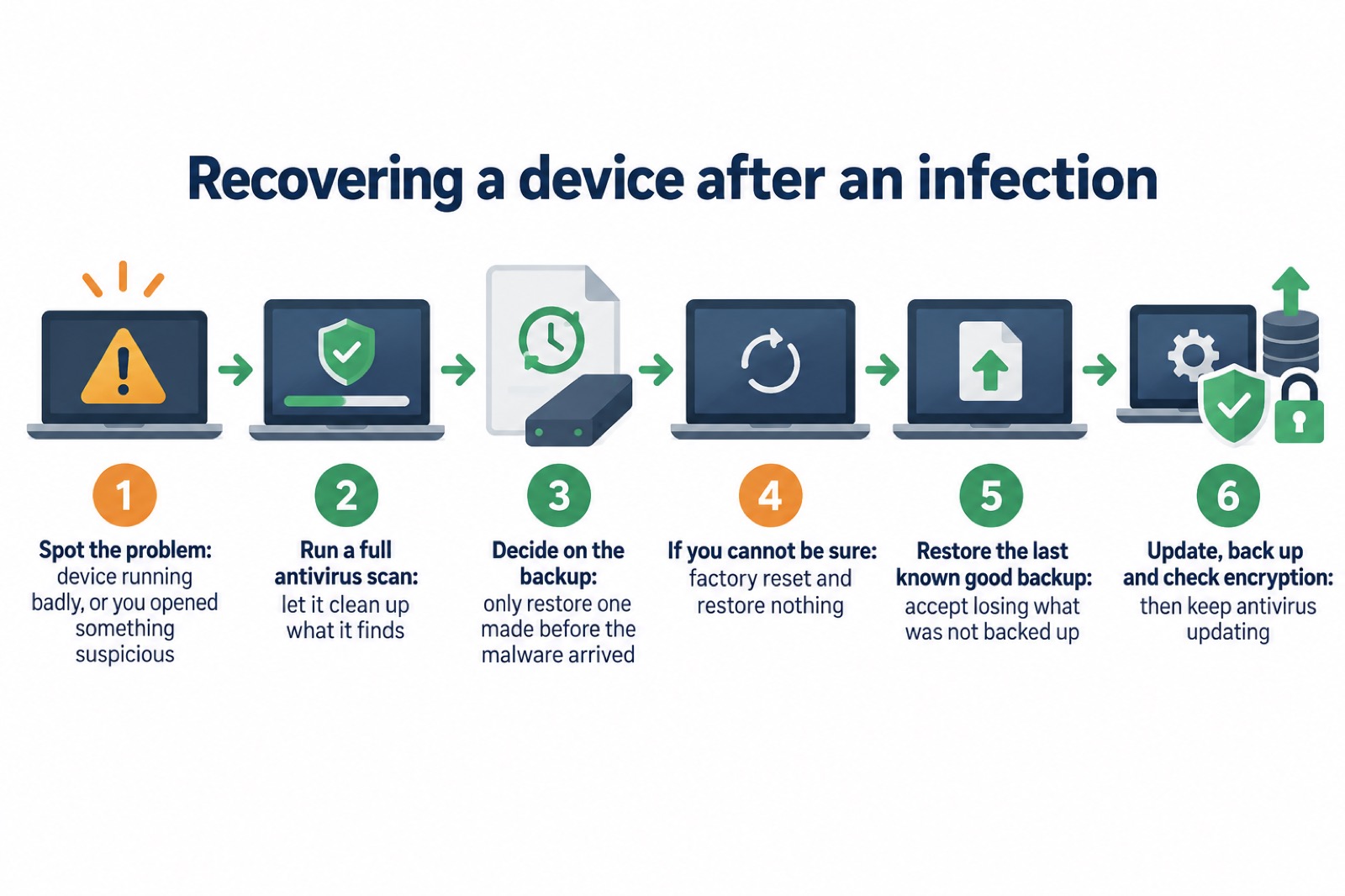
Two conditions decide whether you can restore at all. The NCSC says that when you are given the option to restore backups, you should only do so if you are confident the backup was created before you installed the malware; if you cannot be sure, perform a factory reset and do not restore any backups5. And do not make a fresh backup of the infected device first, because that backup will contain the malware too5.
After fixing an infection, the NCSC lists the follow-up steps: keep your device and programs up to date, back up your data, check your device is encrypted, and for PCs and laptops make sure you have antivirus that is updating regularly17. Antivirus should always be used and kept up to date to protect your data and devices18, and if you think you have opened a suspicious link, open your antivirus software if you have it and run a full scan, allowing it to clean up any problems it finds16.
For a step-by-step walk-through, see How to Restore Files Safely After Ransomware or a Virus and the After Fixing an Infected Device: Checklist.
After a data breach: what to check and change
A data breach means your details may be in someone else's hands, and the backup routine changes slightly: you want to secure the accounts first, then make sure your copies are intact.
Start with the organisation. The NCSC says the organisation should be able to confirm if a breach has actually occurred, how you are affected and what else you need to do19. Then work through your own accounts:
- Change a quoted password immediately. If you receive a message that includes a password you have used in the past and still use, change it as soon as you can20. Change any other accounts using the same password, and consider using a passkey instead21.
- Check for other breaches. Use an online tool such as haveibeenpwned.com to see if your details have appeared in other public data breaches; similar services are often included in antivirus or password manager tools21.
- Watch for follow-up scams. Be alert for suspicious messages after a breach, as cyber criminals may try to take advantage of it19.
- Protect the accounts that hold your backups. Strong password and two-step verification on cloud storage and email1.
If you receive a sextortion email, forward it to the NCSC's Suspicious Email Reporting Service at report@phishing.gov.uk23. For the full picture on breach follow-up, see Your Details in a Data Breach: What to Do Next and How to Spot Scam Messages After a Data Breach.
Sources (23)
- Backing up your data (infographic), National Cyber Security Centre, 2026
- Sole ransomware attack, National Cyber Security Centre, 2026
- Using passwords to protect your devices and data, National Cyber Security Centre, 2026
- Sole infected devices, National Cyber Security Centre, 2026
- Scam missed parcel SMS messages: advice on avoiding malware, National Cyber Security Centre, 2021
- Always back up your most important data, National Cyber Security Centre, 2024
- Reduce the risk of wildfire damage to your property, Hampshire and Isle of Wight Fire and Rescue Service, 2026
- During a flood, Nottinghamshire County Council, 2026
- Cyber attacks, West Yorkshire Prepared, 2026
- Ransomware and the National Security Risk, Joint Committee on the National Security Strategy, 2023
- Password managers, National Cyber Security Centre, 2026
- Citizen hacked accounts, National Cyber Security Centre, 2026
- Top tips for staying secure online poster, National Cyber Security Centre, 2024
- Reservoir collapse, Wiltshire and Swindon Prepared, 2026
- Protecting your family: cyber security, Essex Prepared, 2026
- Phishing, National Cyber Security Centre, 2026
- Hacked device: action to take, National Cyber Security Centre, 2021
- Protecting devices from viruses and malware, National Cyber Security Centre, 2024
- Citizen data breaches, National Cyber Security Centre, 2026
- Data breaches infographic, National Cyber Security Centre, 2023
- Data breaches, National Cyber Security Centre, 2021
- Citizen sextortion, National Cyber Security Centre, 2026
- Sextortion scams infographic, National Cyber Security Centre, 2026
 Accounts to Protect With 2-Step
 After Fixing an Infected Device
 Home Online Security Checklist
 2-Step Verification No Phone
 Antivirus on Phones and Tablets
 Automatic Updates
 Gave Bank Details to a Scammer
 Checking a Bank Message
 Blocking Nuisance and Scam Calls
 Scams After a Data Breach
 Browser Saved Passwords
 Checking Your Email for Breaches
 Hacker Email Forwarding Rules
 Factory Reset an Infected Phone
 Recover a Hacked Email