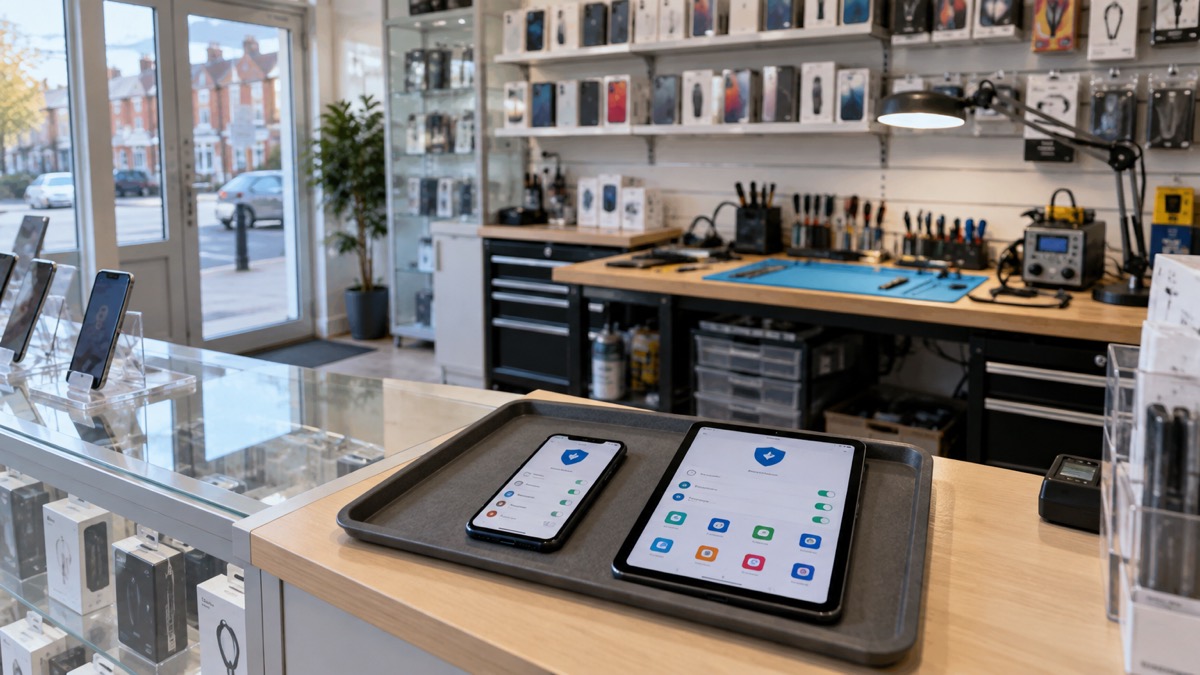
Most phones and tablets do not need a separate antivirus app in the way a Windows laptop does. The National Cyber Security Centre, the UK's official cyber security body, is clear that on a phone or tablet antivirus products do not work in the same way as on PCs and laptops, and that if a phone or tablet does become infected, the safest solution is a factory reset, usually found in settings1. What actually protects the device is different: current software, apps from official stores, and a healthy suspicion of links in texts and emails.
That does not mean phones are safe by default. Scam text messages are a common route for malware onto Android phones, and the purpose of a scam text is often to get you to click a link that takes you to a website criminals use to download viruses or steal passwords and personal information2. The defences that matter are the ones built into the device and the habits you keep, not a particular app you buy.
This page sets out what to do now, what to check on an Android phone, an iPhone or a tablet, how to keep security software and the device updated, and what to do about phishing, especially in the days after a major IT outage or cyber attack when scam messages tend to rise.
Do you need antivirus on your phone?
Start with what an antivirus product is for. The National Cyber Security Centre describes it as a program designed to detect and remove viruses and other kinds of malicious software from your computer or laptop6. That definition is about computers, and the same guidance says antivirus is often included for free with Windows and Apple computers, and that switching on this built-in antivirus makes you instantly safer6. On a computer, the advice is to always use antivirus software and keep it up to date to protect your data and devices6.
Phones and tablets sit differently. The National Cyber Security Centre's guidance for infected devices says plainly that antivirus products do not work in the same way as PCs and laptops, and that the safest solution is a factory reset, usually found in settings1. That is the official position for a phone or tablet that has actually been infected. It does not say phones cannot be attacked; it says the tool and the fix are different.
So the practical answer for most households is that you do not need to buy a separate antivirus app for a phone or tablet, but you do need the protections that come with the device switched on and kept current. Those are:
- The device's own software kept up to date, with automatic updates turned on where available4
- Apps installed only from official app stores3
- Google's Play Protect enabled on Android devices3
- Care with links in texts, emails and messages, which is where most trouble arrives2
If you want the wider picture of what antivirus does and does not do across all your devices, our guide to antivirus software covers computers and laptops in more depth. For a phone, the sections below are the ones that matter.
Free antivirus apps on Android, Apple and Windows devices
Free antivirus apps do exist for phones and tablets, and independent guidance aimed at older people says these apps work on phones and tablets that use Windows, Android and Apple products, and that it is a good idea to keep them updated7. The same guidance names Avast mobile security, Kaspersky internet security and Norton mobile security as free antivirus apps that work on phones and tablets using Windows, Android and Apple products7. Those are examples of what is sold, not a recommendation.
The official guidance is more cautious about relying on them. It points out that antivirus is often included for free with Windows and Apple computers6, and for phones it directs people towards the protections built into the device and the app store rather than a separate product. If you are using an Android or iOS device, you will be able to find a variety of virus scanners in your device's app store8. Whether you install one is a choice; keeping it updated is not optional if you do.
| Device | What the official guidance emphasises | What to check |
|---|---|---|
| Android phone or tablet | Google's Play Protect enabled; apps from official stores3 | Play Protect on; software and patches current3 |
| iPhone or iPad | Antivirus does not work as on a PC; factory reset is the safest fix if infected1 | iOS updated; apps from the App Store only3 |
| Windows tablet | Built-in malware protection is suitable9 | Updates installed; protection switched on9 |
| Any device | Updates include protection from viruses and other malware4 | Automatic updates turned on4 |
Free versus paid is a smaller question than it looks. Paid products such as McAfee, Norton and Avast are sold as separate antivirus products6, and free apps exist alongside them7. On a phone, the built-in protections and prompt updates do most of the work, and a paid app does not replace them.
Keep security apps and your device updated

If there is one instruction that matters more than any app choice, it is this: install the latest software and app updates, which contain vital security updates to help protect your devices from cyber criminals4. The National Cyber Security Centre calls applying updates one of the most important things you can do to protect your devices6. Updates include protection from viruses and other kinds of malware, and will often include improvements and new features4.
Do it in this order:
- Turn on automatic updates in the device settings if the option is available4.
- Set your apps, and the phone or tablet itself, to update automatically6.
- Apply updates to your apps and your device's software as soon as they are available, as updates include protection from viruses10.
- If you use a security app, keep it up to date with the latest version to maximise your protection11.
- Check the device has all the latest software updates, which also matters for receiving emergency alerts12.
The last point is worth a moment. Emergency alerts reach your mobile phone or tablet without it being connected to mobile data or wifi13, but the government still advises making sure your device has all the latest software updates12. An out-of-date phone is a weaker phone on more than one count.
If a device is old enough that it no longer receives updates, that changes the calculation. Our page on what happens when your phone stops getting updates explains the options, and should you turn on automatic updates covers the setting itself.
Android app safety and dodgy apps
Android phones attract the most malware of the common phone types, largely through apps and links. The official advice for Android devices is specific: make sure that Google's Play Protect service is enabled, and note that some Huawei devices provide a similar tool to scan devices for viruses3. Play Protect is the built-in scanner; it is not a separate purchase.
The second rule is about where apps come from. Avoid downloading dodgy apps, and only use official app stores like Google Play or the Apple App Store, which provide protection from viruses9. The National Cyber Security Centre repeats the point for scam parcel texts: only install apps from official app stores such as Google Play, the Apple App Store or the Samsung Galaxy Store3. Apps installed from links in texts or from unfamiliar websites bypass that protection entirely.
A third rule is about the messages themselves. Scam text messages often aim to get you to click a link that takes you to a website criminals use to download viruses or steal passwords or personal information, sometimes known as phishing2. On Android, a message about a missed parcel has been a common disguise; if installed, the malware can steal banking details, passwords and other sensitive information, and attempts to access your contact list to send scam SMS messages to those numbers3. That is why the advice is not to reply, not to click, and to keep the device updated3.
If you have already installed something suspicious, our guide to malware on a computer or phone sets out the signs and removal steps, and FluBot and fake parcel texts on Android phones covers that particular campaign. For a phone that is definitely infected, the official fix is a factory reset, and our page on whether to factory reset an infected phone walks through it. One warning from the official guidance: do not back up your data before performing a factory reset, as the backup will also contain the malware3.
Phishing after major IT outages and cyber attacks
Phishing is when criminals use scam emails, text messages or phone calls to trick their victims, often to make you visit a website which may download a virus onto your computer, or steal bank details or other personal information14. Scam messages typically contain links to websites that look genuine, but which store your real details once you have typed them in, install viruses, or steal passwords you enter15.
Major IT incidents are followed by a rise in this kind of message. Criminals read the news too, and a story everyone is talking about gives them a pretext. The same pattern applies after a cyber attack on a well-known organisation: expect messages that reference it. Use strong passwords and be vigilant to phishing emails, text messages and phone calls, and keep all software and systems up to date, including mobile phones16.
The basic defences are simple and official:
- Do not give out private information such as bank details or passwords, reply to text messages, download attachments or click on any links in emails if you are not sure they are genuine5.
- Be wary of scanning QR codes within emails; criminals are increasingly using QR codes within phishing emails to trick users into visiting scam websites17.
- Make sure your devices, apps and browsers are running the latest versions, as updates often include important security patches that help block phishing attempts18.
- Use strong passwords and be vigilant to phishing emails, text messages and phone calls, and keep all software and systems up to date, including mobile phones19.
If you think you have opened something, the response depends on what you did. If you have not entered any personal information, downloaded any files or installed software, it is unlikely you need to take further action, but stay alert to emails and notifications on your accounts to check for suspicious activity16. If you opened a link on your computer or followed instructions to install software, open your antivirus software if you have it and run a full scan, and allow it to clean up any problems it finds20. On a phone or tablet, the factory reset advice applies if the device is infected1.
Reporting helps you and everyone else. Reporting a suspicious email is free and only takes a minute, and it reduces the scam emails you receive, makes you a harder target and protects others from cyber crime21. Our guides on how to report a scam text message and how to report a phishing email give the steps. If you have already clicked, clicked a phishing link: what to do next takes it from there, and phishing: how to spot a scam email, text or call covers the wider picture.
Where to get help and what to do next
If a device is misbehaving, the first question is whether it is infected at all. The National Cyber Security Centre's guidance for a hacked device sets out the steps, and for a phone or tablet the safest solution is a factory reset, usually found in settings1. If you cannot download and install an antivirus product because your web browser is infected, you will probably need to get expert help20. That advice is written for computers, but the principle holds: if the normal tools will not run, get help rather than keep clicking.
For households that want a structured approach, Cyber Essentials is free to download and provides essential guidance to safeguard against common cyber threats like phishing, malware and ransomware22. It is written for organisations, but the principles apply at home. Our guide to the National Cyber Security Centre explains what help is available to individuals and families, and the home online security checklist turns the advice on this page into a list you can work through.
A short summary of what to do now:
- Check the device software is up to date, with automatic updates on4.
- On Android, confirm Google's Play Protect is enabled3.
- Install apps only from official stores3.
- Treat unexpected texts and emails as suspect, and never enter details after clicking a link5.
- If a phone or tablet is infected, factory reset it, and do not back up first1.
For the wider context of how cyber attacks affect households, from bank outages to NHS disruption, see our guide to cyber attacks and major IT failures.
Sources (22)
- Infected devices: action to take, National Cyber Security Centre, 2026
- Scam 'missed parcel' SMS messages: advice on avoiding malware, National Cyber Security Centre, 2021
- Scam 'missed parcel' SMS messages, National Cyber Security Centre, 2021
- Install the latest software and app updates, National Cyber Security Centre, 2026
- Report suspicious emails, websites and phishing, GOV.UK, 2026
- Protecting devices from viruses and malware infographic, National Cyber Security Centre, 2024
- Staying safe, Age UK, 2025
- Malware alert, Virgin Media, 2026
- WannaCry guidance for home users and small businesses, National Cyber Security Centre, 2017
- Recovering hacked accounts infographic, National Cyber Security Centre, 2026
- How to protect your computer, Virgin Media, 2026
- Emergency alerts: how alerts work, GOV.UK, 2026
- Emergency alerts easy read, GOV.UK, 2025
- Phishing scams, National Cyber Security Centre, 2021
- Data breaches infographic, National Cyber Security Centre, 2023
- Phishing scams: what to do, National Cyber Security Centre, 2026
- Phishing scams: how to spot and report them | How to spot a scam email, text message or call | National Cyber Security Centre, National Cyber Security Centre
- How to prevent phishing scams, Virgin Media, 2025
- Cyber attacks, Surrey County Council, 2026
- Hacked device: action to take, National Cyber Security Centre, 2021
- Phishing scams: report a scam email, National Cyber Security Centre, 2021
- Community Risk Register 2025, North Yorkshire Council, 2025
 Accounts to Protect With 2-Step
 After Fixing an Infected Device
 Home Online Security Checklist
 2-Step Verification No Phone
 Automatic Updates
 Gave Bank Details to a Scammer
 Checking a Bank Message
 Blocking Nuisance and Scam Calls
 Scams After a Data Breach
 Browser Saved Passwords
 Checking Your Email for Breaches
 Hacker Email Forwarding Rules
 Factory Reset an Infected Phone
 Recover a Hacked Email
 How Often to Back Up Data