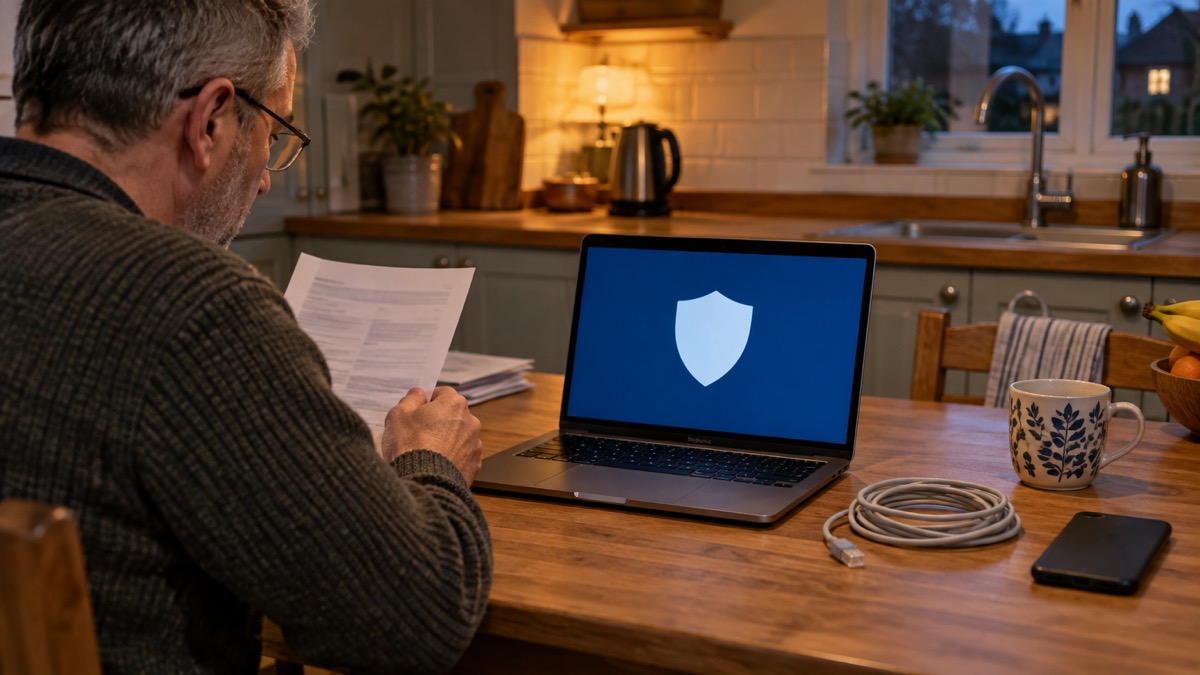
If you think a computer, phone or tablet in your house has malware, the first thing to do is disconnect it from the internet: turn off Wi-Fi and unplug any network cable1. Do not log into any accounts on it, because the malware may steal those details2. Then confirm whether it really is infected. On a PC or laptop, the easiest way is to run a full antivirus scan and see if it detects anything3. On a phone or tablet, antivirus products do not work the same way, and the safest solution to an infection is a factory reset, usually found in Settings4.
Malware, short for malicious software, is code that can harm your computers and the data on them. Once it is on a device it can steal your data, encrypt it so you cannot access it, or erase it completely5. Most malware is spread by people installing it accidentally5. This page sets out the official steps: what to do in the first minutes, how to recognise the signs, how to clean each kind of device, and where to report what happened.
First minutes: disconnect the device

The National Cyber Security Centre (NCSC), the UK's official cyber security body, is blunt about the first step when a device is infected or you suspect ransomware: "Immediately disconnect the infected computers, laptops or tablets from all network connections, whether wired, wireless or mobile phone based"1. On a laptop that means turning off Wi-Fi and unplugging the ethernet cable; on a phone or tablet, turn off Wi-Fi and mobile data. The reason is simple: malware spreads and does its damage over the network. Ransomware encrypts files it can reach, and some malware sends your passwords and banking details to criminals, or messages your contacts to spread itself further2.
Do this in order:
- Turn off Wi-Fi on the device, and unplug any network cable1.
- Do not log into any accounts or apps on the device, as the malware may steal these details2.
- If you have a backup on a USB stick or external hard drive, disconnect it. Ransomware and other malware can move to attached media automatically, which would infect the backup too9.
- On another, clean device, change the password for any account you logged into since the malware was installed, and anywhere you reused that password2.
That last point about backups matters more than people expect. The NCSC's guidance on backing up data is explicit: disconnect removable media when it is not in use, because viruses and other malware such as ransomware can move to attached media and infect the backup9. If your only copy of family photos is on a hard drive that was plugged into the infected machine, unplug it now and do not reconnect it until the device is clean. Our page on protecting backups from ransomware covers this in more depth.
Signs your computer or phone may have malware
Infections announce themselves in different ways, and some are quiet for a long time. The NCSC lists the signs to watch for, including pop-up boxes from programs or apps you do not recognise, asking you to do unexpected things3. Other warning signs follow from what malware does: it can steal your data, encrypt it so you cannot access it, or erase it completely5, so files that will not open, files that have vanished, or a device that suddenly runs very slowly all fit the pattern.
| Sign | What it may mean |
|---|---|
| Pop-up boxes from programs or apps you do not recognise, asking you to do unexpected things | A listed sign of infection3 |
| Files will not open, or demand a payment to unlock | Ransomware, which locks you out of your data or system until money is paid10 |
| Money missing, or accounts accessed without your knowledge | Malware that secretly monitors activity and steals passwords2 |
| Contacts receiving odd texts from you | Malware accessing your contact list to spread scam messages6 |
| You installed an app from a link in a text | A known route for banking trojan malware2 |
If you suspect an infection but are not sure, the NCSC says the easiest way to confirm it on a PC or laptop is to run an antivirus scan and see if it detects anything3. There is no equivalent confirmation step for phones: if a phone is behaving oddly and you recently installed an app from outside the official app store, treat it as infected and follow the reset steps below.
One sign that is definitely not real: a pop-up or phone call telling you your device is infected and offering to fix it. That is covered in its own section below, because acting on it makes things worse.
What malware is, and what it can do to your data
Malware is an umbrella term. The NCSC defines it as malicious software that includes viruses, Trojans, worms, or any code or content that could have an adverse impact on organisations or individuals10. In plain terms, it is code that can harm your computers and laptops, and the data on them5. Different types do different things, and a single infection can involve several of them at once.
- Viruses and worms: code that spreads between files, devices or across networks10.
- Trojans: malware disguised as something legitimate. Banking trojans secretly monitor your online activity and steal passwords and other personal details, which can be used to commit online crime including financial crime2.
- Ransomware: a kind of malware that locks victims out of their data or systems and only allows access once money is paid10. It has previously affected some NHS organisations11.
- Remote access trojans (RATs): malware that lets a criminal control your device remotely. The NCSC has warned that trojans such as TrickBot and GraceWire download further malicious files, including remote access trojans, desktop-sharing clients and ransomware12.
How does it get in? The NCSC lists the main routes for home devices: accidentally downloading malware from an attachment in a dubious email, visiting an infected website, or using an infected USB stick5. Scam texts are another major route, and the NCSC warns that malicious code can spread rapidly around social networks or via email, so be cautious with third-party applications13.
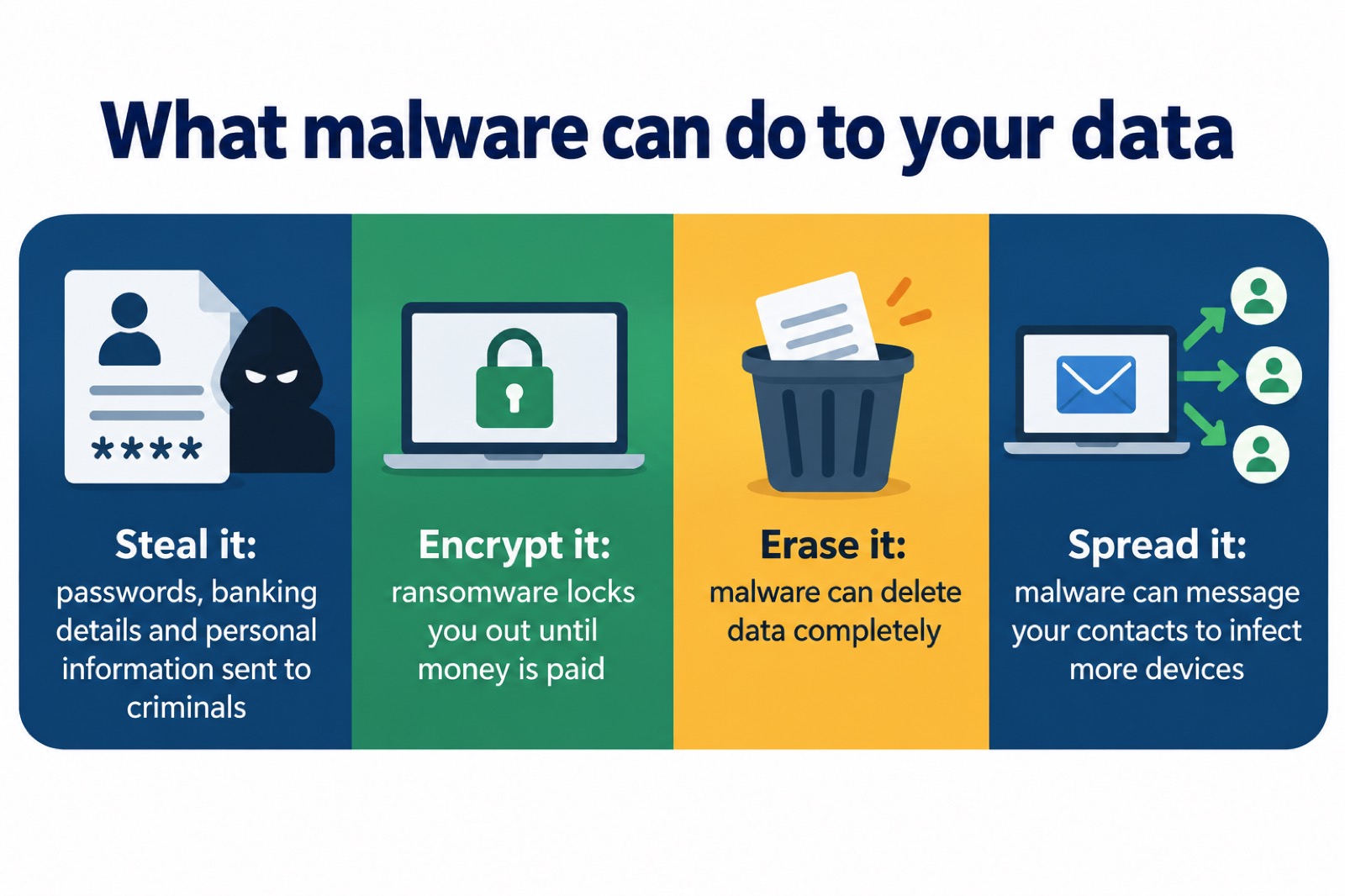
The practical consequence is that an infection is not just a nuisance for the device. It is a breach of everything you have typed into it: banking details, passwords, emails. That is why the recovery steps in this page always include changing passwords, not just cleaning the machine. If your details have already appeared in a breach, criminals can also use stolen information in scam emails and texts so that they appear legitimate, sometimes pretending to be from an organisation that has suffered a recent data breach14. Our page on data breaches explains what to do about that.
Removing malware from a phone or tablet
Phones need different treatment from computers. The NCSC's guidance is clear: "Antivirus products don't work in the same way as PCs and laptops. The safest solution is to do a factory reset"4. A factory reset returns the device to its out-of-the-box state, removing the apps and data, including the malware. You can usually find the option in Settings15.
Before you reset, two warnings from the NCSC's missed parcel malware guidance:
The temptation is to save your photos and messages first. Resist it: a backup taken from an infected phone carries the infection with it, and restoring it later puts the malware straight back2. This is the strongest argument for backing up routinely, before anything goes wrong, which our page on backing up files and photos at home covers.
On Android devices, the NCSC also advises making sure Google's Play Protect service is enabled; some Huawei devices provide a similar tool to scan devices for viruses6. Play Protect is not a substitute for a reset once malware is installed, but it is a layer worth having on a healthy phone.
If you are not sure whether your phone is infected, the deciding factors are what happened and what you are seeing. If you installed an app from a link in a text message, especially one about a missed parcel or delivery, the NCSC's advice is to assume the malware is installed and factory reset as soon as you can6. If you only received the text and did not click anything, do not click the link or install any apps if prompted; forward the message to 7726 and then delete it6. Our page on factory resetting an infected phone goes through the decision in detail.
Recovering an infected computer
For PCs and laptops the route is different, because antivirus does work there. The NCSC's recovery guidance for an infected device has three broad stages: confirm the infection, fix it, then set the device up securely again15.
- Confirm it. Run a full antivirus scan and see if it detects anything3.
- Clean it. Open your antivirus software and run a full scan, then allow the antivirus software to clean up any problems it finds16. Follow any instructions given17.
- If antivirus cannot clean it up, you will have to wipe the device entirely and reinstall everything, starting with the operating system15.
Make sure your antivirus product is turned on and up to date before you scan. Windows and macOS have built-in malware protection tools which the NCSC says are suitable for this purpose17. You can also buy a separate antivirus product, and the NCSC names McAfee, Norton and Avast as examples5. When you first install an antivirus, run a full scan to make sure your computer is free of all known malware5. Our page on antivirus software weighs up the choice.
After the infection is fixed, the recovery is not finished. The NCSC advises following its advice for setting up devices securely: check your device is encrypted, and for PCs and laptops make sure you have antivirus and install security updates as soon as they are available, ideally by setting them to install automatically4. Change the password for any account you logged into since the malware arrived, and update anywhere you used the same password2. Then log out of the account on all devices and apps, usually from the Settings menus, so anyone attempting to use a stolen password is prompted to supply the new one18.
Scam texts and emails that carry malware

Most malware on home devices arrives by message. The purpose of a scam text is often to get you to click a link that takes you to a website criminals use to download viruses or steal passwords or personal information19. The NCSC's advice is simple: do not give out private information such as bank details or passwords, do not reply to text messages, and do not download attachments or click on any links in emails if you are not sure they are genuine7.
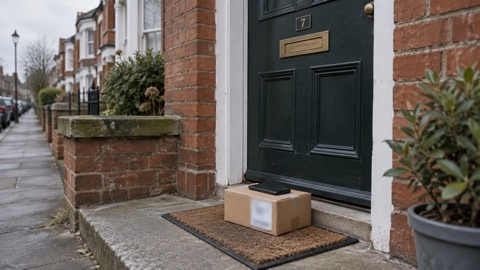
The best-documented example in the UK is the scam "missed parcel" text. Cyber criminals trick people into downloading malware via links to fake "official" delivery and parcel-tracking apps6. If installed, this malware can steal your banking details, passwords and other sensitive information, and it attempts to access your contact list to send scam SMS messages to those numbers as well, helping the malware spread6. Around the festive period this scam is even more prevalent, as many people are expecting deliveries6. Our page on FluBot and fake parcel texts covers this scam family in full.
What to do with a suspicious message:
- A suspicious text: forward it to 7726, a free service for reporting spam14. You can also take a screenshot of a QR code or scam text, add it to the main content of an email and send it to the NCSC at report@phishing.gov.uk19.
- A suspicious email: forward it to report@phishing.gov.uk20. Reporting is free and only takes a minute, and it reduces the scam emails you receive, makes you a harder target and protects others from cyber crime21.
- A missed parcel text you have not clicked: do not click the link or install any apps if prompted; forward the message to 7726, then delete it6.
- A QR code in an email: be wary. The NCSC warns that criminals are increasingly using QR codes within phishing emails to trick users into visiting scam websites22.
Some scam messages are designed to frighten rather than infect. Sextortion scam emails claim to have compromising material and often quote a real password. The NCSC's advice is not to worry if the message includes your password, as it is probably from an old breach of personal data, but to change that account password immediately, and anywhere else you use the same password23. Our page on sextortion emails covers these.
Pop-up warnings and phone calls about infection
A pop-up that says your device is infected and offers to fix it is usually the infection, or the prelude to one. Genuine security software does not ask you to do unexpected things through pop-up boxes from programs you do not recognise, and the NCSC lists exactly that as a sign of infection3. The same applies to phone calls. The NCSC's guidance on recovering an infected device states:
Pop-up warnings and unexpected phone calls are a well-established way scammers frighten people into acting. A pop-up may tell you your computer has been infected and urge you to act immediately, and a caller may claim to be from a trusted company and offer to clear the infection for you. Neither message comes from a genuine check on your device. Treat any pop-up or call of this kind as a scam: close the pop-up, end the call, and run a scan with security software you already trust rather than anything the caller or the pop-up points you to.
Hang up immediately, and report the call to Report Fraud15. If such a caller has persuaded you to pay them money, report it to Report Fraud and to your bank or credit card provider15. If they persuaded you to install software, that software may be giving them remote access to your device; our page on removing software a scam caller made you install deals with that situation.
The same logic applies to ransom demands. If ransomware has locked your files and a message demands payment, be aware that paying does not clean the device: the NCSC notes that your computer will still be infected1. Our page on whether to pay a ransom examines that decision.
Software updates: why unpatched devices get hit
Updates are the least glamorous and most effective protection. Software and app updates contain vital security updates to help protect your devices from cyber criminals10. Hackers rely on you ignoring those update notifications so they can get in before the update is made10. The NCSC's advice is to keep your operating system and apps up to date, applying software updates promptly17, and after an infection to install security updates as soon as they are available, ideally automatically4.
The clearest UK illustration of what happens when updates are skipped is WannaCry. In May 2017 the WannaCry ransomware cryptoworm, which targeted computers running the Microsoft Windows operating system24, became the largest cyber attack to affect the NHS in England25. The National Audit Office investigated and found that all NHS organisations infected by WannaCry had unpatched or unsupported Windows operating systems, so were susceptible to the ransomware26. NHS Digital had issued critical alerts in March and April 2017 warning organisations to patch their systems to prevent WannaCry25. The NAO's conclusion was stark: it was a relatively unsophisticated attack that could have been prevented by the NHS following basic IT security best practice25.
| WannaCry fact | Detail |
|---|---|
| When | May 201726 |
| What it targeted | Computers running Microsoft Windows24 |
| Scale | Largest cyber attack to affect the NHS in England25 |
| Why trusts fell | All infected organisations had unpatched or unsupported Windows systems26 |
| Warning given | NHS Digital issued critical alerts in March and April 201725 |
| NAO verdict | A relatively unsophisticated attack, preventable by basic IT security best practice25 |
The NHS lessons review added that NHS Digital had alerted the service to the WannaCry vulnerability before the attack via its CareCert service, and had that advice been acted on in a timely manner the scale and impact of the attack could have been much reduced24. For a household the lesson translates directly: when your phone or laptop offers an update, take it. Our page on software updates explains how to set them to install automatically, and what happens when a phone stops getting updates.
Where to report malware and get help
Reporting is quick, free, and does two jobs: it gets you official help, and it helps the NCSC and law enforcement reduce criminal activity18. Where you go depends on what happened.
| What happened | Where to report it |
|---|---|
| A suspicious email | Forward it to report@phishing.gov.uk20 |
| A suspicious text | Forward it to 772614 |
| A suspicious website you believe carries malware | Report it directly to the NCSC6 |
| You have lost money | Tell your bank straight away, and report it to Report Fraud for England, Wales and Northern Ireland, or Police Scotland for Scotland27 |
| A scam call about an infected device | Report it to Report Fraud15 |
Report Fraud is the UK's reporting centre for cyber crime18, at www.reportfraud.police.uk15. In Scotland, the equivalent route is Police Scotland27, and the Scottish Government's Ready Scotland guidance likewise directs people to report online crime and abuse to the police28. If you have lost money, tell your bank straight away as well as reporting the crime: the bank may be able to stop a payment27. Our page on lost money to a scam walks through that process.
Beyond reporting, the NCSC publishes the guidance this page is built on, and its collections on phishing, infected devices and device security are written for households, not technicians3. Local resilience guidance across England reinforces the same basics for individuals and households: use a strong and separate password for your email, install the latest software and app updates, turn on 2-Step Verification, use password managers to store passwords safely, and back up your data29. Each of those has its own page in this guide: protecting email and bank accounts, backing up files and photos and the home online security checklist.
Sources (29)
- Ransomware attack: how to respond, National Cyber Security Centre
- Scam missed parcel SMS messages: advice on avoiding malware, National Cyber Security Centre, 2021
- Infected devices: what to do, National Cyber Security Centre
- Recovering an infected device: citizen guidance, National Cyber Security Centre
- Protecting devices from viruses and malware, National Cyber Security Centre, 2024
- Scam missed parcel SMS messages: guidance, National Cyber Security Centre, 2021
- Report suspicious emails, websites and phishing, GOV.UK
- Phishing: respond and recover, National Cyber Security Centre
- Backing up your data, National Cyber Security Centre
- Cyber security for families, Essex Prepared
- Community Risk Register 2025, North Yorkshire Local Resilience Forum, 2025
- COVID-19 exploited by malicious cyber actors: joint advisory, National Cyber Security Centre, 2020
- IT security and online communications, Protect UK, 2022
- Data breaches infographic, National Cyber Security Centre, 2023
- How to recover an infected device, National Cyber Security Centre, 2021
- Phishing scams: what to do, National Cyber Security Centre, 2022
- Ransomware prevention and recovery, National Cyber Security Centre, 2020
- Recovering hacked accounts infographic, National Cyber Security Centre, 2026
- How to report a scam text message, National Cyber Security Centre, 2021
- Coronavirus scam calls and texts, Ofcom, 2022
- How to report a scam email, National Cyber Security Centre, 2021
- Phishing scams: how to spot and report them, National Cyber Security Centre, 2022
- Sextortion scams, National Cyber Security Centre
- Lessons learned review of the WannaCry ransomware cyber attack, NHS England, 2018
- Investigation: WannaCry cyber attack and the NHS, National Audit Office, 2017
- Investigation: WannaCry cyber attack and the NHS (full report), National Audit Office, 2017
- Hacked accounts: what to do, National Cyber Security Centre
- Cyber incident: Ready Scotland, Scottish Government
- Cyber crime risks, Wiltshire and Swindon Prepared, 2024
 Accounts to Protect With 2-Step
 After Fixing an Infected Device
 Home Online Security Checklist
 Antivirus Software
 Backing Up Files and Photos
 Council Online Services Down
 Your Details in a Data Breach
 FluBot Fake Parcel Texts
 Hacked Online Accounts
 How Services Respond
 National Cyber Security Centre
 NHS Services During an IT Outage
 Keeping Key Records Offline
 Shopping Online Safely
 Paying for Essentials