
Start with your email account, then your bank, then the social media and cloud accounts you would least like someone else to get into. Turn on 2-step verification (2SV) for each one, in that order. It adds an extra step when you log in, to double-check that it really is you, so a criminal who knows your password still cannot get in1.
The option is usually found in the security settings of the account, and switching it on takes only a few minutes per account1. You do not need to do everything at once. Work through your most important accounts first, then the rest as you have time.
This page is a checklist: the accounts to protect, in the order to do them, then how to keep 2SV working when you change phone or lose it, and where to get official help if an account is hacked.
The checklist: which accounts to protect, in order
Work down this list. Each item says why it matters and where the official advice comes from.
Why a stolen password alone should not be enough
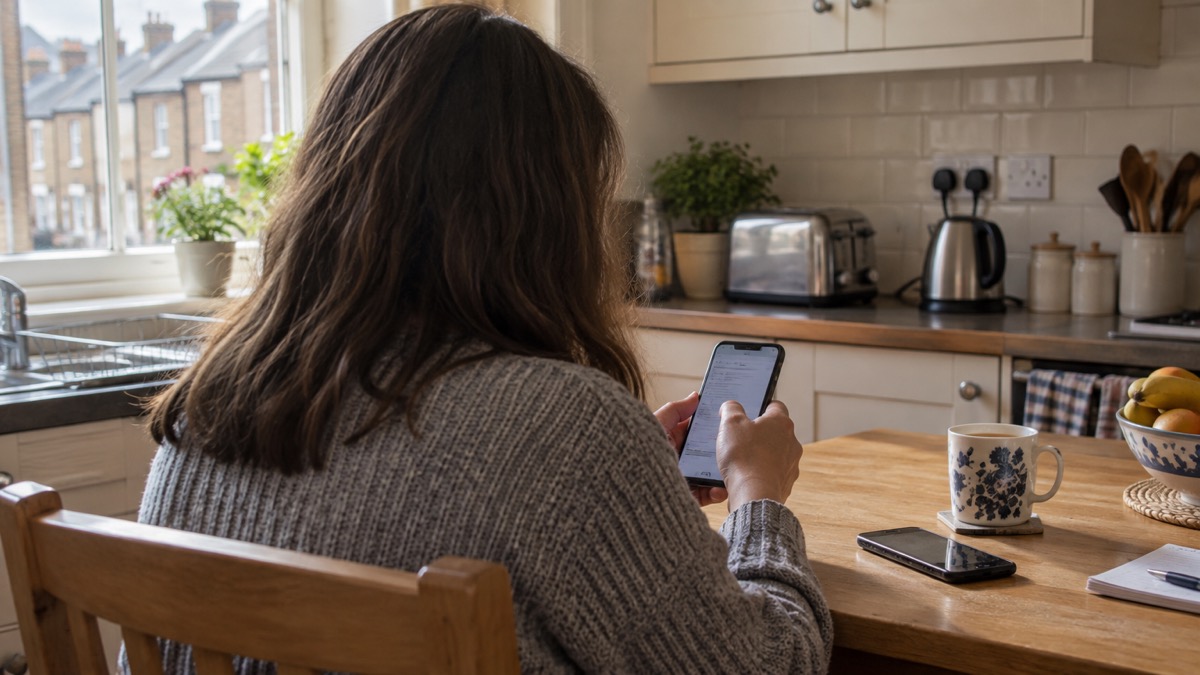
Passwords get phished, reused and leaked. 2SV is the backstop for when that happens. Official guidance describes it as adding a second step when you log on, so even if cyber criminals have your password they still cannot access your account9. The National Cyber Security Centre calls turning it on the first and most important step to protect you if your password gets phished or otherwise compromised7.
It usually works by sending you a PIN or code, often by SMS or email, which you then enter to prove it really is you2. Some services call it two-factor authentication (2FA) or multi-factor authentication (MFA); it is the same idea, and it makes it much harder for criminals to access your devices even if they know your password10.
The accounts that matter most are the ones that unlock others. Your email can reset the passwords on almost everything else, which is why official guidance singles it out for both a strong and separate password and 2SV4. A cloud account is similar: anyone who can get into it can also reach the backups stored there6.
"2SV gives you twice the protection by adding a second step when you log on, so even if cyber criminals have your password they still cannot access your account"
How to switch it on
The option to switch on 2SV is usually found in the security settings for the account9. Official guidance points to ncsc.gov.uk/2sv for instructions for popular services, and suggests looking in the security settings included in antivirus or password manager tools5.
A sensible order for one sitting:
- Open the account's security settings and look for two-step verification, two-factor authentication or 2FA.
- Choose the second step the service offers. Codes by SMS or email are the commonest2.
- Note any backup codes the service gives you, and store them away from your phone.
- Repeat for the next account on the checklist.
For accounts that do not yet offer passkeys, official guidance is to continue using a strong and unique password and 2SV7. If you use a password manager, it can hold a different strong password for every account, and you should protect the manager itself with 2SV7. There is more on choosing one in Do You Need a Password Manager?, and on setting up the second step in How to Turn On 2-Step Verification.
Keeping 2SV working when you need it

The second step is only useful if you can complete it. The commonest way households get locked out is a lost, broken or replaced phone, or a SIM that no longer works. Set up a second route in before you need it: when you switch on 2SV, look for the backup codes the service offers and keep them somewhere safe and separate from the phone. If codes arrive by text, ask your mobile network what happens to your number if the phone or SIM is lost.
Keep the recovery details for your most important accounts with your other key records, so that a lost phone does not also mean a lost email account. Keeping Key Records Offline: Accounts, Medicines and Contacts explains how to store them.
If you use a password manager, its own 2SV matters as much as the accounts inside it: with 2SV on the manager, a criminal who knows the main password still cannot get in7.
Where to get official help if an account is hacked
If you think an account has been hacked, the National Cyber Security Centre publishes step-by-step guidance on recovering it, and suggests reading it in advance so you know what to do if it happens11. Turning on 2SV is worth doing anyway: the National Cyber Security Centre says that even if a criminal knows your password, they won't be able to access your accounts protected by 2SV3.
The reassurance is straightforward: even if a criminal knows your password, they will not be able to access accounts protected by 2SV12. If 2SV was not on when the account was taken over, turn it on as part of getting back in.
- Read the recovery guidance before you need it: What to Do If an Online Account Is Hacked walks through the steps for a household.
- For an email account specifically, see How to Recover a Hacked Email Account.
- If your details appear in a breach, Your Details in a Data Breach: What to Do Next explains what to change and in what order.
- The wider picture, including how the National Cyber Security Centre helps individuals and families, sits in our cyber attacks section.
Sources (12)
- Use 2SV to protect accounts infographic, National Cyber Security Centre, 2024
- Hacked accounts, National Cyber Security Centre, 2026
- Recovering a hacked account, National Cyber Security Centre, 2022-08-24
- Use a strong and separate password for your email, National Cyber Security Centre, 2026-10-25
- Using passwords to protect your devices and data, National Cyber Security Centre, 2026
- Backing up your data infographic, National Cyber Security Centre, 2018-12-17
- Password managers, National Cyber Security Centre, 2026-05-21
- Scam missed parcel SMS messages: advice on avoiding malware, National Cyber Security Centre, 2021-04-23
- Top tips for staying secure online poster, National Cyber Security Centre, 2024
- Security law for smart devices, National Cyber Security Centre, 2024
- Recovering a hacked account or service, National Cyber Security Centre, 2024-01-11
- Recovering hacked accounts infographic, National Cyber Security Centre, 2026
 After Fixing an Infected Device
 Home Online Security Checklist
 Moving Home Locks Checklist