
You do not need a mobile phone to turn on 2-step verification. The National Cyber Security Centre (NCSC) says 2-step verification, also called two-factor authentication or 2FA, usually works by sending you a PIN or code, often by SMS or email, which you then enter to prove it is really you1. Email is a route that needs no phone at all, and where a service offers an authenticator app, the NCSC suggests using that rather than SMS codes where you can, as it is more secure2.
The NCSC's advice is to turn it on for your most important accounts, and it says the first and most important step is to switch on 2-step verification to help protect you if your password gets phished or otherwise compromised3. It also says to set it up on all your important accounts, email and social media included, even if you have a strong password4. The option to switch it on is usually in the security settings of your account5.
If you have no mobile, or poor signal at home, the practical answer is to use email or an authenticator app where the service allows, and to ask the company directly where it does not. If you use a landline that runs through broadband, tell your provider in advance if you do not own a mobile phone, or you do not have enough mobile signal at home to call the emergency services6.
You don't need a mobile to turn on 2-step verification
The point of 2-step verification is to add a second proof of identity on top of your password. The NCSC describes it as giving you a code to enter from an app or SMS, so that even if a criminal knows your password, they will not be able to access your accounts4. That second step can arrive by email, which needs no phone, and the NCSC lists email alongside SMS as a common route1.
Turning it on is a short job. The NCSC says it is worth taking the time to set up 2SV on important accounts like email and banking, even if these are already protected by a strong password, and that it only takes a few minutes1. The option is usually in the security settings of your account5. If a smart device or app offers two-step verification, the NCSC advises turning it on there too7.
Which accounts matter most? Start with the ones that unlock everything else.
- Email: the NCSC says to set up 2-step verification on your email account, which will prevent a criminal from accessing it even if they know your password8.
- Banking: named by the NCSC alongside email as an important account to protect1.
- Social media: included in its advice to protect all important accounts4.
- Password manager: the NCSC says to switch on 2-step verification on the password manager account, so a criminal who knows the primary password still cannot access it9.
If you use a password manager, that last one matters more than it looks: it is the account that holds the keys to the rest. Our guide to protecting email and bank accounts sets out the wider picture, and which accounts to protect with 2-step verification is a checklist you can work through.
Using a landline for your security codes
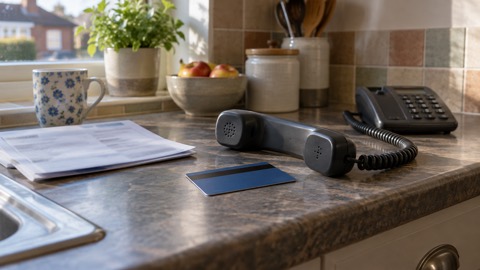
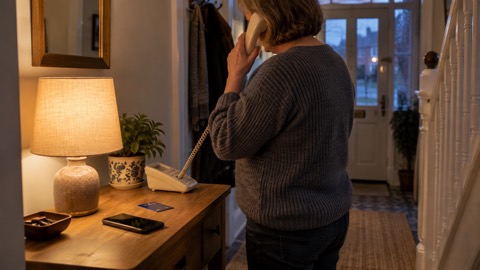
A landline can carry a security code by voice call where a service offers that option, and it can also be the line your broadband runs on. The two are connected, and that is where households without a mobile need to pay attention.
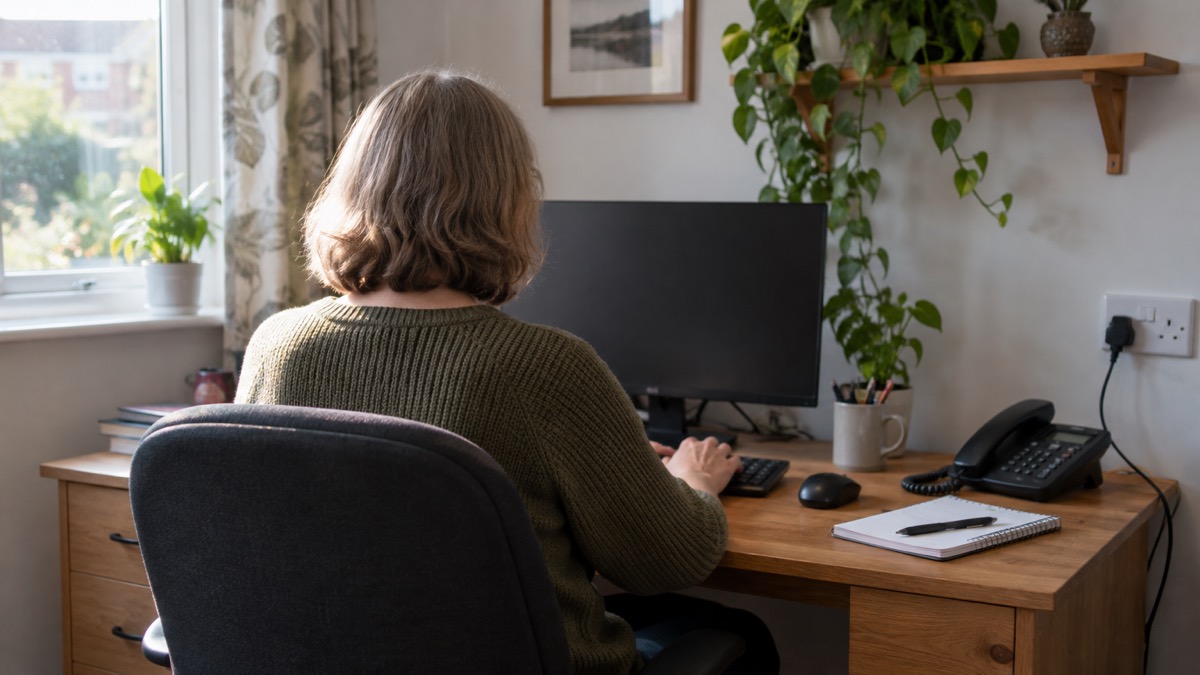
The UK is moving from analogue to digital landlines. If you already have an internet connection, the change may be as simple as plugging your phone into your broadband router rather than the socket on the wall10. If you do not have an internet connection, your phone company will ensure that there is still a "landline only" service offered11. BT says you will not need any new equipment or phones, and you will not need to take broadband for this12.
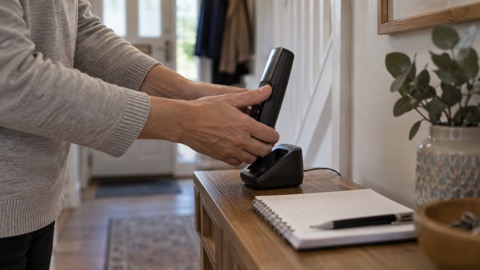
The safety point is what happens in a power cut. A cordless phone needs mains power to work, so East Cambridgeshire District Council advises having a home phone that doesn't need electricity (not cordless) in order to work13. That matters for anyone relying on a landline to receive codes or make calls during an outage.
Ofcom's advice is direct: tell your provider before the change if you don't own a mobile phone, or you don't have enough mobile signal at home to call the emergency services6. Openreach suggests checking any devices connected to your phone line, such as alarms, health pendants, house alarms, CCTV or payment terminals, for compatibility, avoiding any last-minute issues before the deadline15. Suffolk County Council's guide adds that you should check with your social care or device provider whether any extra steps are required16.
| Situation at home | What to do about codes and calls |
|---|---|
| Broadband, no mobile | Plug the phone into the router; ask the provider about support in advance10 |
| No internet connection | Your phone company will ensure a "landline only" service is still offered11 |
| Cordless phone only | Keep a corded phone that works without mains power13 |
| Care alarm or pendant on the line | Check compatibility with Openreach and your device provider15 |
Where to get official help setting up 2SV
The NCSC is the official body for this in the UK, and its guidance is written for households. It recommends 2-step verification to help protect your online accounts17, and its step-by-step material explains that 2SV usually works by sending you a PIN or code, usually by SMS or email, which you then enter to prove it's really you18. Our page on the National Cyber Security Centre explains what else it offers individuals and families.
If you are setting it up for the first time, work in this order:
- Open the security settings of your email account and look for the 2-step verification option5.
- Choose email or an authenticator app if either is offered, rather than SMS2.
- Enter the code when it arrives to confirm the method works.
- Repeat for banking, social media and any password manager you use1.
- Note down your backup or recovery options somewhere safe offline.
If you get stuck, the NCSC's how to turn on 2-step verification page walks through the settings, and its hacked accounts guidance covers what to do if something has already gone wrong. For a broader routine, the home online security checklist puts 2-step verification alongside passwords and updates.
If an account insists on a mobile number
Some services will only offer a mobile number, and this varies by company and account type. Where an alternative exists, the NCSC's steer is clear: use an authenticator app like Google Authenticator rather than SMS codes where you can, as it is more secure2. Where no alternative is offered, contact the company's support team and ask what it can do for customers without a mobile.
For accounts that do not yet offer passkeys, the NCSC advises continuing to use a strong and unique password and two-step verification9. In other words, a missing mobile is not a reason to go without protection; it is a reason to choose a different second step.
If you lose access to your account
Losing access is the moment 2-step verification earns its keep, and also the moment it can feel like a barrier. The NCSC's recovery guidance sets out the steps, and the fifth is to set up 2-step verification once you are back in20. Its infographic version says the same: 2SV usually works by sending a PIN or code, often via SMS or email, to prove it is really you21.
If you are locked out, work through the account's own recovery process first, using your registered email address or any backup codes you saved. If that fails, contact the company's support team and explain that you cannot receive codes on a mobile. Our guide to recovering a hacked email account covers the email case in detail, and what to do if an online account is hacked covers the wider steps.
If you have no phone at all
Email is the practical route for most people without a phone, and an authenticator app on a tablet or home computer is another where a service supports it. The NCSC lists email alongside SMS as a common way codes arrive1, and its advice to use an authenticator app rather than SMS where you can2 points the same way.
Two things are worth knowing. First, the Emergency Alerts system does not need your phone number, does not collect personal information or track your location, and no personal data is shared when an alert is sent22. Second, if you don't have a mobile phone, you'll still be made aware through the media and local emergency services23. So going without a mobile does not cut you off from official warnings.
For a household with no phone at all, a trusted neighbour or family member can help you set up email-based codes, and you can keep the recovery details with your other key records. Our guide to keeping key records offline explains how to store account recovery information safely.
Sources (23)
- Recovering a hacked account, National Cyber Security Centre, 2022
- Email safety tips, Virgin Media, 2026
- Hacked accounts, National Cyber Security Centre, 2026
- Using passwords infographic, National Cyber Security Centre, 2026
- Use 2SV to protect accounts infographic, National Cyber Security Centre, 2024
- Future of landline calls, Ofcom, 2024
- Security law for smart devices, National Cyber Security Centre, 2024
- Use a strong and separate password for email, National Cyber Security Centre, 2021
- Password managers, National Cyber Security Centre, 2026
- UK transition from analogue to digital landlines, GOV.UK, 2023
- Switchover to digital landlines, South Gloucestershire Council, 2026
- Home Phone Standard, BT, 2026
- Loss of utilities, East Cambridgeshire District Council, 2026
- What to do in a power cut, Met Office, 2026
- The Big Switch Off, Openreach, 2026
- Digital switchover telecare guide, Suffolk County Council, 2025
- Cyber security, Essex Prepared, 2026
- Citizen hacked accounts, National Cyber Security Centre, 2026
- Scam missed parcel SMS messages, National Cyber Security Centre, 2021
- Recovering a hacked account (PDF), National Cyber Security Centre, 2018
- Recovering hacked accounts infographic, National Cyber Security Centre, 2026
- How alerts work, GOV.UK, 2026
- Emergency Alerts System factsheet, Prepare campaign, 2025
 Accounts to Protect With 2-Step
 After Fixing an Infected Device
 Home Online Security Checklist
 Antivirus on Phones and Tablets
 Automatic Updates
 Gave Bank Details to a Scammer
 Checking a Bank Message
 Blocking Nuisance and Scam Calls
 Scams After a Data Breach
 Browser Saved Passwords
 Checking Your Email for Breaches
 Hacker Email Forwarding Rules
 Factory Reset an Infected Phone
 Recover a Hacked Email
 How Often to Back Up Data