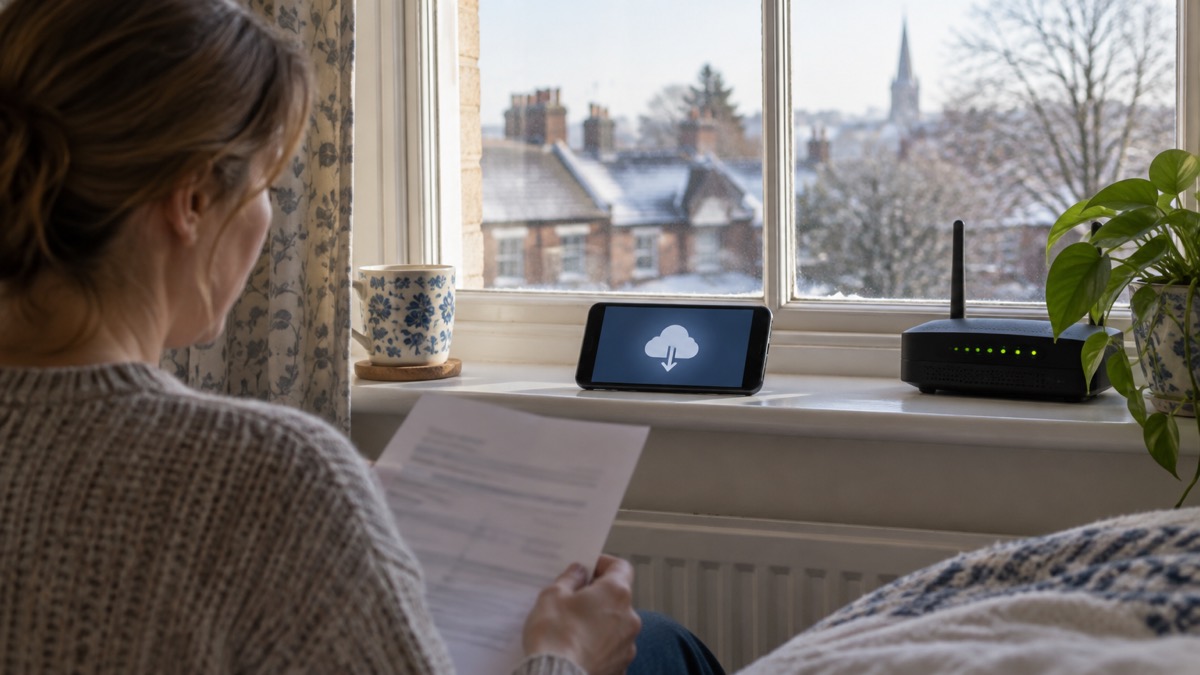
Yes. Turn on automatic updates wherever your device offers the setting, and leave it on. The National Cyber Security Centre (NCSC) is direct about it: turn on the "automatic updates" option if available, so you do not need to remember to apply updates1. The same advice applies to phones, tablets, computers, apps and antivirus software2.
Updates matter because they close security weaknesses. Hackers rely on you to ignore update notifications so they can get in before the update is made3. Turning updates on takes the decision out of your hands and puts the fix in place as soon as the maker releases it.
There is a second reason to keep devices current: some public safety systems depend on it. Emergency Alerts are sent to compatible 4G and 5G mobile phones within an area of risk, if they have the latest software update4. A phone left years behind may not receive one.
Why updates matter: they fix security weaknesses as soon as they are available
Every connected device runs software, and software has flaws. Some of those flaws let someone else into your device, your accounts or your files. When a maker finds a flaw it releases a patch, and the update you are being prompted to install carries that patch. The NCSC puts it plainly: install patches and updates when manufacturers fix flaws, because hackers rely on you to ignore those update notifications so they can get in before the update is made3. The window between a fix being published and an attacker using the flaw is the reason speed matters.
Updates do more than close holes. They include protection from viruses and other kinds of malware, and will often include improvements and new features6. On a computer, system updates often contain security patches to prevent people from hacking your devices and getting to your information, along with software fixes for bugs7. The NCSC's recovery guidance for hacked accounts lists applying updates to your apps and device software as soon as they are available among the steps to take, because updates include protection from viruses8.
The stakes are not theoretical. During the WannaCry ransomware outbreak in 2017, the NCSC advised that if you were using a recent version of Windows (Windows 7, Windows 8, Windows 8.1 or Windows 10) and had automatic updates turned on, you should already be protected automatically against WannaCry9. Households that had left updates running were covered without doing anything. You can read more about that incident in WannaCry: How the 2017 Ransomware Hit the NHS.
There is a knock-on effect for anything you store in a browser. The NCSC warns that passwords stored in the browser are only as secure as your devices and accounts, so do not switch off the security auto-update feature for your browser and operating system10. If you rely on saved passwords, the updates are part of what protects them.
Where to find the automatic updates setting
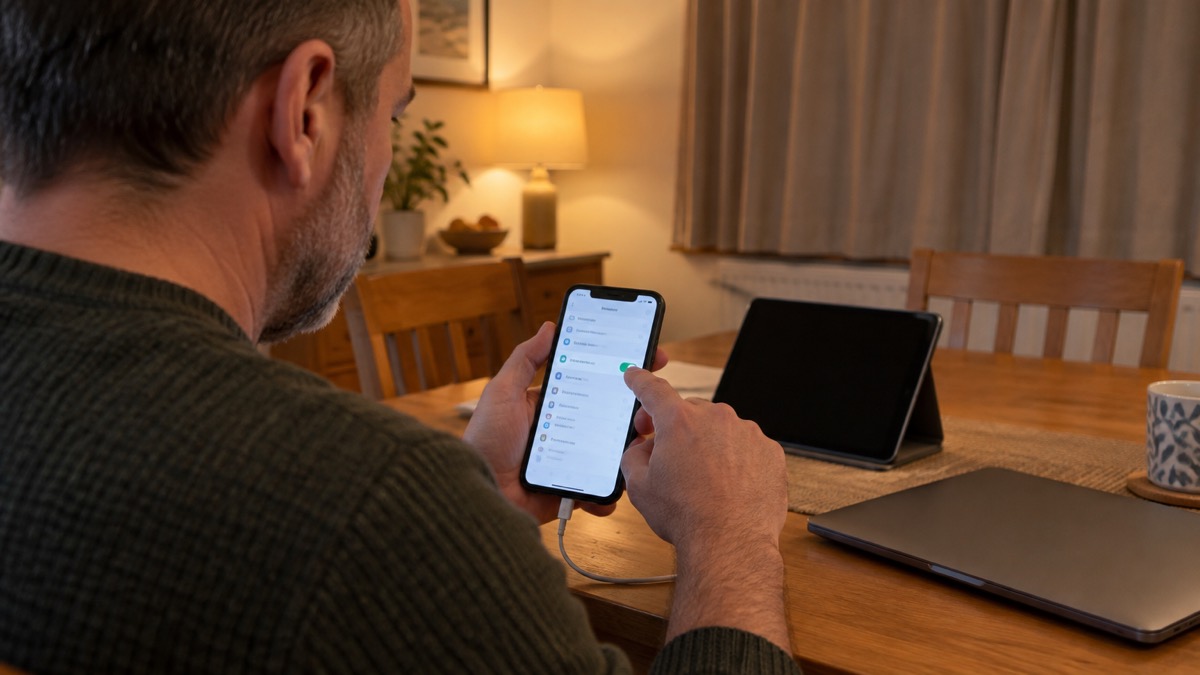
The setting lives in different places depending on the device, but the principle is the same: look for a software update, system update or about section in settings, and switch on automatic installation if it is offered. The NCSC's general instruction is to turn on "automatic updates" in your device's settings, if available, so you do not have to remember to apply updates6.
On a Windows computer, open the Windows Update application from the programs menu; if an update is available it will be listed on-screen with an option to update7. Most applications will alert you when an update is available, and updating your software as soon as an update is available is a major step towards online security7. On phones and tablets, the update option sits in the main settings menu, and the app stores have their own automatic update switches.
| Device or software | Where to look | What to switch on |
|---|---|---|
| Windows computer | Windows Update in the programs menu7 | Automatic updates, and install any update listed7 |
| Phone or tablet | Device settings, software update section6 | Automatic updates if available6 |
| Apps | Apple App Store or Google Play Store settings7 | Automatic app updates2 |
| Antivirus | The antivirus program's own settings2 | Automatic updates2 |
| Smart security camera | The camera's app or settings11 | Automatic software updates if available11 |
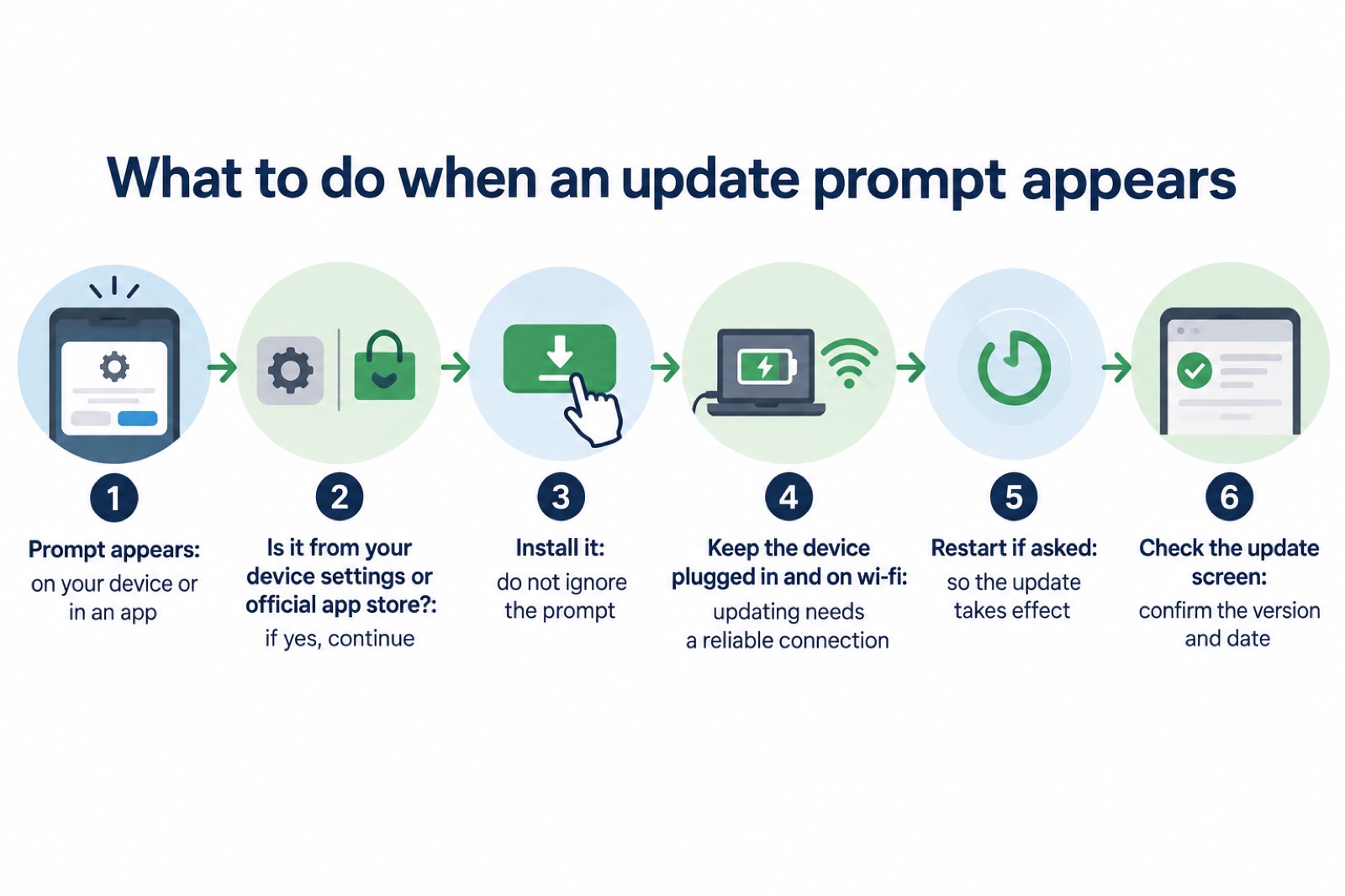
Two practical points make the process smoother. Updating a device may take some time and requires a reliable internet connection, so it is best to do it at home where you can access your wi-fi and keep your device plugged in1. And if you receive a prompt to update your device or apps, do not ignore it: applying these updates is one of the most important and quickest things you can do to keep yourself safe online6.
Phones, apps and smart devices: updating in the background
The aim is for updates to happen without you. The NCSC advises setting your apps, and the tablet or phone itself, to update automatically, and setting all software and devices to update automatically, including your antivirus software2. For phones and tablets, keep apps updated in the Apple App Store and Google Play Store, as sometimes they need updating manually7. Automatic updates cover most of it, but a manual check now and then catches anything that stalled.
Smart home devices need the same treatment. Electrical Safety First says regular software updates are essential throughout a smart product's lifetime, and failing to update could affect the full functionality and security of your smart home12. For a smart security camera, keep it secure by regularly updating it, and if available switch on the option to install software updates automatically11. Our guide to Smart Speakers, Cameras and Baby Monitors: Keeping Them Secure covers the wider settings that matter on these devices.
Some smart devices have no automatic option at all, and there you have to check yourself through the maker's app. A few update without you noticing: for a first-generation smart meter, the upgrade should happen automatically and you do not need to do anything, because it is a software update that can be done over the network13. That is the exception rather than the rule, so check each device's settings rather than assuming.
Older devices, restarts and mobile data
Older devices. Older devices will eventually stop receiving updates1. Once a phone or computer is past that point, the security fixes stop arriving even though the device still works. You can check online to find if a specific model still receives updates from the manufacturer, and for other Android devices check with the manufacturer1. If it has stopped, treat the device with more caution for banking and email, and read What Happens When Your Phone Stops Getting Updates before deciding what to do with it. The same pattern affects other equipment: some older telecare alarms may stop working if they are not updated14, so if you rely on a personal alarm, check with the provider.
Restarts. Many updates finish only after a restart, and some will not take effect until the device reboots. Save your work and restart when prompted rather than postponing it. If you are unsure whether an update completed, open the update screen in settings, which normally shows the version installed and the date of the last check.
Mobile data. Automatic updates can use mobile data if wi-fi is not available. If your allowance is limited, set updates to run over wi-fi only. The NCSC's guidance is that updating may take some time and requires a reliable internet connection, so it is best done at home where you can access your wi-fi and keep your device plugged in1. Emergency Alerts are the exception to any data worry: your mobile phone or tablet does not have to be connected to mobile data or wifi to get alerts15. You can read more in Staying Informed and in Touch in an Emergency.
Fake update messages and checking an update worked
A genuine update arrives through your device's own settings or its official app store. A fake one arrives as a message, pop-up or email urging you to click. The NCSC warns about official-sounding messages about resetting passwords, receiving compensation, scanning devices or missed deliveries16, and about official-sounding emails concerning resetting passwords, receiving compensation or confirming identity, emails full of technical language, and being urged to act immediately17. The pressure to act fast is the tell.
"Ensure your device is kept up to date by installing the latest software and patches"
That quotation carries the point: the safe route to an update is your device's own update mechanism, not a link someone sent you. Only install apps from official app stores such as Google Play, the Apple App Store or the Samsung Galaxy Store18. If a message claims to be from a company you use, go to that company's app or website yourself rather than through the link. Our guides to Phishing: How to Spot a Scam Email, Text or Call and How to Report a Phishing Email take this further.
To check an update worked, open the software update screen in settings and look at the version and the date of the last check. For apps, the app store shows any updates still pending. If an update has failed, reconnect to wi-fi, plug the device in and run the check again.
If an update goes wrong or a device is already infected
Sometimes an update stalls, fails, or a device behaves oddly afterwards. Start with the basics: reconnect to wi-fi, plug the device in, and run the update check again. If a computer or phone is already infected, the NCSC's advice is to update your device and programs as part of putting it right19. After fixing an infection, follow the NCSC advice for setting up your devices securely and keeping them safe, check your device is encrypted, and for PCs and laptops make sure you have antivirus and install security updates as soon as they are available, ideally by setting them to install automatically19.
Keeping a backup current is part of recovering well. The NCSC advises turning on auto-backup so that data on your smartphone is automatically copied to the cloud21, and keeping your operating system and apps up to date, applying software updates promptly to help keep your device secure21. Our guide to Backing Up Files and Photos at Home explains the options.
If an account has been compromised despite your updates, work through What to Do If an Online Account Is Hacked and the After Fixing an Infected Device: Checklist if you need a step-by-step recovery.
Sources (21)
- Install the latest software and app updates, National Cyber Security Centre, 2026
- Protecting devices from viruses and malware infographic, National Cyber Security Centre, 2024
- Protecting your family: cyber security, Essex Prepared, 2026
- Emergency alerts, Denbighshire County Council, 2026
- Security law for smart devices, National Cyber Security Centre, 2024
- Top tips for staying secure online poster, National Cyber Security Centre, 2024
- Software update, Virgin Media, 2026
- Recovering hacked accounts infographic, National Cyber Security Centre, 2026
- WannaCry guidance for home users and small businesses, National Cyber Security Centre, 2017
- Password managers, National Cyber Security Centre, 2026
- Smart security cameras: using them safely in your home, National Cyber Security Centre, 2020
- Smart homes, Electrical Safety First, 2026
- If you're having problems with your smart meter, Citizens Advice, 2026
- Telecare | Staffordshire County Council, Staffordshire County Council
- How alerts work, GOV.UK, 2026
- Data breaches infographic, National Cyber Security Centre, 2023
- IT security and online communications, ProtectUK, 2022
- Scam missed parcel SMS messages, National Cyber Security Centre, 2021
- Hacked accounts, National Cyber Security Centre, 2026
- Citizen infected devices, National Cyber Security Centre, 2026
- Ransomware prevention and recovery, National Cyber Security Centre, 2026
 Accounts to Protect With 2-Step
 After Fixing an Infected Device
 Home Online Security Checklist
 2-Step Verification No Phone
 Antivirus on Phones and Tablets
 Gave Bank Details to a Scammer
 Checking a Bank Message
 Blocking Nuisance and Scam Calls
 Scams After a Data Breach
 Browser Saved Passwords
 Checking Your Email for Breaches
 Hacker Email Forwarding Rules
 Factory Reset an Infected Phone
 Recover a Hacked Email
 How Often to Back Up Data