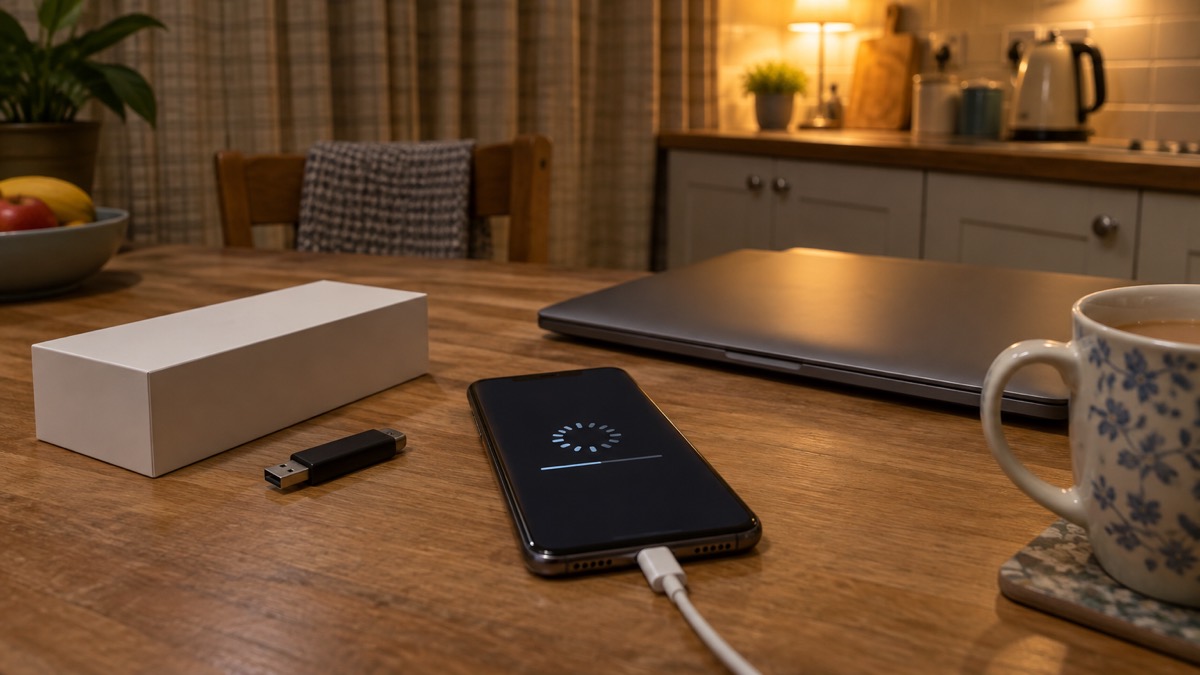
If your phone has malware, a factory reset is usually the safest way to clear it. The National Cyber Security Centre (NCSC) says that on a phone or tablet, antivirus products do not work in the same way as on a PC or laptop, and the safest solution is a factory reset, which you can usually find in Settings1. The catch is that the reset removes everything: messages, contacts, photographs, browsing history, Wi-Fi codes, passwords and any apps you have installed2.
So the order matters. Try the simpler removal steps first, then reset if they fail. Do not back up the phone before you reset it, because the backup will also contain the malware2. After the reset, change the passwords for any account you logged into while the malware was on the device, and log out of those accounts on all devices and apps3.
This page sets out when a reset is the right call, how to do it without carrying the infection back, and what to do afterwards to keep your accounts safe. If you are still working out whether your phone is infected at all, start with Malware on a Computer or Phone: Signs and Removal.
Try other removal steps first, then reset if they fail
A factory reset is a big step, so it makes sense to try the gentler options first. On a phone or tablet, open your antivirus software if you have it and run a full scan, then allow it to clean up any problems it finds6. The NCSC's recovery guidance for infected devices follows the same pattern: run a full scan and follow any instructions given7.
If the antivirus cannot clean the device, the next step depends on what you are using. For a PC or laptop, you will have to wipe it entirely and reinstall everything, starting with the operating system8. For a phone or tablet, the safest solution is the factory reset1. On most phones you reach it through Settings; the manufacturer's website will give the exact steps, and it may be called "Erase all content"2.
A reset is not a punishment for clicking the wrong thing. It is simply the most reliable way to be sure the malware is gone from a device where antivirus tools cannot do the job properly. If you have already run a scan and the problem persists, or you cannot tell whether it worked, reset.
Why a reset matters: your personal data stays at risk while malware remains
Malware is not just an annoyance. Once it is on your computer or phone, it can steal your data, encrypt it so you cannot access it, or even erase it completely9. On a phone, that can mean contacts, text messages and online banking details being accessed by fraudsters5.
While the malware stays on the device, so does the risk. That is why official guidance is blunt about not logging into accounts on an infected phone: the malware may steal those details2. The reset removes the malware by removing everything else along with it.
There is a temptation to rescue photos or messages from an infected phone before wiping it. Official guidance warns against this: trying to rescue data while the device is still infected runs the risk of carrying the infection through after wiping and reinstalling8. The safer approach is to restore from your last known good backup, made before the infection, and accept that anything created since may be lost1.
Flubot on Android phones: when a factory reset is the advice
Flubot is a type of malware that mainly affects Android devices, usually spread by a text message telling you about a false missed package delivery10. If you clicked the link but did not download the app, your phone will not be infected and you can delete the message5. If you downloaded it on a non-Android device, your device will not have been affected either5.
If you did install it on an Android phone, the advice is more serious. Three, the mobile network, says that if the simpler steps are unsuccessful you should do a factory reset, because otherwise you could be at risk of having your personal data viewed by a fraudster5. O2 reports that the NCSC recommends a factory reset, which will wipe the device and remove the malware11.
The provider guidance adds two practical points. First, avoid restoring from any backup created after you downloaded the malware app, as it will also be infected5. Second, if you do not have backups enabled, you will lose data such as photos, downloads or contacts when you reset5. That is a real loss, but it is better than leaving banking details exposed.
| Situation | What the guidance says |
|---|---|
| You clicked the link but did not download the app | Your phone is not infected; delete the message5 |
| You downloaded the app on a non-Android device | Your device is not affected; delete the message5 |
| You installed the app on an Android phone | Try the simpler steps, then factory reset if they fail5 |
| You have no backups enabled | You will lose photos, downloads and contacts in the reset5 |
If you are dealing with a fake parcel text and want to know more about how it works, see FluBot and Fake Parcel Texts on Android Phones.
What to do after a reset to keep your accounts safe
The reset clears the phone, but it does not undo anything the malware may already have taken. The work after the reset is about closing that gap.
Start with passwords. If you logged into any accounts or apps since installing the malware, you must change the password for that account, because it may have been stolen. If you used the same password for any other accounts, update those too and make sure they are unique2. If a message quotes a password you have used in the past and still use, change it as soon as you can12. Where a passkey is available, you could use one instead of a password13.
Then log out. Once you have changed your passwords, make sure you log out of the account on any devices and apps, usually in the Settings menus of the app or website, or in the privacy or account options3. That way anyone still logged in elsewhere must supply the new password.
Finally, rebuild carefully. Reinstall apps only from the app store your manufacturer recommends, and apply updates to your apps and device software as soon as they are available, because updates include protection from viruses11. Keep your operating system up to date14. If your phone or smart device came with a default password such as 0000, change it immediately15.
Scam texts and phishing links: what to do and how to report them
Most phone malware arrives by message. The purpose of a scam text is often to get you to click a link, which takes you to a website criminals use to download viruses or steal passwords or personal information16. Scam texts often include links or attachments that cannot be trusted, so do not click on them17.
The general rule from government guidance is simple: do not give out private information such as bank details or passwords, do not reply to text messages, and do not download attachments or click on any links in emails if you are not sure they are genuine18. If a message or call makes you suspicious, stop, break the contact, and consider the language it uses19.
If you have received a suspicious text, forward it to 7726, the free reporting service run with the mobile networks, then delete it20. You can also report suspicious emails and websites to the NCSC18. If you have given out bank details, contact your bank straight away13.
For more on spotting and reporting these messages, see How to Report a Scam Text Message and Phishing: How to Spot a Scam Email, Text or Call.
Where to get help with an infected phone
If you are not confident doing a reset yourself, or the phone will not behave afterwards, there are people who can help. Your mobile network's support pages cover the common infections and what to do; Three, for example, sets out the Flubot steps and offers a refund if you were charged for text messages over your plan because of the infection5. Your device manufacturer's website will give the exact reset steps for your model2.
If you have been contacted by someone claiming your device is infected, hang up immediately and report the call to Report Fraud8. If a caller persuaded you to pay them money, report it to Report Fraud and to your bank or credit card provider8.
For a wider view of what to do when a device is compromised, the NCSC's guidance on infected devices is the place to start1. If your accounts rather than your phone are the problem, see What to Do If an Online Account Is Hacked. And if you want a step-by-step list to work through once the reset is done, use the After Fixing an Infected Device: Checklist.
Sources (20)
- Infected devices, NCSC, 2026
- Scam 'missed parcel' SMS messages: advice on avoiding malware, NCSC, 2021
- Hacked accounts, NCSC, 2026
- Recovering a hacked account, NCSC, 2022
- Flubot text and message fraud, Three, 2026
- Phishing, NCSC, 2026
- Ransomware prevention and recovery, NCSC, 2026
- Hacked device: action to take, NCSC, 2021
- Protecting devices from viruses and malware, NCSC, 2024
- Malware alert, Virgin Media, 2026
- Flubot scam, O2, 2026
- Data breaches, NCSC, 2023
- Phishing scams: what to do, NCSC, 2022
- Help with removing malware, BT, 2026
- Using passwords to protect your devices and data, NCSC, 2026
- Report a scam text message, NCSC, 2024
- Coronavirus scam calls and texts, Ofcom, 2022
- Report suspicious emails, websites and phishing, GOV.UK, 2026
- Phishing scams: how to spot and report them, NCSC, 2022
- Phishing scams, NCSC, 2026
 Accounts to Protect With 2-Step
 After Fixing an Infected Device
 Home Online Security Checklist
 2-Step Verification No Phone
 Antivirus on Phones and Tablets
 Automatic Updates
 Gave Bank Details to a Scammer
 Checking a Bank Message
 Blocking Nuisance and Scam Calls
 Scams After a Data Breach
 Browser Saved Passwords
 Checking Your Email for Breaches
 Hacker Email Forwarding Rules
 Recover a Hacked Email
 How Often to Back Up Data