
Staying secure online at home comes down to a short list of habits, and most of them take minutes to set up. Install software and app updates as soon as they arrive, because they contain vital security fixes1. Use a strong and separate password for your email, and turn on two-step verification (2SV) on your important accounts so that a criminal who learns your password still cannot get in2. Keep a backup of the files you could not bear to lose, and keep it disconnected when it is not in use3.
Those steps matter because of what they prevent. Ransomware is a type of malware that prevents you from accessing your device and the data stored on it, usually by encrypting your files4. Phishing is when criminals use scam emails, text messages or phone calls to trick you into visiting a website that may download a virus or steal bank details5. Neither is exotic: both arrive as ordinary-looking messages and ordinary-looking downloads, and the defences above are the ones the National Cyber Security Centre recommends to households.
This page is a checklist you can work through in an afternoon and then keep to. It sets out what to do now, why each step matters, what to do when a device is too old to update, and where to get help if something has already gone wrong.
Your home online security checklist
Work through this list once, then revisit it when you buy a new device or an account prompts you. Each item is short, and each one closes a route that criminals use.
Updates: why installing them promptly matters
Installing updates is one of the most important things you can do to prevent your account from being hacked4. The reason is simple: updates contain vital security fixes, and criminals rely on you ignoring the notification so they can get in before the update is applied1. Applying updates is also one of the quickest things you can do to keep yourself safe online10.
Updates do more than patch holes. They include protection from viruses and other kinds of malware, and often bring improvements and new features as well10. On a PC or laptop, the NCSC advises making sure you have antivirus and installing security updates as soon as they are available, ideally by setting them to install automatically16.
A few practical points make updating easier to live with:
- Do it at home. Updating may take some time and needs a reliable internet connection, so it is best done at home on your wi-fi with the device plugged in10.
- Do not switch off automatic updates for your browser or operating system, particularly if you let the browser store passwords, because those passwords are only as secure as your devices and accounts11.
- Include the less obvious things: apps, browser extensions and smart devices all need updating, not just the operating system10.
Older devices will eventually stop receiving updates10. When that happens, the protection stops with them. The NCSC strongly recommends that you do not continue to use unsupported operating systems, but instead upgrade to one which receives regular security updates from the vendor15. If you are still running Windows XP, Windows Vista or older versions of Windows, the NCSC advises downloading and installing the WannaCry security update15.
Strong passwords and two-step verification for your key accounts
Your email account is the one to protect first. It is where password resets arrive, so a criminal who controls it can reach everything else. Use a strong and separate password for your email, and set up 2-step verification on it, which will prevent a criminal from accessing your email account even if they know your password2.
Two-step verification, also called two-factor authentication or 2FA, adds a second step when you log on, so cyber criminals with your password still cannot access your account2. It usually works by sending a PIN or code, often by SMS or email, to prove it is really you17. The NCSC's advice is to set it up on all your important accounts, including email and social media, even if you have a strong password6.
| Account | What to do | Why it matters |
|---|---|---|
| Strong, separate password plus 2SV2 | It can reset your other accounts | |
| Social media | Turn on 2SV6 | Protects your identity and contacts |
| Cloud storage | Strong password plus 2FA12 | Anyone with access also has your backups |
| Password manager | Turn on 2SV on the manager itself11 | A stolen master password is not enough |
| Accounts without passkeys | Strong unique password plus 2SV11 | The fallback that still works |
A password manager takes the strain out of keeping dozens of passwords unique. The NCSC advises switching on two-step verification on the password manager account, so that even if a cyber criminal knows the primary password they still cannot access it11. For accounts that do not yet offer passkeys, continue using a strong and unique password and 2SV11.
Backing up your files so ransomware cannot take them
A backup is the difference between a nuisance and a loss. Ransomware is a type of malware which prevents you from accessing your device and the data stored on it, usually by encrypting your files4. In a ransomware attack, you will not be able to access your device or the data stored on it because the files are encrypted18. If you have a recent copy stored separately, you can restore your files without dealing with the attacker at all.
The NCSC's advice is to regularly create a backup copy of your important files, such as photos, documents and other files that cannot be replaced15. Where you keep that copy decides whether it survives an attack:
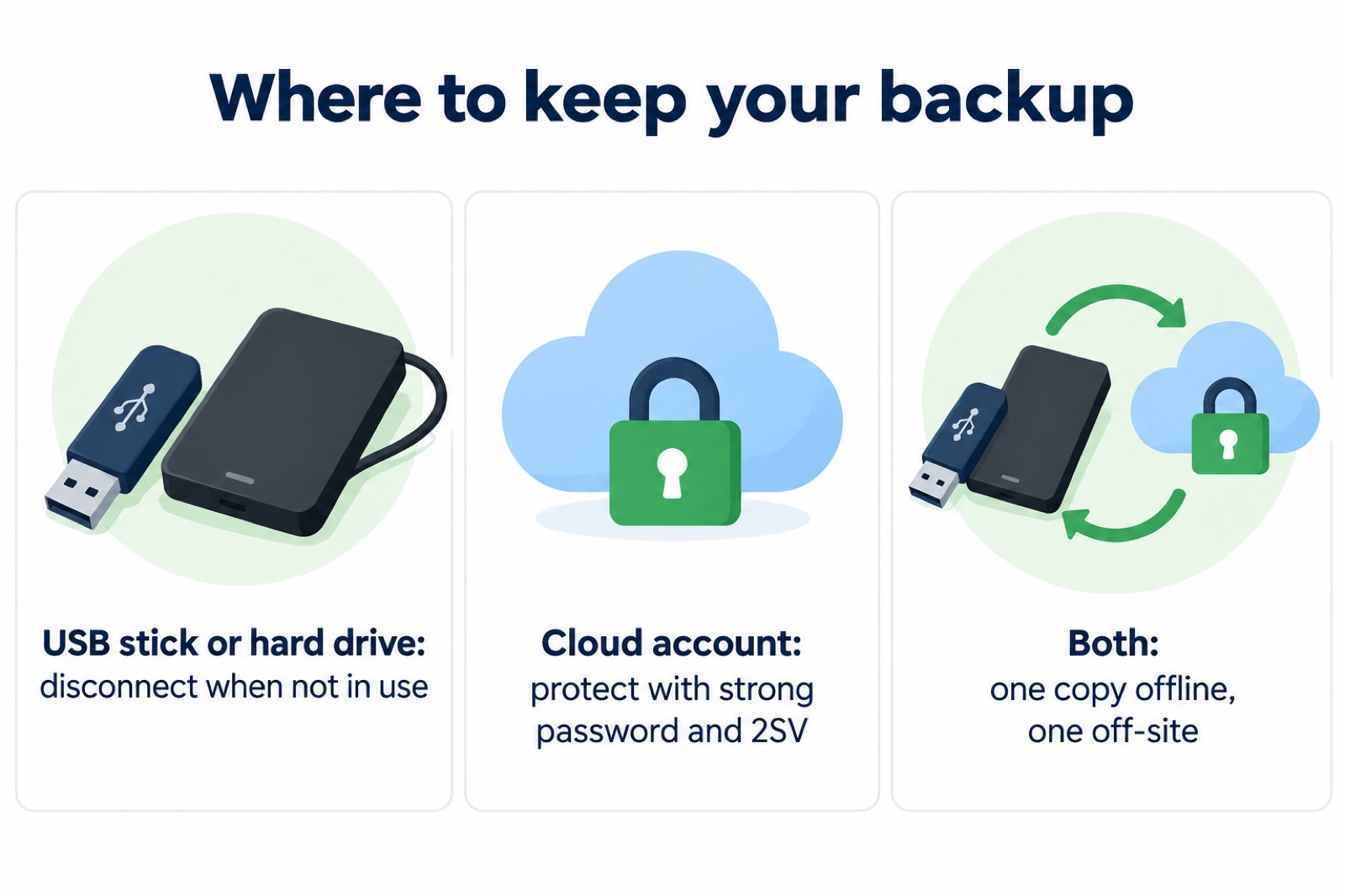
- Removable media such as a USB stick or hard drive works, but only if you disconnect it when it is not in use. Viruses and other malware such as ransomware can move to attached media automatically and infect the backup3.
- Cloud accounts are convenient, but anyone who is able to access your cloud account will also have access to your backups, so protect the account with a strong password and 2SV12.
If you are ever faced with a ransom demand, know that paying does not clean the machine: your computer will still be infected18. The NCSC's guidance for home users is to restore from a backup and rebuild, not to pay.
Where to get help if something goes wrong
If an account has been hacked, the NCSC's recovery steps are to change the password, apply updates to your apps and device software as soon as they are available, and set up 2-step verification on accounts where possible17. Installing updates is one of the most important things you can do to prevent your account from being hacked9.
If a device is infected, the NCSC advises that for PCs and laptops you make sure you have antivirus and install security updates as soon as they are available, ideally automatically16. After fixing the infection, follow the NCSC's advice for setting up your devices securely, check your device is encrypted, and keep it updated20.
For phishing, the reporting routes are straightforward: forward suspicious emails to report@phishing.gov.uk, texts to 7726, and report scam websites21. If you have not entered any personal information, downloaded any files or installed software, it is unlikely you need to take further action, but stay alert to emails and notifications on your accounts for suspicious activity21. For missed parcel texts, a safer way of tracking a delivery is to use the official website of the delivery company14.
The NCSC provides a range of resources to help protect you from cyber attack, tailored to individuals and families through to corporations and government22. Its Cyber Aware programme helps you stay secure online, whether at work or at home8.
Sources (22)
- Top tips for staying secure online, National Cyber Security Centre, 21 December 2021
- Top tips for staying secure online poster, National Cyber Security Centre, 2024
- Always back up your most important data, National Cyber Security Centre, 17 December 2018
- Ransomware, National Cyber Security Centre, 2026
- Cyber Security
- Using passwords infographic, National Cyber Security Centre, 21 May 2026
- Avoid and report internet scams and phishing: Report internet scams and phishing - GOV.UK, GOV.UK
- Cyber Aware, National Cyber Security Centre, 2024
- Hacked accounts | National Cyber Security Centre, National Cyber Security Centre
- Install the latest software and app updates, National Cyber Security Centre, 21 December 2021
- Password managers, National Cyber Security Centre, 21 May 2026
- Backing up your data infographic, National Cyber Security Centre, 17 December 2018
- Phishing scams: how to spot and report them | Phishing scams: If you've shared sensitive information | National Cyber Security Centre, National Cyber Security Centre
- Scam missed parcel SMS messages, National Cyber Security Centre, 23 April 2021
- WannaCry guidance for home users and small businesses, National Cyber Security Centre, 16 May 2017
- Sole infected devices, National Cyber Security Centre, 2026
- Recovering hacked accounts infographic, National Cyber Security Centre, 2026
- Sole ransomware attack, National Cyber Security Centre, 2026
- Ransomware WannaCry guidance for home users and small businesses, National Cyber Security Centre, 16 May 2017
- Citizen infected devices, National Cyber Security Centre, 2026
- Phishing, National Cyber Security Centre, 2026
- Cyber crime, Wiltshire and Swindon Prepared, 31 May 2024
 Accounts to Protect With 2-Step
 After Fixing an Infected Device
 Moving Home Locks Checklist