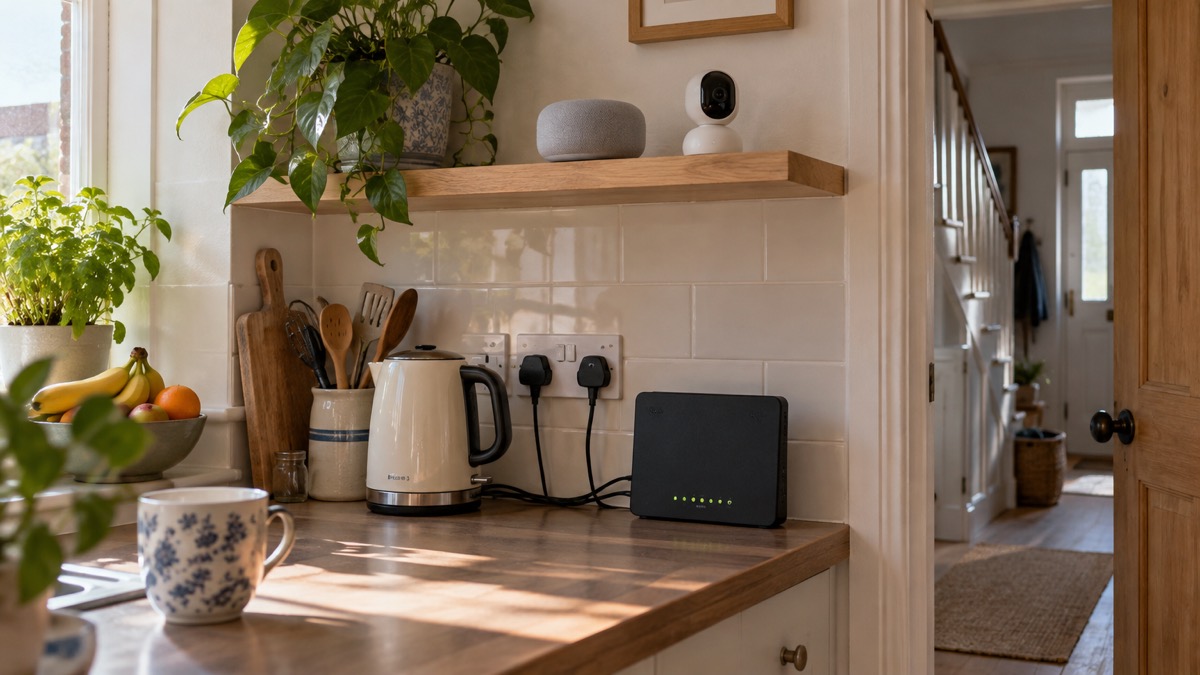
If you have a smart speaker, a video doorbell, a security camera or a baby monitor in your home, the single most important thing you can do is change its default password the moment you set it up. The National Cyber Security Centre (NCSC) is blunt about this: if your smart device comes with a default password, such as 0000, change it immediately1. Default passwords are often well known or guessable, and lists of them can be discovered online and shared, which is how, in rare cases, strangers have accessed live feeds from smart cameras2.
The second habit that matters almost as much is keeping updates switched on. Updates include protection from viruses and other kinds of malware, and when a maker stops providing them, the device becomes easier to hack or may stop working as designed3. Since 29 April 2024, UK law has required new smart devices to meet basic cyber security requirements, including having no default passwords and stating how long the device will receive security updates3, so the information you need to judge a device before buying it is now on the box.
This page walks through each of these steps in the order you need them: what to do when you unbox a device, what counts as a smart device at all, why camera feeds can be seen by strangers, how updates and support periods work, what the law requires, and what to do if a device is taken over.
Change the default password as soon as you set a device up
This is the step that stops most of the harm before it starts. Many smart devices and their apps ship with a password set at the factory, and the NCSC's advice on the new security law is simple: if the device or app comes with a default password, change it3. The reason is that these passwords are not secret. The NCSC notes that default passwords "can be easily discovered online, and shared"3, and its guidance on smart security cameras explains that some cameras are shipped with the default password set by the manufacturer, which is often well known or guessable4.
For a camera or baby monitor, the change is usually made through the app you use to manage the device. The NCSC advises: "If your camera comes with a default password, change it to a secure one, connecting three random words which you'll remember"2. The same three-random-words method applies to any device password. A good example the NCSC gives is "applenemobiro"5. Avoid predictable passwords such as dates, family and pet names, or ones criminals can easily guess, like 12341, and avoid the most common passwords, like "password" itself5.
One small trap to know about: swapping the letter "o" for a zero will not make your password significantly stronger, but it will be harder for you to remember5. Length and randomness beat clever substitutions.
There are two related passwords worth checking at the same time:
- Your Wi-Fi and router. Protect UK, the police security awareness service, advises you to check the security protection of your home Wi-Fi network and change the default manufacturer passcode on your router6. Every smart device in your home runs through it.
- After a factory reset. The NCSC warns that you may need to enter a password when you reset your device, and if so, make sure you change that password rather than leaving the reset default in place7.
If you use the same password on several accounts and you have ever given one out, the NCSC advises changing the passwords on any accounts that share it, and using a passkey instead where one is available8. Our page on creating a strong password you can remember goes into this in more depth.
What counts as a smart device
A smart device is any electrical item that connects to the internet, or to your home network, usually via Wi-Fi9. That definition is broader than most people expect. The NCSC's guidance on the security law lists the devices it covers: smart speakers, smart TVs and streaming devices; smart doorbells, baby monitors and security cameras; cellular tablets, smartphones and game consoles; wearable fitness trackers including smart watches; and smart domestic appliances such as light bulbs, kettles, thermostats, fridges and washing machines3.
Almost all of them share the same set-up pattern. The NCSC notes that you will almost certainly need an internet connection, a smartphone or tablet, and to install an app or create an online account to manage the device9. That app and account are part of the device's security, not just its convenience, and we cover securing them below.
| Device type | Examples | How it connects |
|---|---|---|
| Speakers and screens | Smart speakers, smart TVs, streaming devices | Home Wi-Fi3 |
| Cameras | Smart doorbells, baby monitors, security cameras | Home Wi-Fi, usually4 |
| Computers and consoles | Smartphones, cellular tablets, game consoles | Mobile network or Wi-Fi3 |
| Wearables | Fitness trackers, smart watches | Paired to a phone3 |
| Appliances | Light bulbs, kettles, thermostats, fridges, washing machines | Home Wi-Fi3 |
Two categories deserve a special mention because a security failure has physical consequences. A smart home security alarm relies on an internet-based app alert sent to a smartphone or other internet device, according to the Police Service of Northern Ireland's personal safety guidance10. Telecare devices are personal alarms that alert people that you are in danger11. If a device like this is part of how someone in your household calls for help, its security matters as much as its battery life. If you are buying a new alarm or device that connects to your phone line, gov.uk advises checking with the equipment provider that it is compatible with digital phone lines, VoIP services or an appropriate mobile service such as 4G, as the UK's landline network moves from analogue to digital12.
Smart cameras: why live feeds can be seen by strangers
The NCSC's guidance on smart security cameras is direct about the risk: "Live feeds or images from smart cameras can (in rare cases) be accessed by unauthorised users, putting your privacy at risk"2. The problem arises because some cameras are shipped with the default password set by the manufacturer, which is often well known or guessable4. Lists of these passwords circulate online, so a camera left on its factory password is not protected by secrecy, only by the hope that nobody looks.
Smart cameras, which include the security cameras and baby monitors used to monitor activity in and around your house, usually connect to the internet using your home Wi-Fi4. That means the camera's security rests on three things: the password on the camera itself, the security of your Wi-Fi network, and how your router handles connections from outside your home.
On that last point, the NCSC gives specific advice. You should consider disabling UPnP and port forwarding on your router, because cyber criminals can exploit these technologies to potentially access devices on your network such as smart cameras. Check your router's manual or the manufacturer's website for how to do it2. These are router features that let devices open doors to the internet automatically, and closing them removes a route in that you may never have known was open.
The practical checklist for a camera or baby monitor:
- Change the default password to one made of three random words, via the app2
- Check your home Wi-Fi security and change your router's default manufacturer passcode6
- Consider disabling UPnP and port forwarding on your router2
- Keep the camera's app and firmware updated13
Keep updates switched on while the maker still provides them
Updates are not an optional extra. The NCSC describes applying them as one of the most important things you can do to protect your devices14, and its top tips guidance says software and app updates contain vital security updates that help protect your devices from cyber criminals13. Updates include protection from viruses and other kinds of malware, and often bring improvements and new features as well15.
The strongest habit is to let the device do the work. The NCSC advises turning on automatic updates in your device's settings, if available, so you do not have to remember to apply them15, and its poster guidance repeats the point: apply security updates promptly and turn on automatic updates where the option exists16. If you receive a prompt to update your device or apps, do not ignore it15. Essex Prepared puts the reason plainly: hackers rely on you to ignore those update notifications so they can get in before the update is made13.
A few practical points from the NCSC's updating guidance15:
- Updating may take some time and needs a reliable internet connection, so it is best done at home where you can use your Wi-Fi and keep the device plugged in.
- You can check online to find whether a specific model still receives updates from the manufacturer; for other Android devices, check with the manufacturer.
- You do not need to buy the latest or most expensive model to stay safe, but if possible avoid buying and using phones that are no longer supported.
The same logic extends to the emergency side of preparedness: gov.uk's guidance on emergency alerts advises making sure your device has all the latest software updates17, because a device that cannot receive or act on official alerts is less useful exactly when you need it. Our page on software updates for phones, computers and browsers covers the mechanics, and whether you should turn on automatic updates answers the common hesitation.
When updates stop, a device is easier to hack
Every smart device has a support life. The NCSC's guidance on the security law states it as a warning: "When updates are no longer provided, devices are easier to hack, or may stop working as designed"3. Its updating guidance makes the same point for phones: a device that is no longer supported will not receive security updates from the manufacturer, and without these it is less secure15. Older devices will eventually stop receiving updates altogether15.
What this means for your household is a planning question, not just a technical one. A smart doorbell that no longer receives updates is a camera pointed at your front step that nobody is patching. A baby monitor in the same position is a microphone in a child's room. Neither will necessarily fail on the day support ends, but each becomes steadily weaker against the kind of attack the updates were defending against.
The NCSC's advice on recovering from an infection shows what good practice looks like after any security incident: keep your device and programs or apps up to date, back up your data, and check your device is encrypted18. Applying updates to your apps and device software as soon as they are available is also one of the NCSC's steps for recovering a hacked account, because updates include protection from viruses19. If a phone or tablet does pick up malware, the NCSC says the safest solution is a factory reset, usually found in Settings18, and remember to change any password you have to enter during that reset7.
If you want to plan around support periods, our page on what happens when your phone stops getting updates covers the decision in detail.
What UK law requires of smart devices
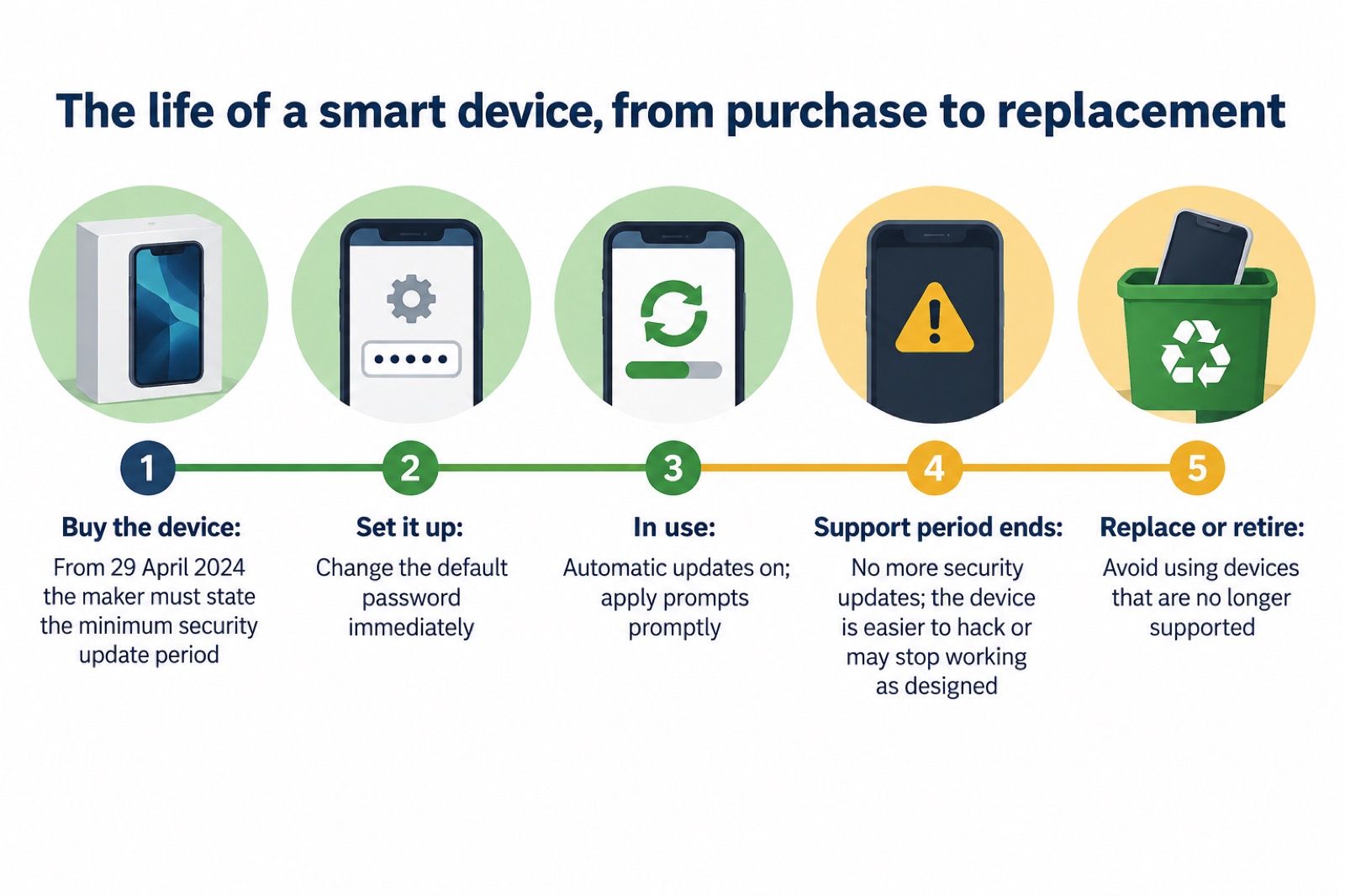
From 29 April 2024, manufacturers of consumer smart devices sold in the UK must comply with new law setting basic cyber security requirements3. The law covers consumer smart devices that connect to the internet or your home network3, which is the same broad definition given above: speakers, TVs, doorbells, monitors, phones, consoles, wearables and connected appliances.
The NCSC sets out three requirements the law places on manufacturers3:
- They must not supply devices that use default passwords, which can be easily discovered online and shared.
- They must provide a point of contact for reporting security issues which, if ignored, could make devices exploitable by cyber criminals.
- They must state the minimum length of time for which the device will receive important security updates.
The first requirement is the one you will notice most: a device bought new after that date should not have a guessable factory password waiting for you. The third is the one to use when shopping, because it turns a hidden question, how long will this be safe, into a stated figure on the product. The NCSC's smart devices guidance confirms the same points: from 29 April 2024, all smart devices must meet basic cyber security requirements, which includes stating the product support end date9.
The law applies across the UK; there are no separate arrangements in Scotland, Wales or Northern Ireland for these requirements.
Devices bought before the law changed
The law took effect on 29 April 20243, so anything you bought before that date was not sold under these requirements. An older device may still have the kind of default password the law now bans, and its maker may never have published a support end date. That does not make it instantly unsafe, but it does mean the protections you can rely on are the ones you apply yourself.
For an older device, work through the same basics with extra care:
- Change the default password on the device and its app, using three random words1
- Check online whether the specific model still receives updates from the manufacturer15
- Keep updates applied for as long as they arrive, ideally automatically15
- If support has ended, treat the device as easier to hack and consider replacing it3
Remote viewing on cameras: what you lose if you turn it off
Some guidance suggests turning off remote viewing, the feature that lets you see your camera's feed from anywhere over the internet, as a way of reducing risk. It does reduce one route to the feed, but the NCSC's camera guidance is clear that it comes at a cost: disabling remote viewing may prevent you receiving alerts when movement is detected, and could stop the camera working with smart home devices such as Alexa, Google Home or Siri4.
So the choice is a genuine trade-off, and it depends on what the camera is for:
| Option | What you keep | What you give up |
|---|---|---|
| Remote viewing on | Live view and movement alerts from anywhere; works with Alexa, Google Home or Siri4 | The feed is reachable over the internet, so its security depends on your password, Wi-Fi and router settings2 |
| Remote viewing off | The feed is not reachable from outside your home | You may lose movement alerts, and the camera may stop working with smart home devices4 |
If you rely on movement alerts while you are out, or the camera is part of a routine that uses a voice assistant, turning remote viewing off may cost you more than it gains. If the camera watches something you rarely need to see remotely, turning it off is the simpler reduction in risk. Either way, the password, the Wi-Fi and the router settings remain the foundations. Our page on whether it is safe to view your home camera remotely works through the decision.
Securing the app and online account behind each device
Every smart device is really two things: the gadget on your shelf and an online account that controls it. The NCSC advises following its guidance for setting up your devices securely and keeping them safe9, and that account deserves the same care as the device itself.
Protect the account the way you would any important account. Two-step verification gives you a code to enter from an app or SMS, and means that even if a criminal knows your password, they will not be able to access your accounts1. The NCSC explains how to set it up on popular services at ncsc.gov.uk/2sv, or you can look in the security settings included in antivirus or password manager tools1. Our page on how to turn on 2-step verification gives step-by-step help, and which accounts to protect with 2-step verification helps you prioritise.
A password manager can carry some of this load. The NCSC notes that a password manager can synchronise passwords across your different devices and give compromise warnings that a password has been breached or leaked20. If you let your browser store passwords instead, the NCSC cautions that those stored passwords are only as secure as your devices and accounts, so do not switch off the security auto-update feature for your browser and operating system20.
If an account behind a device is compromised, the NCSC's recovering-hacked-accounts guidance includes a step that matters here: force all devices and apps to log out, usually from the Settings menus of the app or website, so anyone attempting to use the account is prompted to supply the new password19. That single action disconnects a stranger's session on your speaker, camera or doorbell.
If a device is taken over
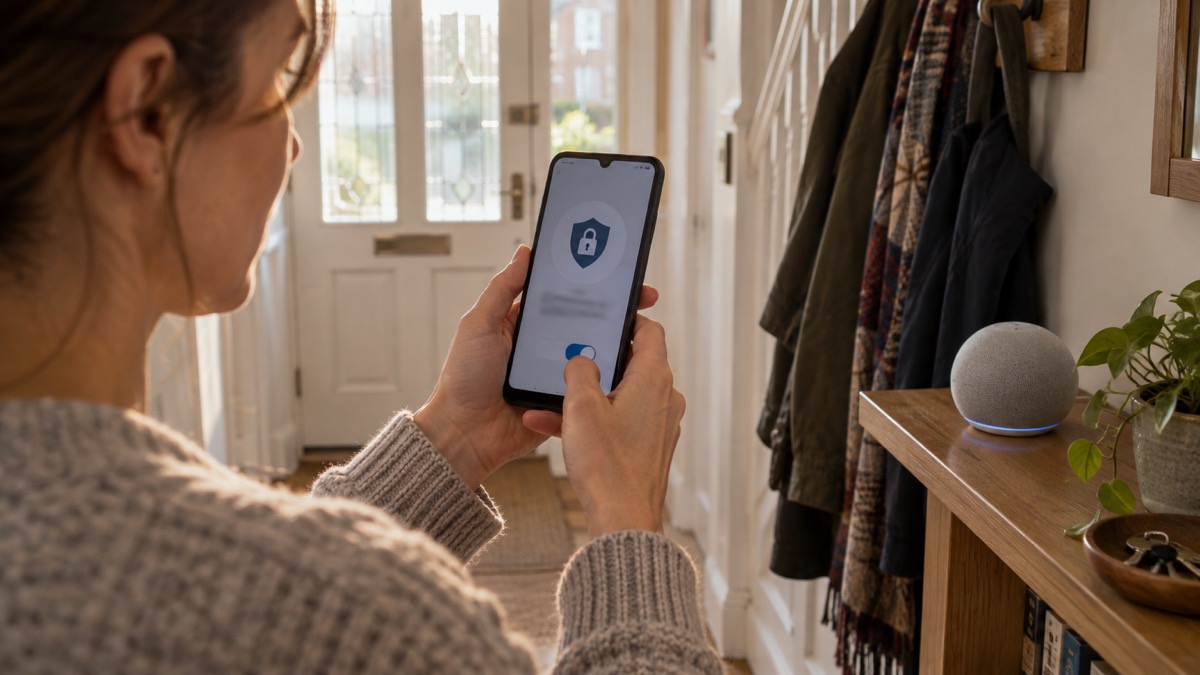
The signs that a device has been compromised are often subtle: settings changed, alerts that stop arriving, a camera that moves or records when it should not. The NCSC's guidance on hacked devices and infected devices sets out the recovery pattern. For phones and tablets, the safest solution to an infection is a factory reset, usually found in Settings18. After fixing the infection, follow NCSC advice for setting up your devices securely and keeping them safe, check your device is encrypted, and for PCs and laptops make sure you have antivirus and install security updates as soon as they are available, ideally set to install automatically21.
The order of actions, drawn from the NCSC's guidance:
- Disconnect or reset the affected device; for phones and tablets, a factory reset is the safest solution18
- Change the password on the account behind it, and change the password on any account that shares it8
- Force all devices and apps to log out of the account from its Settings menu19
- Apply updates to apps and device software as soon as they are available19
- Keep the device and apps up to date, back up your data, and check the device is encrypted18
If the device is one you cannot secure, a camera that has stopped receiving updates and shows signs of interference, for example, the safest course is to stop using it and replace it, since a device without updates is easier to hack3. For the wider picture of an account takeover, see what to do if an online account is hacked, and for malware on a computer or phone, see our page on malware signs and removal.
Where to get help
The National Cyber Security Centre publishes the guidance this page is built on, covering passwords, updates, smart devices and cameras, and it is the first place to check when a new device arrives or something goes wrong with an old one. Its top tips for staying secure online collect the basics in one place22. For anything that involves money or crime, such as a scam message that led to a device compromise, Action Fraud is the route for reporting in England, Wales and Northern Ireland, and Police Scotland north of the border; our page on reporting a scam text message explains how.
If a device in your home is part of someone's care, a telecare alarm or a monitored device, tell the provider about any security problem as well as any technical fault, since the two can look alike from the household's side. And if the worst happens and an account is taken over, work through the NCSC's recovery steps in order rather than starting again with a new device and the same old password19.
Sources (22)
- Using passwords to protect your devices and data, National Cyber Security Centre, 2026
- Smart security cameras: using them safely in your home, National Cyber Security Centre, 2020
- New security law for smart devices, National Cyber Security Centre, 2024
- Smart security cameras: using them safely in your home (PDF), National Cyber Security Centre, 2020
- Three random words, National Cyber Security Centre, 2021
- IT security and online communications, Protect UK, 2022
- Scam missed parcel SMS messages: advice on avoiding malware, National Cyber Security Centre, 2021
- Phishing scams: what to do, National Cyber Security Centre, 2022
- Smart devices in the home, National Cyber Security Centre, 2024
- Protect Yourself booklet, Police Service of Northern Ireland, 2024
- Easy read: disabled persons and carers, UK government emergency preparedness campaign, 2024
- UK transition from analogue to digital landlines, gov.uk, 2023
- Cyber security: protecting your family, Essex Prepared, 2026
- Protecting devices from viruses and malware, National Cyber Security Centre, 2024
- Install the latest software and app updates, National Cyber Security Centre, 2021
- Top tips for staying secure online poster, National Cyber Security Centre, 2024
- How alerts work, gov.uk, 2026
- Hacked device: action to take, National Cyber Security Centre, 2021
- Recovering hacked accounts, National Cyber Security Centre, 2026
- Password managers, National Cyber Security Centre, 2026
- How to recover an infected device, National Cyber Security Centre, 2026
- Top tips for staying secure online, National Cyber Security Centre, 2021
 Accounts to Protect With 2-Step
 After Fixing an Infected Device
 Home Online Security Checklist
 Antivirus Software
 Backing Up Files and Photos
 Council Online Services Down
 Your Details in a Data Breach
 FluBot Fake Parcel Texts
 Hacked Online Accounts
 How Services Respond
 Malware Signs and Removal
 National Cyber Security Centre
 NHS Services During an IT Outage
 Keeping Key Records Offline
 Shopping Online Safely