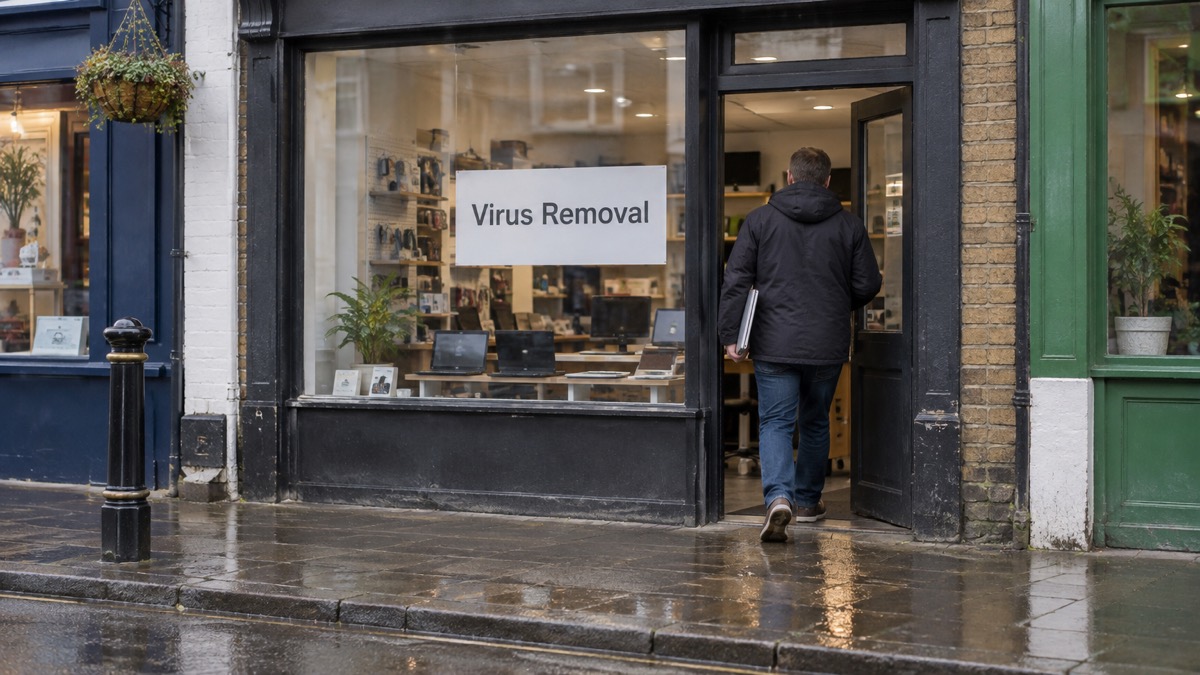
If a caller talked you into installing software on your computer, phone or tablet, the first thing to do is cut the connection. Turn off your Wi-Fi, or unplug the network cable, so the person on the other end can no longer reach the device. The National Cyber Security Centre's advice for a suspected infection is blunt: "Immediately disconnect you computer, laptop or tablet from network. Turn off your Wi-Fi."1
Then hang up and do not call back on any number the caller gave you. A call telling you your device is infected, with an offer to clear it up, is a common scam, and the caller often claims to be from a trusted company such as Microsoft or your internet service provider2. Report it to Report Fraud at www.reportfraud.police.uk, and if you paid the caller money, tell your bank or credit card provider as well2.
What follows is the recovery, in the order that protects you most: clean the device, change the passwords that matter, turn on 2-step verification, and check whether your personal data has been exposed. None of it requires technical confidence, and most of it is done through settings menus you already use.
Disconnect the device from the internet first
Speed matters more than tidiness here. While a device is online, whoever has remote access can watch the screen, open files and reach anything the device is signed in to. Disconnecting ends that access at once. The NCSC's WannaCry guidance for home users and small businesses puts disconnection first for exactly this reason: it stops an infection spreading and stops a remote party reaching further1.
Do it physically. On a laptop or desktop, unplug the network cable and switch off Wi-Fi. On a phone or tablet, turn on aeroplane mode or switch off Wi-Fi and mobile data. Leave the device switched on if you can, so you can see what is installed before you change anything.
Once you are offline, take stock:
- What was installed? Look at the apps or programs list and note anything you do not recognise, especially anything described as remote support, remote desktop or screen sharing.
- What was open? Think about which accounts were signed in on that device: email, banking, shopping, social media.
- What was said? Note what the caller claimed and whether you gave a password, a code or card details.
If the device is a work laptop, tell your employer before you do anything else. If it belongs to someone you care for, help them disconnect it and stay with them while the rest of these steps are done.
How to recover an infected device
Recovery differs by device, and the official advice is specific about which route to take.
| Device | What to do | Why |
|---|---|---|
| PC or laptop | Open your antivirus product, run a scan, take the actions it recommends3 | Antivirus is built to detect and remove malicious software on a computer6 |
| Phone or tablet | Factory reset, usually found in settings3 | Antivirus products do not work in the same way on phones and tablets3 |
| Any device | Connect it to a clean network in order to download, install and update the operating system and all other software7 | Keeping software updated is part of setting devices up securely and keeping them safe after an infection6 |
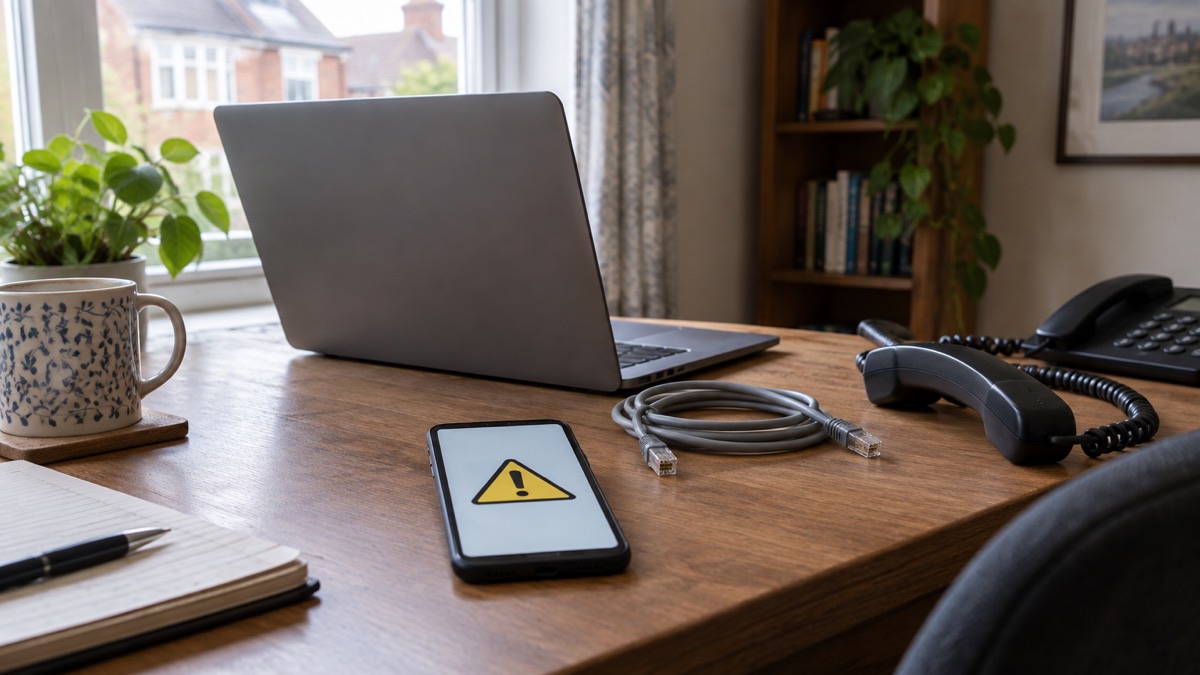
On a computer, uninstall the remote access program through the same place you would remove any other program, then run the scan. The NCSC advises connecting devices to a clean network in order to download, install and update the operating system and all other software7. A clean network means one you trust, not a public Wi-Fi network in a cafe.
On a phone or tablet, the NCSC is direct: "Antivirus products don't work in the same way as PCs and laptops. The safest solution is a factory reset", which you will usually find in settings3. A reset wipes the device back to how it left the factory, so back up photos and contacts you want to keep first, and make sure you know your account passwords before you start, because you will need them to set the device up again.
After the infection is cleared, the NCSC advises following its guidance for setting up devices securely, checking the device is encrypted, and on PCs and laptops making sure you have antivirus and installing security updates as soon as they are available, ideally set to install automatically3. Software and app updates contain vital security updates that help protect your devices from criminals8.
Run an antivirus scan once the software is removed
An antivirus product is a program designed to detect and remove viruses and other kinds of malicious software from your computer or laptop6. If you have one, open it and run a full scan, and allow it to clean up any problems it finds8. When you first install antivirus, run a full scan to make sure the computer is free of all known malware6.
If you do not have antivirus, Windows and Apple computers come with built-in protection, and the NCSC says that if you switch on this built-in antivirus, you will instantly be safer6. That is enough for many households. What matters is that something is running and up to date, not which product it is.
A scan is not a substitute for removing the remote access software. It may not classify a legitimate remote support tool as malicious, because the tool itself is not malware; it is the use someone made of it that was the problem. Remove the program, then scan, then update.
Once the device is clean, keep it that way: install updates as they arrive, and be wary of any future call, text or email that asks you to install something to fix a problem. If a message or call makes you suspicious, stop, break the contact, and consider the language it uses; tell-tale signs are authority, urgency, emotion, scarcity and current events10.
Secure your accounts with 2-Step Verification
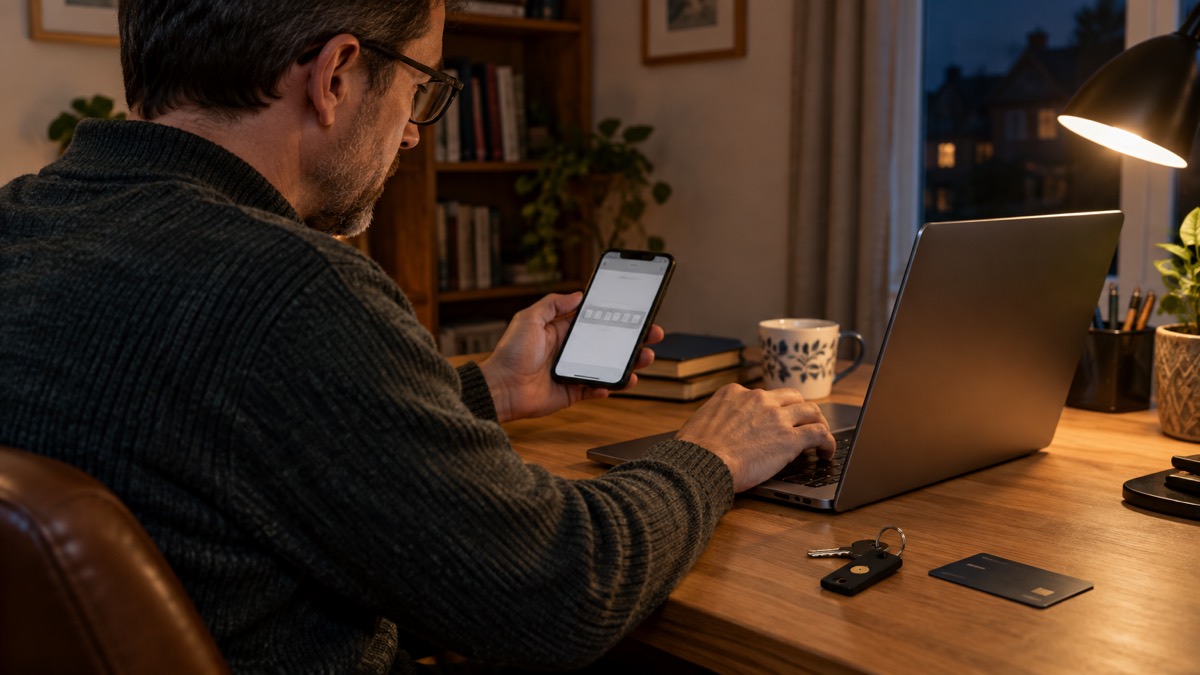
Changing passwords is only half the job. The NCSC's recovery steps for a hacked account are to change the password, force all devices and apps to log out, and then set up 2-step verification4. Do the password change from a device you trust, not the one that was accessed.
Forcing the log-out matters because it ends any session the scammer still holds. This can usually be done from the settings menus of the app or website, or it may sit under privacy or account settings, and it means anyone attempting to use the account is prompted to supply the new password4.
Then turn on 2-step verification, also called two-factor authentication or 2FA. It adds an extra security step when you log in, to double-check that it really is you11, and it usually works by sending a PIN or code, often by SMS or email4. The point is simple: even if a criminal knows your password, they cannot get in without the second step12. The NCSC calls it the first and most important step to protect you if your password is phished or otherwise compromised13, and advises setting it up on all your important accounts, email and social media included, even if you have a strong password14.
A few practical points:
- Start with email. Your email account can be used to reset almost everything else, so protect it first15.
- Then banking and shopping. These are where money is at risk.
- Keep the recovery details safe. If you change a phone number, update it with each account.
- Change reused passwords. If the same password was used elsewhere, change it there too16.
If you are setting this up for the first time, our guide to turning on 2-step verification walks through it account by account, and which accounts to protect helps you decide where to start.
If your personal data may have been exposed
Remote access can expose far more than one password. Malware of the kind spread through scam messages can steal banking details, passwords and other sensitive information9, and a caller with screen access may have seen whatever was on screen.
Work through what might have been seen: email, online banking, shopping accounts, saved card details, documents and photos. Then act on each:
- Money at risk: contact your bank immediately and let them know; if you use online banking you can cancel your card online8. Always contact your bank using official websites or phone numbers, never details a caller supplied5.
- Passwords reused elsewhere: change them, starting with email16.
- A password quoted back to you: do not worry. It has probably been discovered from a previous data breach, which you can check at https://haveibeenpwned.com/17. Change it anyway, and anywhere else you used it16.
- Approaches about your data: be alert to anyone claiming to have your data, and to suspicious calls or emails asking for personal or financial details18.
"You should always be alert to approaches from anyone claiming to have your data."
That warning was written for people affected by a major hospital laboratory incident, but it applies just as well to a household. A scammer who has had access to your device may come back claiming to have your files, your photos or your details. Do not pay, do not engage, and report it.
If you have lost money, our guide on what to do when you have lost money to a scam sets out who to contact, and how to check if your email was in a breach covers the lookup service above.
Ransomware warnings and callers who come back
Two things frighten people most after a remote access scam: a message on screen demanding payment, and the phone ringing again.
Ransomware is malicious software that threatens to publish or blocks access to data or a computer system, usually by encrypting it, until the victim pays a ransom19. If you see such a message, do not pay. The NCSC is clear that paying does not fix the machine: your computer will still be infected7. Disconnect it from the network, keep it off, and follow the recovery steps above. Our guide to ransomware explains what it is and how it affects households, and whether to pay a ransom covers the decision in more detail.
On the phone, expect repeat attempts. Scammers have contacted vulnerable users in relation to the digital phone switchover, and communication providers or telecare services will never call you to ask for money20. The same rule covers anyone claiming to be from your bank, your broadband provider or a software company. The switchover can create an opportunity for criminals to devise new scams through phone calls, emails or in-person visits at your door21, and the same is true of any change in services that gets news coverage.
If a caller persists:
- Hang up. The NCSC's advice is to hang up immediately and report the call to Report Fraud2.
- Do not press buttons or call back. Recorded messages that ask you to press a key or speak to an operator are a known method22.
- Tell others. Tell your neighbours, community groups and local Neighbourhood Watch scheme, in case the caller tries other homes in your area23.
- Report concerns. Always report if you have been scammed or think someone is attempting to scam you or someone you know23.
Where to get help and how to report it
You do not have to work this out alone, and reporting is part of recovery rather than an optional extra.
| What happened | Who to tell | How |
|---|---|---|
| Scam call about your device | Report Fraud | www.reportfraud.police.uk2 |
| You paid the caller | Your bank or credit card provider, and Report Fraud | Official numbers only2 |
| Card or banking details shared | Your bank, immediately | Official website or phone number; cancel cards online if you bank online8 |
| Suspicious text message | Report Fraud | Ignore and delete it, then report24 |
| You want to check a breach | Have I Been Pwned | https://haveibeenpwned.com/17 |
For a wider view of the help available, see our guide to the National Cyber Security Centre and the after fixing an infected device checklist, which you can work through at your own pace. If the device belongs to an older relative or someone you care for, the extra help in an emergency section covers support for households that need it.
One last habit worth keeping. If a message or call makes you suspicious, stop, break the contact, and consider the language it uses; tell-tale signs are authority, urgency, emotion, scarcity and current events10. A caller who says your device is infected, that you must act now, and that they are from a company you trust is ticking every box. Put the phone down, and start with the Wi-Fi.
Sources (24)
- WannaCry guidance for home users and small businesses, National Cyber Security Centre, 2017-05-16
- How to recover an infected device, National Cyber Security Centre, 2021-08-09
- Infected devices guidance, National Cyber Security Centre, 2026
- Recovering hacked accounts infographic, National Cyber Security Centre, 2026
- Online shopping fraud, National Cyber Security Centre, 2026
- Protecting devices from viruses and malware infographic, National Cyber Security Centre, 2024
- Mitigating malware and ransomware attacks, National Cyber Security Centre, 2026
- Phishing, National Cyber Security Centre, 2026
- Scam missed parcel SMS messages: advice on avoiding malware, National Cyber Security Centre, 2021-04-23
- Cyber Security
- Use 2SV to protect accounts infographic, National Cyber Security Centre, 2024
- Hacked accounts guidance, National Cyber Security Centre, 2026
- Password managers, National Cyber Security Centre, 2026-05-21
- Using passwords to protect your devices and data, National Cyber Security Centre, 2026
- Having a strong password, Wiltshire and Swindon Prepared, 2026-10-25
- Sextortion scam email guidance, National Cyber Security Centre, 2026
- Sextortion scams infographic, National Cyber Security Centre, 2026
- Synnovis cyber incident questions and answers, NHS England, 2025-11-10
- Cyber attacks, West Yorkshire Prepared, 2026-10-29
- Digital phone switchover, Argyll and Bute Council, 2026
- The digital switchover, Suffolk County Council, 2026-10-29
- Coronavirus scam calls and texts, Ofcom, 2024-02-07
- Bogus callers, Belfast City Council, 2026-10-29
- Winter matters, Suffolk Fire and Rescue Service, 2026-10-29
 Accounts to Protect With 2-Step
 After Fixing an Infected Device
 Home Online Security Checklist
 2-Step Verification No Phone
 Antivirus on Phones and Tablets
 Automatic Updates
 Gave Bank Details to a Scammer
 Checking a Bank Message
 Blocking Nuisance and Scam Calls
 Scams After a Data Breach
 Browser Saved Passwords
 Checking Your Email for Breaches
 Hacker Email Forwarding Rules
 Factory Reset an Infected Phone
 Recover a Hacked Email