

McAfee is one of the antivirus products the National Cyber Security Centre names when it tells households to protect their devices: "You can also buy a separate antivirus product (such as McAfee, Norton and Avast)"1. That is the whole of its role on this site. It is software, not emergency kit, and it will not keep your lights on or your freezer cold. What it does is guard the laptops, tablets and phones your household relies on for warnings, banking and keeping in touch, at the moment those devices matter most.
The advice that surrounds it is the part worth acting on now. The National Cyber Security Centre says it is really important that you always use antivirus software, and keep it up to date, to protect your data and devices1. It also says that applying updates is one of the most important things you can do to protect your devices1. If you already run McAfee, the job is to keep it current and know how to get back into your accounts if a device is lost, damaged or hacked. If you do not, antivirus is often included for free with Windows and Apple computers, and switching on that built-in antivirus makes you instantly safer1.
What McAfee offers UK households
McAfee sits in the category the National Cyber Security Centre calls a separate antivirus product, something you buy on top of the protection already built into a computer1. For a household, its value is narrow and practical: it scans a device for malware, and it is one of the tools you can use to clean up a device you think has been infected. The Centre's guidance for a device you believe is infected is to open your antivirus software if you have it, run a full scan, and allow the software to clean up any problems it finds3.
That is the frame for everything else on this page. McAfee does not appear in the pack as emergency equipment, and there are no safety notices or recalls for it here. The safety notices that do appear in the pack belong to physical kit, such as the 2024 recall of Hamilton McBride electric blankets, where customers were asked to stop using the product immediately and return it to their nearest store4. Software has no equivalent recall, but it does have an equivalent duty: keep it updated, because when updates are no longer provided, devices are easier to hack, or may stop working as designed5.
For preparedness, treat McAfee as part of the same routine as charging your power banks and checking your torches. It protects the device you would reach for first in a power cut, and it is only as good as the last update it received.
Protecting your devices before an emergency
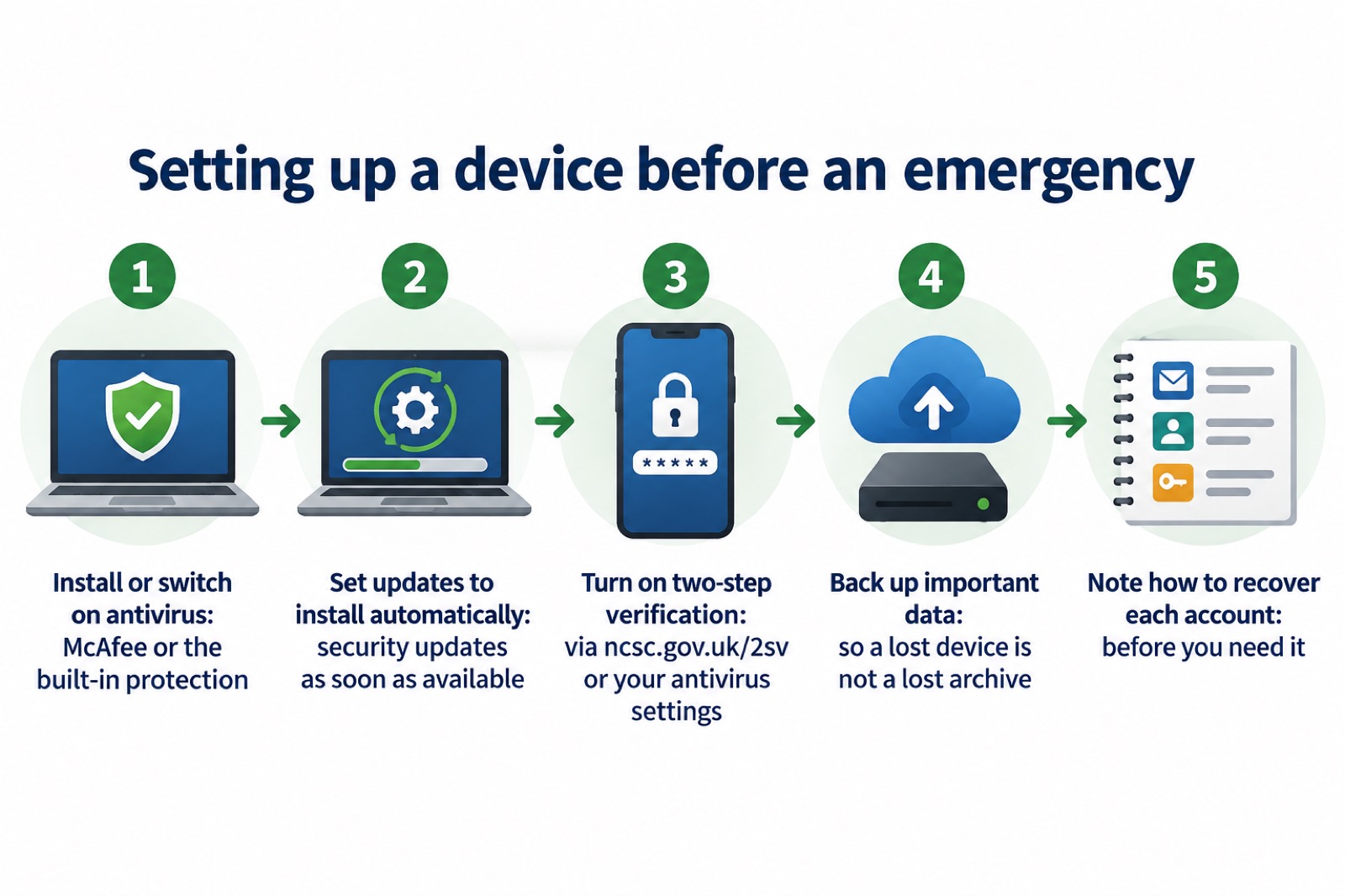
The work that pays off in an emergency is done in the quiet weeks before one. For PCs and laptops, the National Cyber Security Centre advises making sure you have antivirus and installing security updates as soon as they are available, ideally by setting them to install automatically2. Do the same on phones and tablets: apply updates to your apps and your device's software as soon as they are available, as updates include protection from viruses6.
- Set updates to install automatically on every device in the house2.
- Run a full antivirus scan on each device, and let it clean up what it finds3.
- Check your home wi-fi security and change the default manufacturer passcode7.
- Back up your most important data, so a lost or damaged device does not take your documents with it8.
- Write down how you would get back into each account, before you need to9.
Setting up McAfee on home devices
Install McAfee on the devices your household would actually use in an emergency: the laptop that holds your documents, the phone that receives alerts, the tablet the children use. Then set up two-step verification wherever it is offered. The National Cyber Security Centre says you can find out how to set up two-step verification on popular services at ncsc.gov.uk/2sv, or look in the security settings included in antivirus or password manager tools11. That last point is the practical link to McAfee: its settings are one of the places two-step verification can be switched on.
Passwords are the other half of the job. Criminals trick you into revealing passwords by creating fake phishing emails or SMS messages that link to scam websites11. A password manager, or the one built into your antivirus, keeps you from reusing the same password across accounts, which is what turns one stolen password into several compromised accounts.
Keeping cover and updates current
A subscription that has lapsed is a device running without the protection you thought you had. The National Cyber Security Centre's instruction is not product-specific and does not bend: always use antivirus software, and keep it up to date1. Updates include protection from viruses and other kinds of malware, and will often include improvements and new features10. That is why the renewal date belongs on the same list as your smoke alarm test and your emergency kit check.
| What to check | How often | Why it matters in an emergency |
|---|---|---|
| Subscription renewal date | Before it falls due | Lapsed cover leaves the device unprotected1 |
| Antivirus definitions and app updates | Automatically, where possible | Updates carry protection from viruses and other malware10 |
| Full scan of each device | Regularly | Finds and cleans problems before they bite3 |
| Backups of important data | Regularly | A lost or damaged device does not take your documents8 |
If you decide to stop paying for McAfee, do not leave the device bare. Antivirus is often included for free with Windows and Apple computers, and switching on this built-in antivirus makes you instantly safer1. The same applies to a new device bought in a hurry after a failure: check what protection it has before it goes online.
Staying safe from scams during an emergency
Emergencies are scam weather. The National Cyber Security Centre warns that you should be alert for suspicious messages after a breach has occurred, as cyber criminals may try to take advantage of it12. Criminals use stolen information within scam emails and text messages so that they appear legitimate, and may pretend to be from an organisation that has suffered a recent data breach13. A message that looks like it comes from McAfee, about your subscription or a security problem, is exactly the shape these take.
The test is simple. If you have received a suspicious message, it is probably a phishing attempt3. Things to look out for include official-sounding messages about resetting passwords, receiving compensation, scanning devices or missed deliveries14. If you suspect someone is not who they claim to be, hang up and contact the organisation directly4. Forward suspicious emails to report@phishing.gov.uk, texts to 7726, and report scam websites3. If you have already entered banking or card details, contact your bank straight away, and if you use online banking, cancel the card or cards there3.
Getting back into your accounts after a lost or damaged device
A flood, a fire or a dropped phone can cost you access to your accounts as surely as a hack can. The National Cyber Security Centre says that if you are no longer able to access your accounts, somebody else may have gained access, and that this can include a lost device, or incidents where an account is compromised9. The first step is the same either way: go to the account provider's website and search their help or support pages to find the account recovery process15.
- Go to the provider's website and find its account recovery process15.
- Force all devices and apps to log out, usually from the settings menus of the app or website, so anyone attempting to use the account is prompted to supply the new password6.
- Apply updates to your apps and device software as soon as they are available6.
- If the account cannot be recovered with the online service, create a new account, give your contacts the new details, tell them you have abandoned the old account, and update any bank, utility or shopping websites with your new details6.
Read the guidance about recovering a hacked account in advance so you know what to do if you experience an incident9. Keep a written list of your accounts, and where the recovery details live, somewhere a flood cannot reach.
Safety notices and security alerts
Software does not carry the kind of recall notice that physical kit does. The Health and Safety Executive issues safety alerts when there is a specific safety issue that without immediate action being taken could result in a serious or fatal injury16, and product recalls for appliances work the same way. For McAfee, the equivalent alert is the security update itself, and the equivalent of ignoring a recall is running an old version.
Watch for messages that claim to be a security alert from McAfee. The National Cyber Security Centre lists official-sounding messages about scanning devices among the hallmarks of a scam14. A real security alert will be visible when you log in to the company's own site; a fake one arrives in your inbox with a link.
McAfee support and where to get help
Reach McAfee through its own website or your account, typing the address yourself rather than following a link. For anything beyond the product, the UK's free help is good. Small businesses and individuals can get a free personalised Cyber Action Plan from the National Cyber Security Centre website17. The Cyber Aware programme, from the UK's National Cyber Security Centre, helps you stay secure online, whether at work or at home5. For children and young people, information and support for young people, parents and professionals is available at www.thinkuknow.co.uk and the Child Exploitation and Online Protection Centre at www.ceop.police.uk7.
If a device is infected and you cannot clean it, the National Cyber Security Centre's advice is not to log into any accounts, as the malware may steal these details, and instead to perform a factory reset on your device as soon as you can14. For the wider picture, see our guides to cyber attacks and major IT failures and staying informed and in touch in an emergency, and build the device checks into your getting started plan alongside your emergency kit.
Sources (17)
- Protecting devices from viruses and malware, National Cyber Security Centre, 2024
- Sole infected devices, National Cyber Security Centre, 2026
- Phishing, National Cyber Security Centre, 2026
- Phishing scams: how to spot and report them, National Cyber Security Centre, 2022
- Security law for smart devices, National Cyber Security Centre, 2024
- Recovering hacked accounts infographic, National Cyber Security Centre, 2026
- IT security and online communications, ProtectUK, 2022
- Always back up your most important data, National Cyber Security Centre, 2021
- Recovering a hacked account or service, National Cyber Security Centre, 2024
- Install the latest software and app updates, National Cyber Security Centre, 2021
- Using passwords to protect your devices and data, National Cyber Security Centre, 2026
- Data breaches, National Cyber Security Centre, 2026
- Data breaches infographic, National Cyber Security Centre, 2023
- Data breaches: guidance for individuals and families, National Cyber Security Centre, 2021
- Recovering a hacked account, National Cyber Security Centre, 2022
- Safety alerts for health and social care, Health and Safety Executive, 2026
- Sole ransomware attack, National Cyber Security Centre, 2026