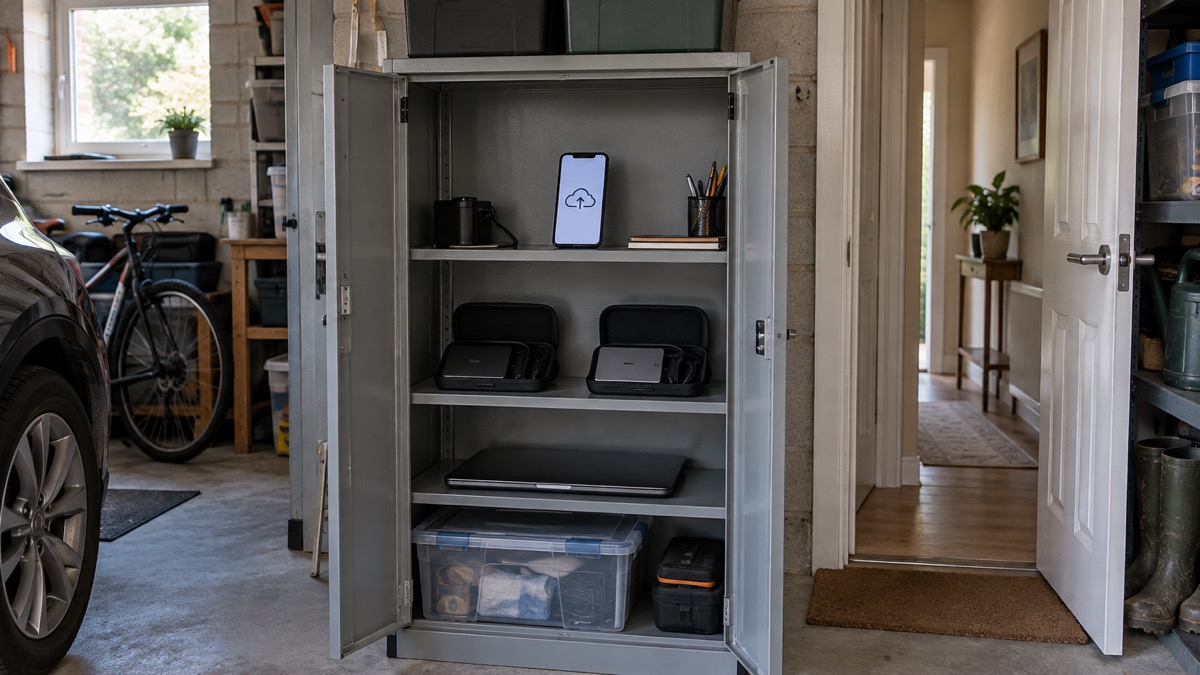
For most households the honest answer is not one or the other. Keep your important files in the cloud and on an external hard drive, and make sure at least one of those copies is not in your house. The National Cyber Security Centre (NCSC) defines a backup as a copy of your important data stored in a separate safe location, usually on the internet (cloud storage) or on removable media such as a USB stick, SD card or external hard drive1. The word that decides everything is "separate".
Each option covers a different disaster. Cloud storage survives a fire, a flood or a burglary at home, but it needs a working internet connection and a working account, and the NCSC warns it is not suitable if your connection is slow, unreliable or metered1. An external drive works with no internet at all, but it sits in the same building as the computer it copies, so it burns, drowns or disappears with it. The NCSC's advice for anything irreplaceable, such as photos and videos of family members, is to keep a copy in the cloud and also on removable media2.
There is a third reason to care, and it is the one people miss. Ransomware encrypts the files on your computer and on anything connected to it. The NCSC says it is important to always have a recent offline backup of your most important files and data3, and that the device holding your backup should not be permanently connected to your computer4. A drive you plug in, copy to and unplug is offline. A drive left plugged in is not.
What to back up first: documents, photos and contacts
Start with what you could not replace. The NCSC's test is simple: back up anything you value, meaning anything that would inconvenience you if you could no longer access it1. In practice that means photographs, key documents, and the contacts and messages that hold your family's arrangements together. Essex's emergency planning site puts it the same way: safeguard your most important data, such as your photos and key documents, by backing them up to an external hard drive or a cloud-based storage system5.
For a household starting from nothing, work in this order:
- Photos and videos of family. The NCSC singles these out as the classic irreplaceable data and suggests a copy in the cloud and a copy on removable media2.
- Key documents. Passports, insurance policies and other essential paperwork belong in a grab bag, with photographs or digital copies kept on your mobile phone as a backup6.
- Contacts. Your phone's address book is the thing you need when you have lost everything else, and it is small enough to back up anywhere.
- Everything else you would miss. Records, letters, certificates, anything that would be painful to reconstruct.
Whichever route you choose, check the copy afterwards. The NCSC advises that once you have made your backup, you check it contains all your important data, such as recently taken photos or recently created files or folders1. A backup you have never opened is a hope, not a copy.
When an external drive fails you: fire, flood and theft

An external drive is fast, private and needs no subscription, which is why it suits large collections of photos and video. The NCSC notes that removable media backups can hold large amounts of data, which may be beyond the capacity of cloud storage options1. It also lists the media you can use: an external hard drive, a USB stick or thumb drive, an SD card or DVD/CD-R discs1.
What it cannot do is survive the house. The NCSC lists the reasons people lose access to their data, and they include the device being lost or stolen, the device breaking, and a hard drive needing to be erased or replaced2. A fire, a flood or a burglary takes the computer and the drive beside it in one go. That is why the NCSC's definition of a backup insists on a separate safe location1, and why its advice for irreplaceable data is a cloud copy as well2.
There are practical steps that reduce the risk without pretending to remove it:
- Keep the drive out of the flood zone. Anglesey council advises households in bungalows to keep important documents, photographs and an external hard drive in a raised cupboard in a waterproof container7. The same logic applies to any home on a flood plain.
- Keep paper and drives off the floor. Cornwall's fire and rescue service suggests keeping important documents in a box up off the floor8.
- Store one copy somewhere else. A drive at a relative's house, or in a workplace locker, is a way to get a copy out of the building.
- Replace ageing drives before they fail. A drive that clicks, slows or needs repeated repairs is telling you something.
Cloud backup during a power cut or broadband outage
Cloud backup is only as good as the connection underneath it. The NCSC is direct: cloud storage requires a reliable internet connection, so is not suitable if yours is slow, unreliable or metered1. In a storm, a flood or a wider outage, the connection can go at exactly the moment you want your files.
Most power cuts are short. Wiltshire and Swindon's guidance notes that most power cuts do not last very long9, and a national power outage would far exceed the normal period of a few hours that you would normally experience in a power cut10. The longer the outage, the more the balance shifts towards a copy you hold yourself.
A few preparations make cloud access more resilient:
- Charge before the weather arrives. The government's storm guidance says to charge mobile phones, power banks and any back-up batteries for medical equipment in case there is a power cut9.
- Know your broadband's weak point. Ofcom advises that if your broadband often goes down, you might want to consider satellite internet as a backup, especially if you live in a rural or remote area11.
- Check any phone-line backup. If your landline runs through your broadband, check with your device provider for backup solutions in the event of a power cut12.
- Keep a local copy of anything you might need offline. A household emergency plan should be kept with important documents and a copy saved to your phone6.
Keeping your backups secure
A backup is only useful if it is there when you need it and nobody else can read it. Both routes have their own risks, and both are manageable.

For the cloud, the account is the weak point. The NCSC warns that anyone who is able to access your cloud account will also have access to your backups, and advises protecting the account with strong passwords and two-factor authentication2. Its backing-up guidance repeats the point: protect cloud accounts, and access to your backups, with strong passwords and two-factor authentication1. If you use a password manager, note that many offer recovery options if you forget your primary password, such as secure password hints or emergency access through trusted contacts13.
For the drive, the risks are loss, theft and infection. The NCSC advises protecting your backup with a strong password in case the media is lost or stolen, so that someone who has the media cannot access your data1. It also warns that ransomware and other malware can move to attached media, which means your backup would also be infected, and says to disconnect removable media when not in use1. Its WannaCry guidance is blunter: if your backup is on a USB stick, a hard drive or any type of removable media, do not leave it connected or anywhere on your network, or it may also be attacked by ransomware14.
"If it's on a USB stick, or a hard drive, or on any type of removable media, do not leave it connected (or anywhere on your network) or it may also be attacked by ransomware."
Using both together: a routine that actually works
The two options are not rivals so much as a pair. The NCSC's own advice for irreplaceable data is to keep a copy in the cloud and also on removable media2, and its definition of a backup accepts either as long as the copy sits in a separate safe location1. A workable household routine looks like this:
- Turn on automatic cloud backup for your phone and computer, so the everyday copy stays current without you thinking about it4.
- Copy the irreplaceable files to an external drive every so often, and check the copy contains what you expect1.
- Unplug the drive and put it away when you have finished1.
- Keep a second drive, or a second copy, somewhere outside the house.
- Protect the cloud account with a strong password and two-factor authentication2.
For more on the mechanics, see Backing Up Files and Photos at Home and How Often Should You Back Up Your Data?. If ransomware is your concern, How to Protect Your Backups From Ransomware goes further, and Ransomware: What It Is and How It Affects Households explains the threat itself.
Getting your files back after an emergency

When something goes wrong, the order you do things in matters. If a device has been infected, the NCSC's advice is to restore your backed-up data from the last known good backup. You will lose any data that was not backed up, but trying to rescue data while the device is still infected risks carrying the infection through after wiping and reinstalling15. Restore first, then reconnect the drive, and only after the machine is clean.
If the emergency was physical rather than digital, the priority is documents. Fire and rescue guidance notes that documents can easily be lost, damaged or destroyed in fire, flood or storm, so getting replacements as soon as possible speeds up recovery7. Keep vital documents somewhere easy to find, but only retrieve them if there is no immediate danger16. If you hold a carer's emergency plan, keep a copy with the other important documents for the person you support17.
If it is your cloud account you have lost rather than your device, each service has a different account recovery process, either by yourself or with the provider's support, and providers may publish step-by-step guides18. Our guide to recovering a hacked account walks through the first steps.
Sources (18)
- Backing up your data (infographic), National Cyber Security Centre, 2026
- Backing up your data, National Cyber Security Centre, 21 December 2021
- Sole ransomware attack, National Cyber Security Centre, 2026
- Ransomware prevention and recovery, National Cyber Security Centre, June 2026
- Top tips for staying secure online, National Cyber Security Centre, 2024
- Household emergency plan, Hillingdon Council
- After fire or flood, Devon and Somerset Fire and Rescue Service, 1 December 2020
- Be prepared in case of an emergency, Cornwall Council
- Storms, UK Government Prepare campaign, 19 October 2026
- Generators, Wiltshire and Swindon Prepared, 25 October 2026
- Stay connected in severe weather, Ofcom, 13 October 2026
- digital-switchover-telecare-guide, Suffolk County Council
- Password managers, National Cyber Security Centre, 21 May 2026
- WannaCry guidance for home users and small businesses, National Cyber Security Centre, 16 May 2017
- Infected devices | National Cyber Security Centre, National Cyber Security Centre
- At home, Wiltshire and Swindon Prepared, 25 October 2026
- Carer's emergency plan, Norfolk County Council, 29 October 2026
- Recovering a hacked account or service, National Cyber Security Centre, 11 January 2024