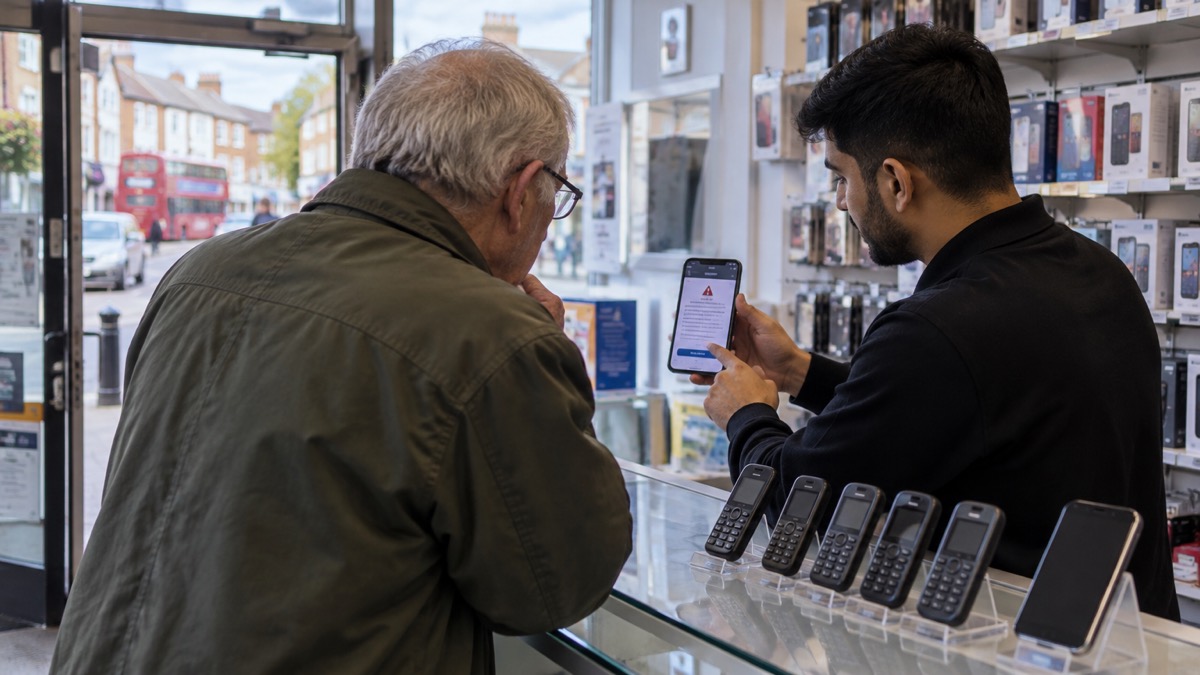
Emergency alerts are the free government messages that make a compatible phone sound a loud, siren-like alarm when there is a danger to life, health or property nearby. They reach 4G and 5G mobile phones and tablets in the area of risk, and they work on all 4G and 5G phone networks in the UK1. If your phone is a reasonably recent smartphone on a 4G or 5G signal, the chances are it will receive them.
The catch is in the word "compatible". The government's own compatibility list names iPhones running iOS 14.5 or later, and Android phones and tablets running Android 11 or later1. Phones released before 2015 are likely to need some changes to their settings2. A phone that is switched off, connected to a 2G or 3G network, on wifi only, or simply not compatible will not receive an alert1.
So the practical answer for most households is this: check your handset against those two software versions, install any software update waiting, and search your settings for "emergency alerts" to confirm the feature is switched on. It takes a few minutes and it is the difference between being warned and not.
Alerts reach 4G and 5G phones and tablets in the area of risk
The system is deliberately simple from the household's point of view. Alerts are sent using mobile phone networks to compatible mobile phones and tablets in a specific geographical area4. Every compatible mobile phone or tablet in range of a mast will receive the alert, and alerts are only sent if your current location is affected5. You do not need to sign up, download an app or register a number.
That last point matters if you have ever wondered how the government knows where you are. It does not. Alerts are based on your current location, not where you live or work, and you do not need to turn on location services to receive them3. The system does not need your phone number, does not collect personal information or track your location, and no personal data is shared when an alert is sent4. The message goes out to the masts in the affected area and your phone picks it up.
The trigger is serious. The service exists to warn you about a danger to your life, health or property in the area in which you are located6. That is why the alert is loud and hard to ignore: it is meant to interrupt whatever you are doing.
Compatibility is the one thing you have to check yourself. The government's list is short and specific: iPhones running iOS 14.5 or later, and Android phones and tablets running Android 11 or later1. If your phone meets that, and it is on a 4G or 5G network with the alert setting enabled, you should receive alerts when one is sent for your area.
Older phones and earlier Android versions: check your settings
An older handset is not automatically out of the running, but it does need a look. The government advises that mobile phones released before 2015 are likely to require some changes to the settings2. If you have an earlier version of Android, you may still be able to receive alerts; to check, search your device settings for "emergency alerts"1.
The route to that setting varies by maker and software version. The table below sets out the paths the guidance gives.
| Device | Where to look | Source |
|---|---|---|
| iPhone | Settings > Notifications > make sure the "Emergency Alerts" toggle is on | 7 |
| Samsung, Android 10 and older | Messages app > Settings > Emergency Alert settings > Emergency Alerts | 7 |
| Any Android, earlier version | Search your device settings for "emergency alerts" | 1 |
| Other phones and tablets | Settings may be called "wireless emergency alerts" or "emergency broadcasts" | 8 |
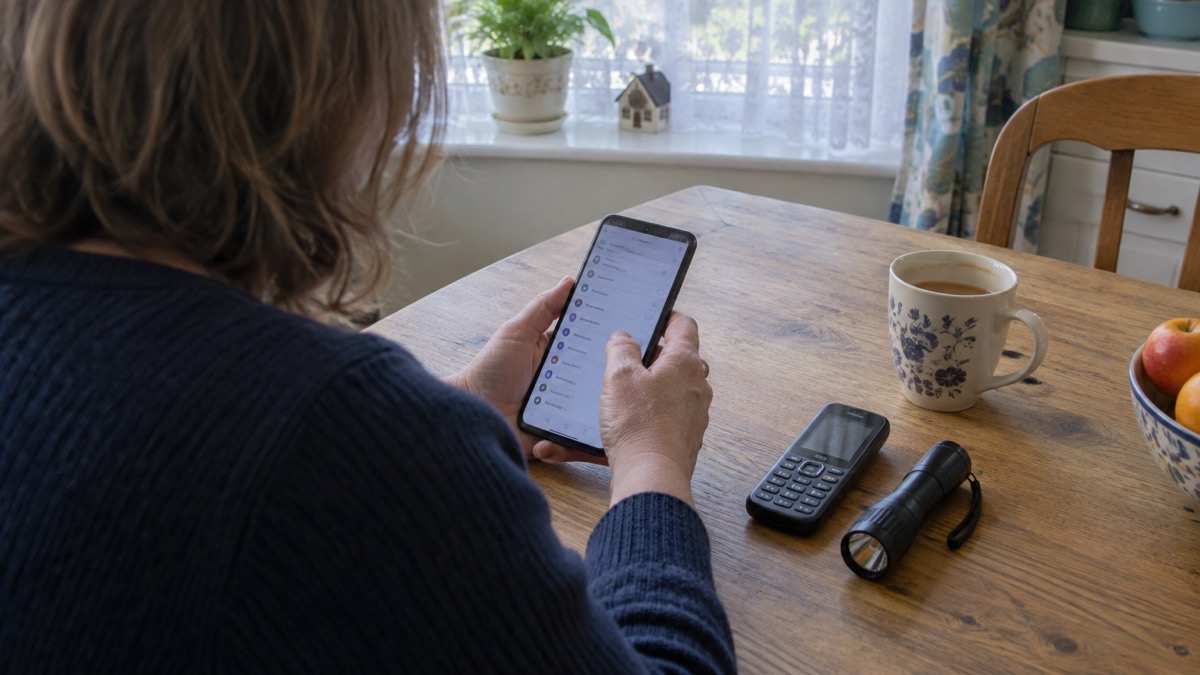
The naming point catches people out. Depending on the manufacturer and software version of your phone, emergency alerts settings may be called different names, such as "wireless emergency alerts" or "emergency broadcasts"8. If you search for "emergency alerts" and find nothing, try those terms before concluding your phone cannot receive them.
BT, as a network operator, puts the compatibility line slightly differently: Android phones and tablets running Android 11 or later, and notes that the service may work on devices running an earlier version9. That is consistent with the government's advice to check rather than assume. If your phone is older and you cannot find the setting at all, it is worth asking your manufacturer whether your model supports it.
Keep your phone's software up to date
The single most useful habit is to keep the phone updated. The government's advice is plain: make sure your device has all the latest software updates1. Compatibility with alerts is tied to the operating system version, so a phone that has been sitting on an old version for years may not be receiving them even though the hardware could.
Updates also matter for the rest of an emergency. A phone that is up to date is more likely to run the apps you rely on, and to hold a charge predictably. Keep a charging cable and a way to top the battery up if the power goes off; official household advice includes keeping extra batteries to charge your phone10. If you want to go further on that, our guide to what to keep charged before a power cut sets out the priorities.
There is a second reason to keep the phone in good order: it is your route to help as well as to warnings. Some mobile devices can use Emergency SOS (iOS) and Satellite SOS (Android) to contact emergency services via satellite if no mobile networks are available11. That is a separate feature from alerts, but it is another reason not to let an old handset languish.
If your phone is on its last legs, the compatibility question is worth weighing before you replace it. A handset that cannot receive alerts is also likely to struggle with other things you may want in an emergency, such as maps, torch and calls. Our page on getting your mobile phone ready for an emergency covers the wider checklist.
What an alert sounds and looks like
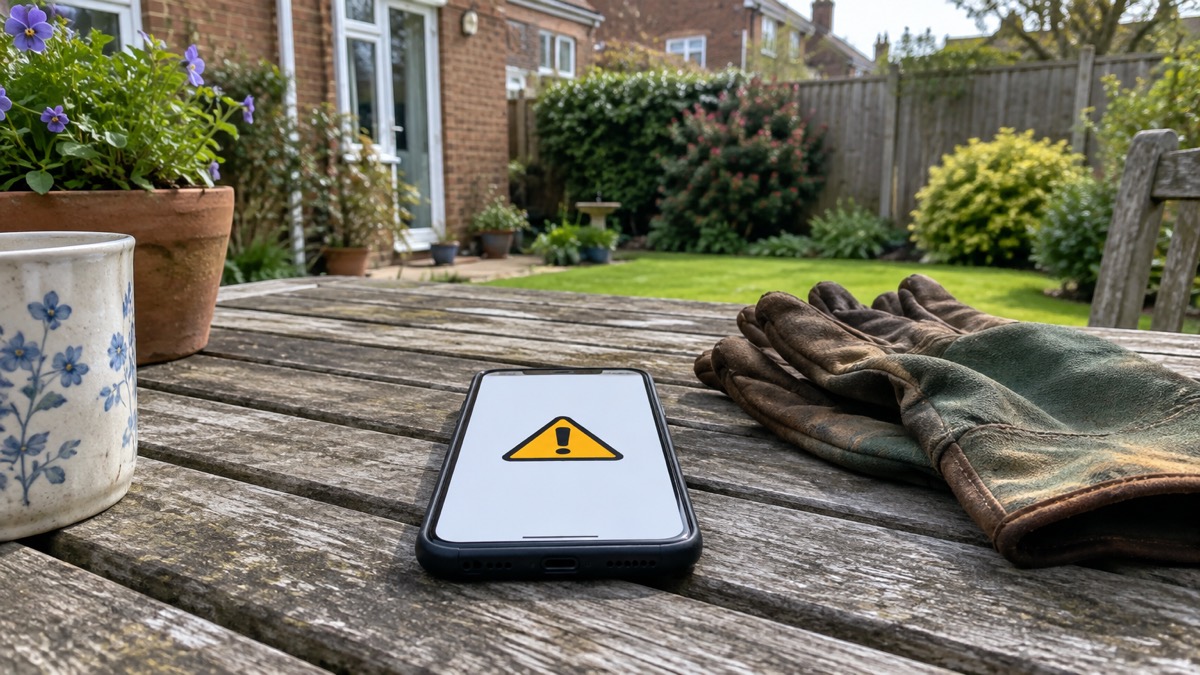
You will know an alert when it arrives. You will hear a loud, siren-like sound and your phone will use a distinct vibration, and a message will appear on your screen until you acknowledge it2. The message tells you about the emergency and what you need to do12.
The sound is designed to cut through. Your mobile phone or tablet may make a loud siren-like sound, even if it is set on silent, vibrate, and read out the alert3. Age UK's guidance describes the same experience: the phone gives off a loud noise which sounds like a siren, even if the phone is on silent, reads out the alert and vibrates, lasting about 10 seconds13.
That behaviour is deliberate for accessibility. Compatible phones use a loud, siren-like sound so people with visual impairments are not excluded; the alert may work with screen magnification, may read the message out having overridden volume settings, and the noise should be audible for those who use a hearing aid14. If you have a vision or hearing impairment, audio and vibration attention signals will let you know you have an emergency alert if accessibility notifications have been enabled on your mobile phone or tablet3.
Once you have acknowledged it, the alert does not vanish for good. On Android phones, the alert may be found in the Messages app or "Emergency Alert History"; for iPhone users, the alert will be in your notifications2. If you delete your notifications, the alert will also be deleted2. To see an alert again, go to the current alerts or past alerts pages, or search for emergency alerts on your mobile phone or tablet1.
Phones that are not iPhone or Android, and basic handsets
The two big software families cover most handsets, but not all. The government says other phones that do not run iOS or Android may also receive alerts1. If you carry a simpler phone, a rugged handset or a device from a smaller maker, it is worth checking its settings menu for an alerts option before assuming it will stay quiet.
Basic non-smart phones are a different matter. A handset needs to be on 4G or 5G to receive the alert, and one connected to 3G or a 2G signal will not receive it15. Many basic phones are 4G-capable now, so the age of the phone is not the whole story; the network it is connected to is.
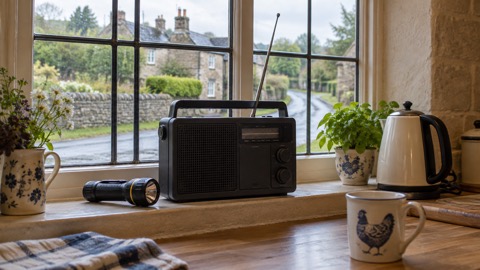
If you do not have a compatible device, you will still be informed about an emergency, because the emergency services have other means of getting the message out3. That is reassuring but not a reason to rely on it. Our guide to getting emergency warnings without a mobile phone covers the alternatives, and the section on where to get official warnings and news explains how radio and other channels fit in.
There is a wider point about older technology. All 2G networks will be switched off by 2030, with some areas losing 2G access sooner16. If your phone or a personal alarm depends on those networks, it will stop receiving alerts and may stop working altogether. Our page on the 3G switch-off sets out which phones and alarms are affected.
Turning alerts off, and the Android reminder
Most households should leave alerts on. But there are legitimate reasons to turn them off, and the government accepts that. You can opt out by changing your phone settings, and the steps depend on your device8. On an iPhone, search your settings for "emergency alerts" and turn off Severe alerts and Emergency alerts17. On Android, search your phone's settings for "emergency alerts" and follow the instructions for your device4.
If you still get alerts after opting out, contact your device manufacturer for help8. The setting can be buried, and some makers use different names for it.
Android users may notice something else: Android phones and tablets may get more than one reminder about the same emergency alert, and these reminders can be turned off through the "emergency alerts" settings on the device1. The reminder is not a new emergency. It is the same alert repeated so that you do not miss it, and turning it off is a matter of preference rather than safety.
If you want the full step-by-step for your handset, our page on how to turn emergency alerts off or on walks through the settings. For the reasoning behind opting out, and the situations where it is the right call, see what to do when you get an emergency alert.
National tests of the system
The system has been tested nationally. The first public test was in April 202318. A further nationwide test was scheduled for Sunday 7 September 2025 at 3pm, and the government said the test message would be sent to every compatible phone nationwide18. The easy-read guidance described the same event: a test alert sent at 3pm to all 4G and 5G mobile phones and tablets, lasting about 10 seconds12.
Tests are useful because they show you what a real alert will feel like, and they flush out phones that are not set up to receive one. If a test passes you by, that is a signal to check your settings and your software version before a real emergency. Our page on what happens during an emergency alert test explains the process in more detail.
If your phone will not receive alerts
Work through the possibilities in order. First, check the software version against the compatibility list: iPhone on iOS 14.5 or later, Android on Android 11 or later1. Second, install any update waiting. Third, search the settings for "emergency alerts", "wireless emergency alerts" or "emergency broadcasts" and make sure the toggle is on8. Fourth, check the network: a phone on 2G or 3G, or on wifi only, will not receive an alert1.
If none of that works, the phone may simply be too old. Apple models before iPhone 6S that do not support iOS 14, and Android models generally older than Android 9, will not be able to receive Emergency Alerts, according to BT15. That is a maker and operator view rather than the government's list, but it is a useful floor. If your handset falls below it, plan to rely on other warning channels and consider whether a replacement is due.
Whatever phone you carry, the alert is only one part of being ready. A charged battery, a paper list of numbers and a radio that works without mains power all help when the networks are stretched. Our section on staying informed and in touch in an emergency brings those threads together, and the guide to emergency alerts and how the UK phone warning system works explains the system itself.
Sources (18)
- How emergency alerts work, GOV.UK, 2026
- Emergency alerts, Denbighshire County Council, 2026
- Emergency alerts, GOV.UK, 2026
- Emergency alerts service, Croydon Council, 2026
- Wildfires: protecting your home and garden, London Fire Brigade, 2026
- Emergency Alerts Service | Mobile UK, Mobile UK
- Emergency Alerts factsheet, Saltford Parish Council, 2023
- Opting out of emergency alerts, GOV.UK, 2026
- Emergency alerts, Three, 2026
- Prepare yourself, Wiltshire and Swindon Prepared, 2026
- Stay connected in severe weather, Ofcom, 2026
- Emergency Alerts System factsheet, easy read, GOV.UK, 2025
- National Emergency Alerts, Age UK, 2026
- National Emergency Alert System: what is it?, Essex Prepared, 2026
- Emergency alerts, BT, 2026
- 2G and 3G alarm FAQs, Taking Care, 2026
- National emergency alerts FAQs - National emergency alerts - Warwick District Council., Warwick District Council
- The UK Government Resilience Action Plan, Cabinet Office, 2025
 Free Alert Services
 Emergency Apps
 Digital Switchover Checklist
 Silent 999 Calls
 Giving Your Exact Location
 When to Call 999
 Calling 999 With No Signal
 999 by Wi-Fi Calling
 When You Get an Alert
 Alerts While Driving
 Spotting a Genuine Alert
 Emergency Alerts On or Off
 Emergency Alert Privacy
 Emergency Alert Tests
 Alerts Without a Mobile Phone