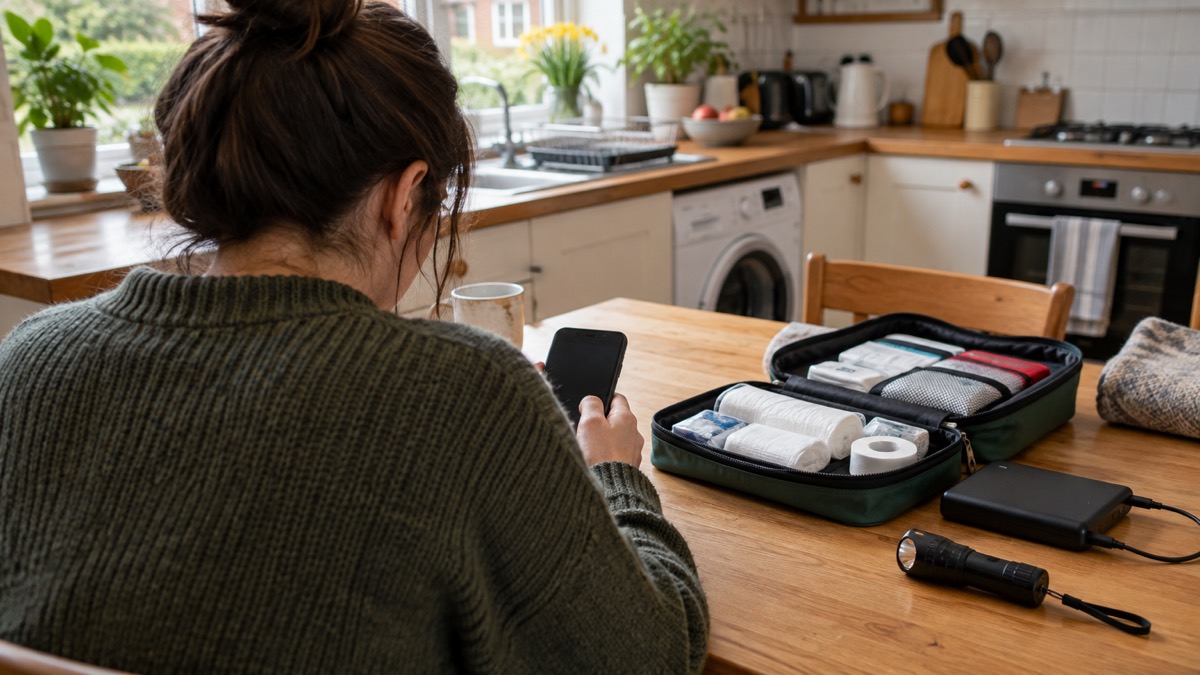
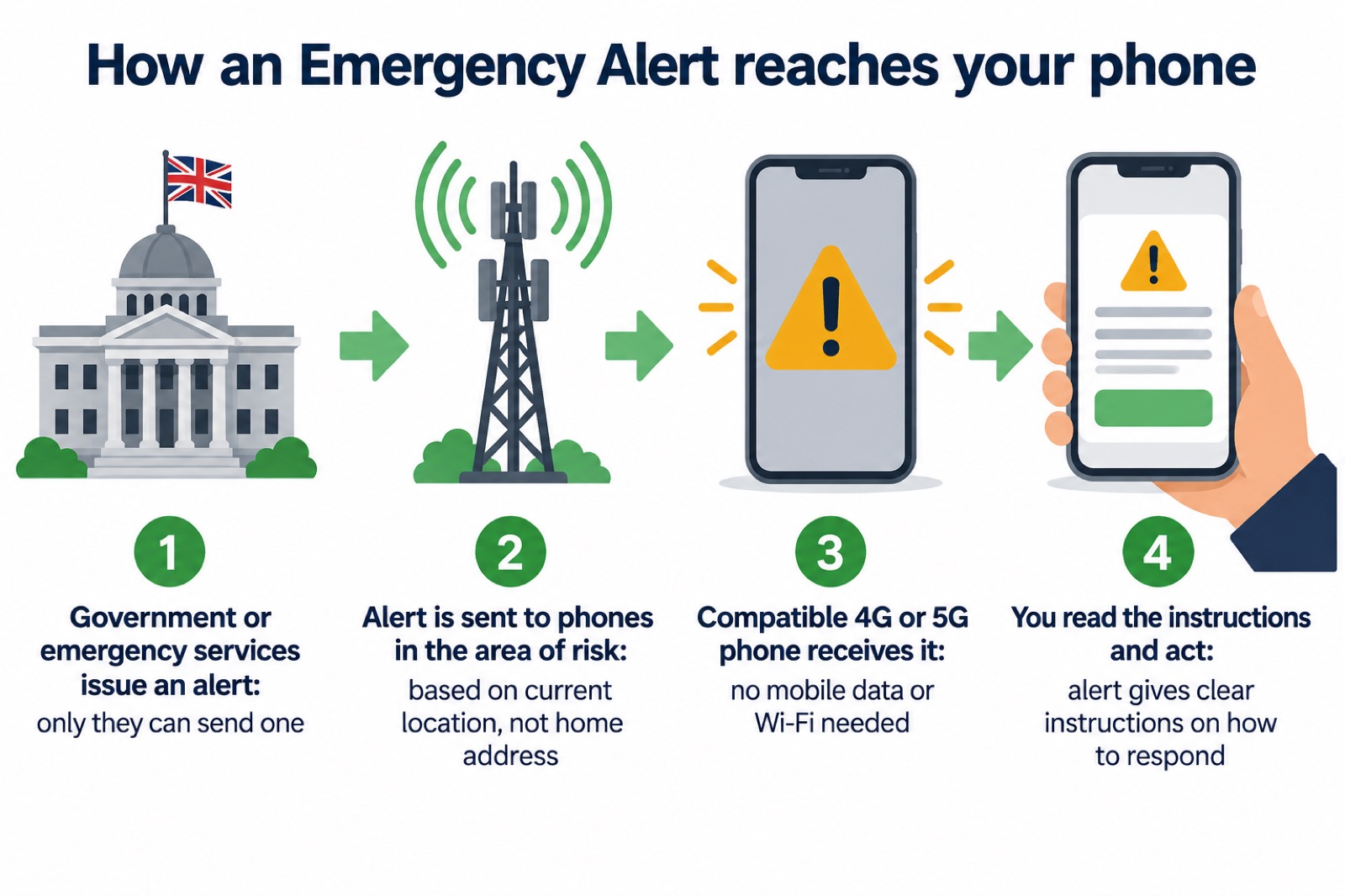
Most of what protects you in an emergency is already on your phone, and it does not need an app at all. Emergency Alerts arrive on compatible 4G and 5G phones in an area of risk, and your phone does not have to be connected to mobile data or Wi-Fi to get one1. The alert is sent to your current location, not where you live or work, and you do not need location services switched on2.
What you can do now is small and quick. Check your phone has the latest software updates, because alerts need a compatible device1. Register for emergencySMS by texting 'register' to 999 if you cannot make voice calls3. Add a first aid app, such as the free Red Cross app, so you have simple skills to hand before help arrives4. Add 'in case of emergency' (ICE) contacts that can be found on your phone, and turn on safety features such as the personal safety feature on Android and the Health app on iOS5.
Then keep it working. Keep extra batteries to charge your phone6, and keep a phone or alert device nearby in case you need help7. The sections below explain each item, what it does, and what it cannot do.
The apps and phone settings to set up now
Start with the settings already built into your phone, because they cost nothing and work when other things fail. Emergency Alerts are the main one, and they are covered in the next section. Alongside them, add ICE contacts that can be easily found on your phone, and enable any safety and emergency features such as the personal safety feature on Android and the Health app on iOS5. These help someone else find who to call if you cannot tell them.
The apps worth adding are few. The free Red Cross app gives you simple skills to deal with sprains and strains, broken bones, unconscious casualties and more, plus tips on how to prepare for emergencies, from severe weather to road traffic accidents9. Download the What3Words app so that if you do not know where you are and need emergency help, you can give the ambulance service your What3Words location10. If you are deaf and use British Sign Language, the 999 BSL app lets you press a red button to call 999 and connect to a BSL translator and the emergency services11.
| App or setting | What it does | Who it suits |
|---|---|---|
| Emergency Alerts (built in) | Sends a government or emergency services message to compatible phones in an area of risk1 | Everyone with a compatible phone |
| emergencySMS (built in) | Lets you text 999 if you cannot make a voice call3 | Deaf, hard of hearing and speech-impaired people |
| Red Cross first aid app | Simple first aid skills and emergency preparation tips9 | Every household |
| What3Words | Gives the ambulance service your exact location when you do not know where you are10 | Walkers, drivers, anyone away from home |
| 999 BSL | Connects you to a BSL translator and the emergency services11 | BSL users |
| GoodSAM Responder | May alert you when you are near a cardiac arrest so you can start CPR12 | People trained in basic life support |
The GoodSAM Responder app is different from the rest: it alerts trained volunteers with basic life-support skills to life-threatening emergencies such as a cardiac arrest nearby, so they can start CPR in the critical minutes before an ambulance arrives12. It is for people who are willing and able to respond, not a general household app.
Emergency Alerts arrive without an app if your phone is switched on
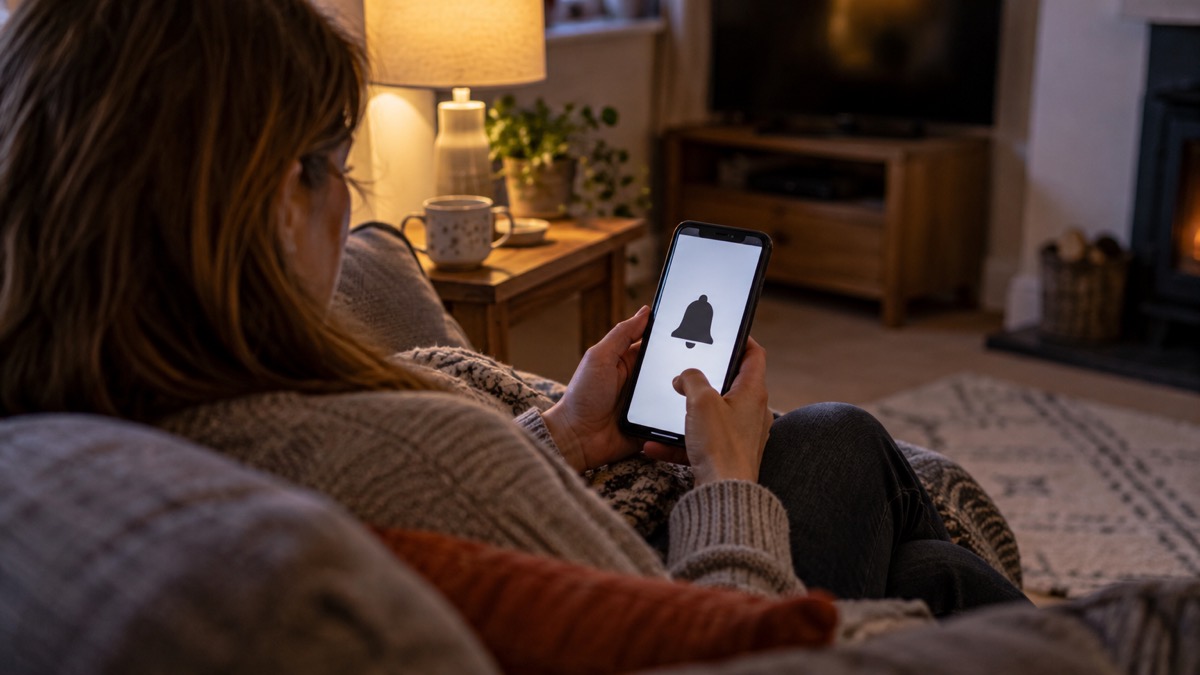
Emergency Alerts are the one thing on this page you do not download. The system enables people to be contacted via their mobile phone and tablet if their lives are at risk in an emergency, and its purpose is to get urgent messages quickly to mobile phones when there is a risk to life, with clear instructions about how best to respond14. Only the government and emergency services can send them15.
They reach compatible 4G and 5G mobile phones within an area of risk, if the phone has the latest software update15. They work on iPhones running iOS 14.5 or later, and Android phones and tablets running Android 11 or later, and other phones that do not run iOS or Android may also receive alerts1. Phones released before 2015 are likely to require some changes to the settings15.
The system is deliberately private and simple. It does not need your phone number, does not collect personal information or track your location, and no personal data is shared when an alert is sent15. Alerts are one-way and give no feedback on your location or whether you received one15. If you do not have a compatible device, you will still be informed about an emergency through other means used by the emergency services2.
If you miss the alert or dismiss it, you can find it again. On Android phones, the alert may be found in the Messages app or 'Emergency Alert History'; on an iPhone it will be in your notifications, and if you delete your notifications the alert is deleted too16. You can also go to the current alerts or past alerts pages, or search for emergency alerts on your phone or tablet1.
A first aid app helps you act before help arrives
A first aid app is the one download that changes what you can do in the first minutes of a medical emergency, before an ambulance reaches you. Official guidance is to have a first aid kit in your home and car and learn first aid, and to download a first aid app for your smartphone, such as the free app from the Red Cross4. The Red Cross app gives you simple skills to deal with sprains and strains, broken bones, unconscious casualties and more, plus tips on how to prepare for emergencies, from severe weather to road traffic accidents9.
The app is a prompt and a reminder, not a substitute for training. Read it before you need it, so the steps are familiar when you are frightened. Keep a phone or alert device nearby in case you need help7, and make sure the phone holding the app is charged.
For more on what to keep at home and how to use it, see First Aid at Home: A Household Guide.
Emergency SMS: contacting 999 by text if you cannot speak
If you cannot make voice calls, you can contact the 999 emergency services by SMS text from your mobile phone3. The service allows deaf, hard of hearing and speech-impaired people who find it difficult to use the phone to send a text to the 999 service so they can get through to the ambulance, police, fire service or coastguard17. It has been running since September 2009 and has handled hundreds of real emergency calls.
You must register your phone beforehand18. To register, text 'register' to 999 and follow the instructions you are sent3. One ambulance service sets out the steps: text REGISTER to 999, read the reply carefully, text YES to confirm, then you will receive a message confirming your registration19. Another route is to register your mobile phone by visiting the website www.emergencysms.net17. Register now: don't wait for an emergency3.
When you use it, include which service you need (ambulance), what is wrong, and where you are (address or location)19. Text 999 should only be used when you cannot make a voice call19. If you do not receive a confirmation text from the service, text again17. The message is passed to the police, ambulance, fire rescue or coastguard as appropriate11.
The service works across the UK, with guidance from ambulance services in England, Scotland and Wales19. For step-by-step help, see emergencySMS: How to Register and Text 999. If you are deaf and prefer BSL, 999 BSL and Relay UK: Contacting 999 If You Are Deaf explains the video relay route, and the Relay UK app should be downloaded before you need it18.
Keeping your apps and alerts ready to work
An app is only useful if the phone is charged, updated and able to reach a network. Make sure your device has all the latest software updates, because alerts depend on a compatible device1. Keep extra batteries to charge your phone6, and include a mobile phone and charger, plus essential phone numbers including the family GP, in your emergency pack20.
When networks fail, your phone has more options than you might think. If your mobile provider is experiencing an outage, you will be able to automatically use another provider's network to call 999 or 112 free of charge, displayed as 'emergency calls only' on Android or 'SOS only' on iOS21. Some mobile devices can use Emergency SOS (iOS) and Satellite SOS (Android) to contact emergency services via satellite if no mobile networks are available21. Turning on Wi-Fi calling in your device settings allows calls over your broadband connection if your mobile network is unavailable, including through apps such as WhatsApp, Messenger, iMessage and Signal21.
- Charge and carry: keep extra batteries to charge your phone6
- Update: install the latest software so alerts and apps work1
- Register early: sign up for emergencySMS before you need it3
- Add ICE contacts: so someone can find who to call5
- Keep numbers on paper: phone numbers including the family GP in your pack20
For more on keeping a phone going when the power is off, see How to Save Your Phone Battery in a Power Cut and What to Keep Charged Before a Power Cut. If your signal has gone altogether, What to Do When Phones and the Internet Go Down covers the alternatives, and Satellite Messaging and SOS on Phones: What It Does explains the satellite options in more detail.
If you want alerts off, or your phone is older
You can opt out of emergency alerts, and some people need to. Victims of domestic abuse with a concealed phone may find it appropriate to turn off alerts22. To opt out on an iPhone, search your settings for 'emergency alerts' and turn off Severe alerts and Emergency alerts15. On Android, search your phone's settings for 'emergency alerts' and turn off 'test alerts', 'exercise alerts', 'operator defined' and 'operator alerts'23. If this does not work, contact your device manufacturer22.
Depending on the manufacturer and software version, the setting may be called something else, such as 'wireless emergency alerts' or 'emergency broadcasts'22. On other Android phones, the settings are generally found through one of several routes, including Settings > Sounds > Advanced > Emergency Broadcasts, or Settings > Wireless & Networks > More > Cell Broadcasts24. Android phones and tablets may get more than one reminder about the same alert, and reminders can be turned off through the emergency alerts settings1.
If your phone is older, check before assuming it will not work. If you have an earlier version of Android, you may still be able to receive alerts: search your device settings for 'emergency alerts' to check1. If you do not have a mobile phone at all, you will still be kept informed through other channels25. For the full picture, see Will Your Phone Receive Emergency Alerts? and How to Turn Emergency Alerts Off or On.
eCall in cars and vans: the SOS button built in
Most cars and vans have been fitted with the eCall emergency call system since April 20188. When activated, eCall contacts a 999 operator and provides your vehicle's exact location directly to the emergency services8. You do not download it and you do not register it; it is part of the vehicle.
Do not confuse it with breakdown assistance. If you have broken down and can leave your vehicle safely, press your bCall button or use your phone to call for breakdown recovery or roadside assistance8. eCall is for emergencies where life is at risk, not a flat battery on the hard shoulder.
For more on what the button does and when to use it, see What the SOS Button in Your Car Does.
What happens during a national alert test
The government has tested the system nationally. The UK government tested the Emergency Alerts system nationally on Sunday 7 September 2025 at 3pm, when a test alert went to all 4G and 5G mobile phones and tablets and lasted about 10 seconds14. The system was successfully trialled in summer 2021 before being introduced across the UK, and a much larger test took place across all of Reading on 29 June 2021.
A test is a good moment to check your settings. If your phone did not sound, search your settings for 'emergency alerts' and check the alert types are switched on22. If you need alerts off, a test day is when a concealed phone should be switched off or put in airplane mode. For more, see What Happens During an Emergency Alert Test.
Sources (25)
- How emergency alerts work, GOV.UK, 2026
- Emergency Alerts, GOV.UK, 2026
- emergencySMS service, East Midlands Ambulance Service, 2026
- Sign up to warnings and alerts, Surrey County Council, 2026
- Cold weather advice, West Midlands Ambulance Service, 2026
- For people with disabilities, Tyne and Wear Fire and Rescue Service, 2026
- eCall, National Highways, 2026
- National Emergency Alerts, Warwick District Council, 2026
- Using 999 with speech or hearing impairment, Yorkshire Ambulance Service, 2026
- Emergency pack, Lancashire Prepared, 2026
- GoodSAM app, London Ambulance Service, 2026
- GoodSAM responders, Northern Ireland Ambulance Service, 2026
- Falls prevention, Staffordshire County Council, 2026
- System testing, GOV.UK, 2026
- Emergency Alerts, Denbighshire County Council, 2026
- Emergency Alerts, Isle of Anglesey County Council, 2026
- Phoning 999, Scottish Ambulance Service, 2026
- Fire safety for people with hearing difficulties, Devon and Somerset Fire and Rescue Service, 2026
- SMS texting, North West Ambulance Service, 2026
- Step 1: preparation, Essex Prepared, 2026
- Stay connected in severe weather, Ofcom, 2026
- Emergency Alerts System factsheet, easy read, GOV.UK, 2025
- Prepare yourself, Wiltshire and Swindon Prepared, 2026
- Useful information for you and your community, Argyll and Bute Council, 2026
- Get prepared for emergencies: alerts, Prepare campaign, 2026
 Free Alert Services
 Digital Switchover Checklist
 What to Keep Charged