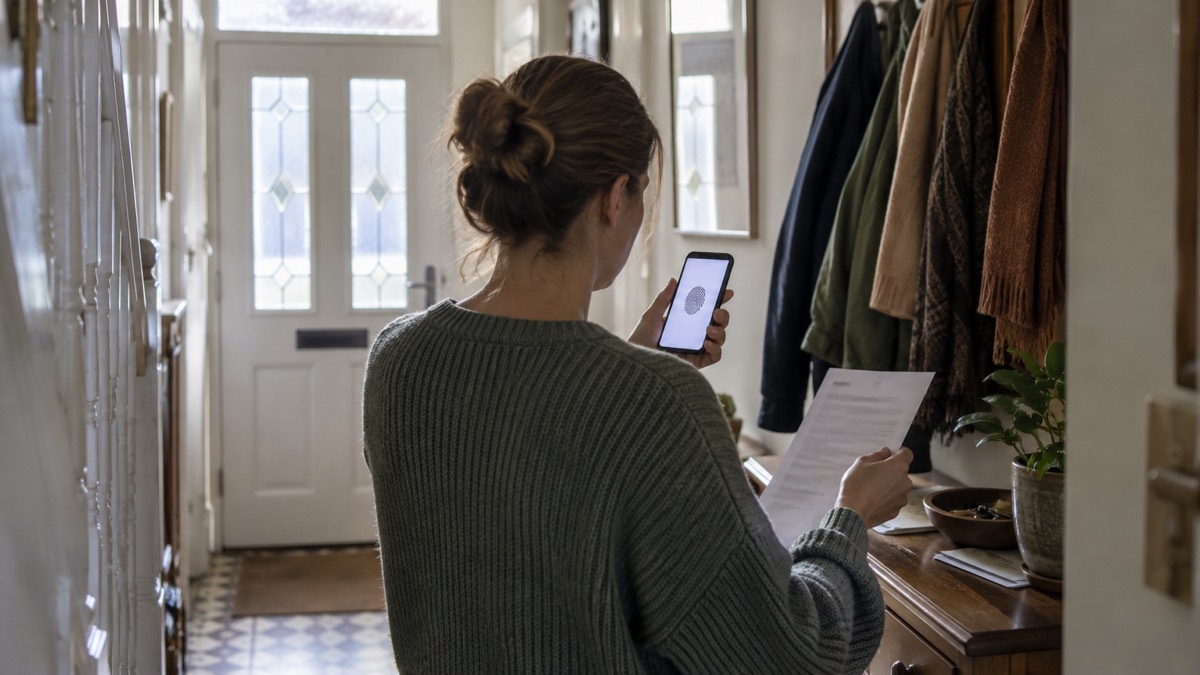
A passkey lets you sign in to an account with a digital key that is protected by your device's existing unlock method, such as a fingerprint, a face check or a passcode, instead of typing a password1. There is nothing to remember and nothing to type, which removes the two things that most often let criminals in: a password that is reused across accounts, and a password that is guessed or stolen in a data breach.
The National Cyber Security Centre, the UK's official cyber security body, sets out the case plainly. Passwords are often stolen when an organisation holding your details suffers a data breach, and criminals then try the same password on your other accounts2. A passkey takes the password out of the sign-in altogether. For accounts that do not yet offer passkeys, the same guidance says to continue using a strong and unique password and two-step verification1.
Should you use one? For most households the answer is yes, on the accounts that matter most, starting with email and banking. But a passkey lives on a device, so it needs planning: know which device holds it, keep that device locked, and know what you will do if it is lost. This page covers how passkeys work, how they compare with passwords, how to set them up, and where to get help if an account is taken over.
A passkey signs you in without a password
A passkey is a digital key that stays on your device and is unlocked by whatever you already use to open that device: a fingerprint, a face check or a passcode1. When you sign in to a website that supports passkeys, the site asks your phone or computer to confirm it is you, you unlock the device as normal, and you are in. No password is typed, sent or stored on the website.
That matters because of how passwords fail. The National Cyber Security Centre says passwords are often stolen when an organisation holding your details suffers a data breach2. Once a criminal has a password, they try it on other accounts, a technique known as credential stuffing, which works because many people use the same password for different accounts5. A passkey cannot be reused this way, because there is no shared secret to steal.
The signs that a password has been compromised are worth knowing, because they apply to any account you have not yet moved to a passkey. The National Cyber Security Centre lists being unable to log in, or messages sent from your account that you do not recognise, as indicators of a stolen password2.
"Indicators of a stolen password include being unable to log in, or messages sent from your account that you don't recognise."
Passkeys are not the only defence, and they are not yet everywhere. But they are the direction the official guidance points, and setting one up on an account you care about is a few minutes' work.
How a passkey works on your phone or computer
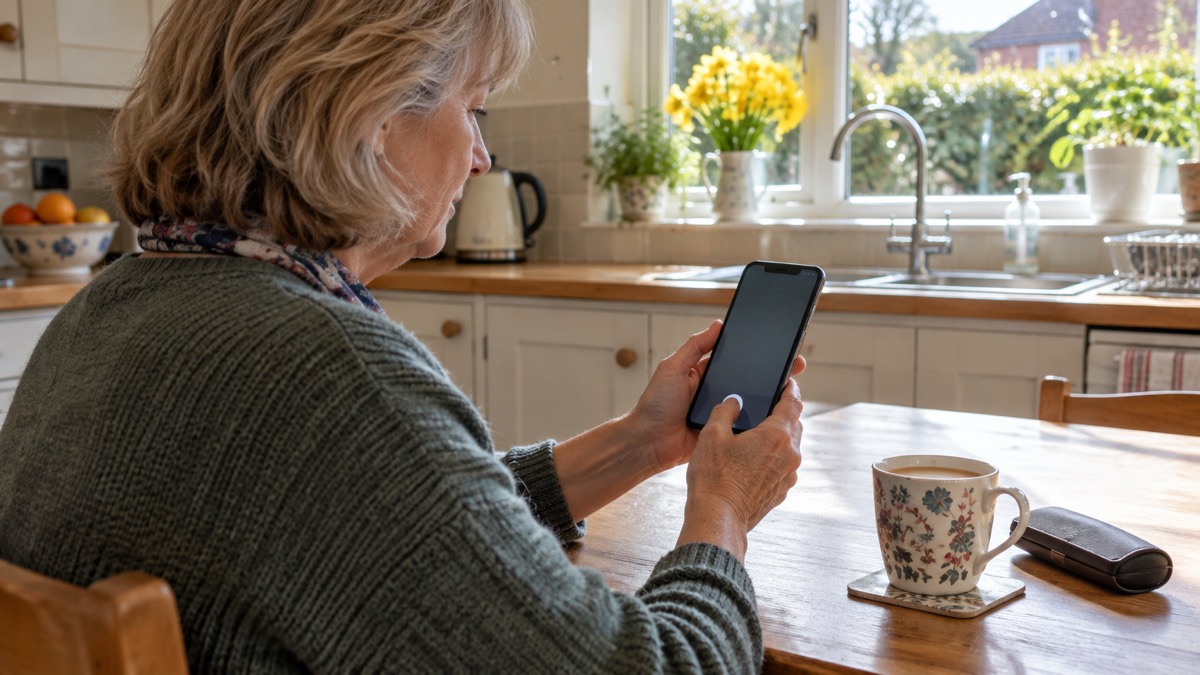
The passkey itself is held by your device, and the device's own lock is what protects it. The National Cyber Security Centre says a screen lock can be a PIN, password, biometric (fingerprint or facial recognition) or pattern, and any is better than none6. That lock is the front door to every passkey on the device, so it deserves the same care as your most important password.
When you set up a passkey, the website and your device create a pair of keys: one stays on the device, the other is held by the website. When you sign in, the device proves it holds the matching key, and only after you unlock it. The website never sees your fingerprint or face, and there is no password for a criminal to phish.
Some devices and browsers can sync passkeys between your own devices, so a passkey set up on a phone may also work on a laptop signed in to the same account. The exact behaviour depends on the maker, so check the maker's own instructions for your phone or browser. What does not change is the principle: the passkey is only as safe as the device that holds it and the lock that protects it.
Passkeys or passwords: which keeps an account safer
For the account itself, a passkey is the stronger option, because there is no password to steal, guess or reuse. The National Cyber Security Centre's guidance is direct: a passkey lets you sign in with a digital key protected by your device's existing unlock method1. The weakness it removes is the one criminals exploit most, the reused password that falls in one breach and opens several accounts5.
Passwords are not finished, though. Many sites do not yet offer passkeys, and for those the official advice is to continue using a strong and unique password and two-step verification1. A password manager stores passwords safely so you can have a unique password for each service without needing to remember them, and the National Cyber Security Centre encourages people to use one1. It can also create strong passwords for you and remember them7.
| Passkey | Password plus two-step verification | |
|---|---|---|
| What you type | Nothing; you unlock your device1 | A password, then a code from an app or SMS2 |
| What a breach exposes | No shared secret to steal | The password, which may be reused elsewhere2 |
| Works on every site? | No; some sites do not yet offer them1 | Yes, on any site with a password |
| Main risk | Losing the device that holds it | Reuse, guessing and phishing |
Two-step verification is worth keeping even where you use a passkey, because it protects the accounts that still rely on a password. The National Cyber Security Centre says the first and most important step is to turn on two-step verification to help protect you if your password gets phished or otherwise compromised1. It usually works by sending a PIN or code, often by SMS or email, which you enter to prove it is really you8. For a step-by-step walkthrough, see how to turn on 2-step verification.
Setting up a passkey on the accounts that matter most
Start with the accounts that would cause the most trouble if someone else got in: email first, then banking. Email is the key to everything else, because password resets for other accounts arrive there. The National Cyber Security Centre says it is worth taking the time to set up two-step verification on important accounts like email and banking, even if these are already protected by a strong password, and that it only takes a few minutes3.
The order that makes sense for most households:
- Email. Turn on two-step verification first, then add a passkey if your email provider offers one3.
- Banking and payment accounts. Use a unique password and two-step verification, and add a passkey where the bank supports it9.
- Shopping and social media. The National Cyber Security Centre advises unique passwords for all your important online accounts, including shopping, payment and social media accounts, not just email9.
- Everything else. Move accounts to passkeys as sites offer them, and keep two-step verification on the rest1.
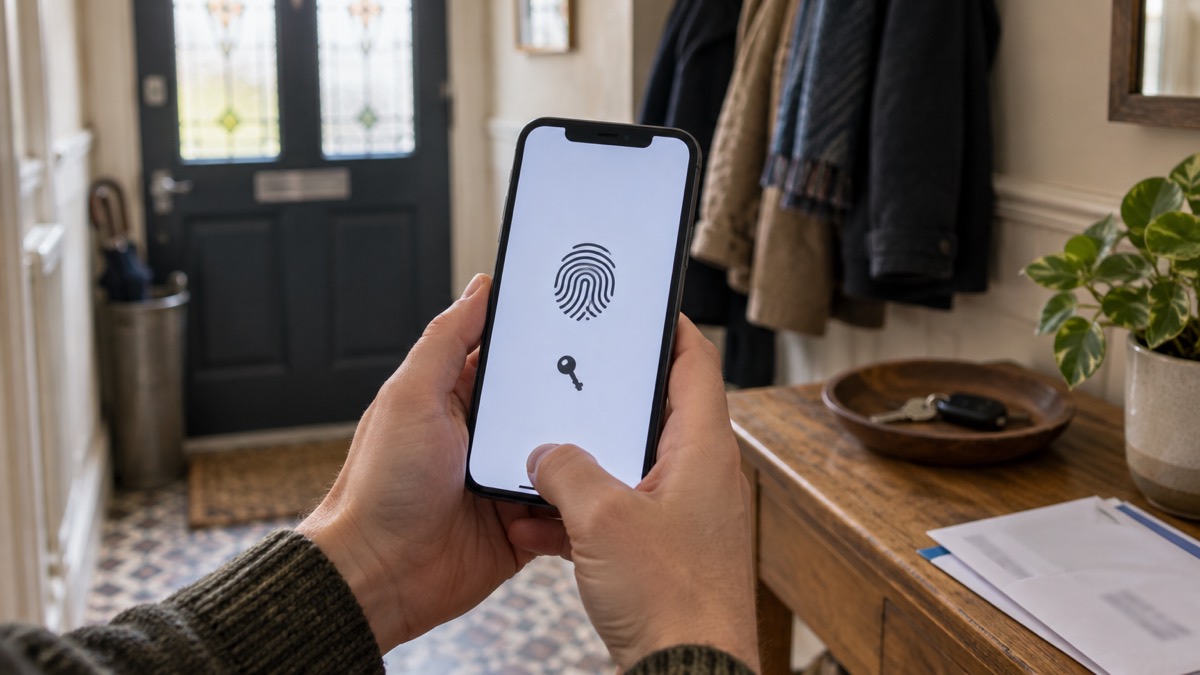
A password manager makes this easier. It stores passwords safely so you can have a unique password for each service, and the National Cyber Security Centre encourages people to use one1. If you would rather not use one, the same guidance says it is safe to save passwords in your browser on your own devices, provided you do not switch off the security auto-update feature for your browser and operating system1. For more on that choice, see do you need a password manager?.
What happens if you lose the device holding your passkey
Losing the phone that holds your passkeys is the main practical worry, and it is manageable if you plan before it happens. The passkey is on the device, so a lost or stolen phone means you cannot use that passkey until you recover the device or set up a new one with the account provider. Most providers offer a recovery route, often by signing in on another device or through a backup method you registered earlier.
The principle is the same one the Electrical Safety First charity gives for smart home devices: plan ahead so you know what to do if you lose your phone or log-in details and cannot control your smart devices remotely10. Apply that to passkeys: know which accounts use one, know your recovery route for each, and keep a record somewhere safe that is not on the device itself.
A few practical steps:
- Register a backup method with each account when you set up the passkey, such as a second device or a recovery code, following the provider's instructions.
- Plan ahead so you know what to do if you lose your phone or log-in details and cannot control your smart devices remotely6.
- Report a lost phone to your mobile provider and, if it is stolen, to the police, so the device can be blocked.
- Change the account password if you are worried the device has been accessed, and force all devices and apps to log out, usually from the settings menus of the app or website, so anyone attempting to use the account is prompted to supply the new password11.
If you lose a set of keys, Age UK advises getting your locks changed12. The same instinct applies to a lost device that holds your digital keys: act promptly rather than hoping it turns up.
Where to get help if an account is taken over
If you cannot access one of your accounts or have noticed other unusual activity, the National Cyber Security Centre says to refer to its actions to take to recover a hacked account13. The same applies if you suspect one of your accounts has been fraudulently accessed after a data breach14. The steps are practical and worth knowing before you need them.
The recovery guidance includes forcing all devices and apps to log out, usually from the settings menus of the app or website, so anyone attempting to use the account is prompted to supply the new password11. It also includes setting up two-step verification, which usually works by sending a PIN or code, often via SMS or email, to prove it is really you11. If the account cannot be recovered with the online service, the guidance says to create a new account, give your contacts the new details, tell them you have abandoned the old account, and update any bank, utility or shopping websites with your new details11.
For a full walkthrough, see what to do if an online account is hacked. If the trouble started with a suspicious message, see phishing: how to spot a scam email, text or call, and if your details have appeared in a breach, see your details in a data breach: what to do next.
Sources (14)
- Password managers, National Cyber Security Centre, 2026-05-21
- Using passwords to protect your devices and data, National Cyber Security Centre, 2026
- Recovering a hacked account, National Cyber Security Centre, 2022-08-24
- Data breaches guidance, National Cyber Security Centre, 2021-01-28
- Activate 2-step verification on your email, National Cyber Security Centre, 2018-12-17
- Cyber security, Essex Prepared, 2026-10-29
- Three random words, National Cyber Security Centre, 2021-12-21
- Hacked accounts, National Cyber Security Centre, 2026
- Having a strong password, Wiltshire and Swindon Prepared, 2026-10-25
- Smart homes, Electrical Safety First, 2026-10-25
- Recovering hacked accounts infographic, National Cyber Security Centre, 2026
- Staying safe, Age UK, 2025-08
- Phishing, National Cyber Security Centre, 2026
- Data breaches, National Cyber Security Centre, 2026
 Accounts to Protect With 2-Step
 After Fixing an Infected Device
 Home Online Security Checklist
 2-Step Verification No Phone
 Antivirus on Phones and Tablets
 Automatic Updates
 Gave Bank Details to a Scammer
 Checking a Bank Message
 Blocking Nuisance and Scam Calls
 Scams After a Data Breach
 Browser Saved Passwords
 Checking Your Email for Breaches
 Hacker Email Forwarding Rules
 Factory Reset an Infected Phone
 Recover a Hacked Email