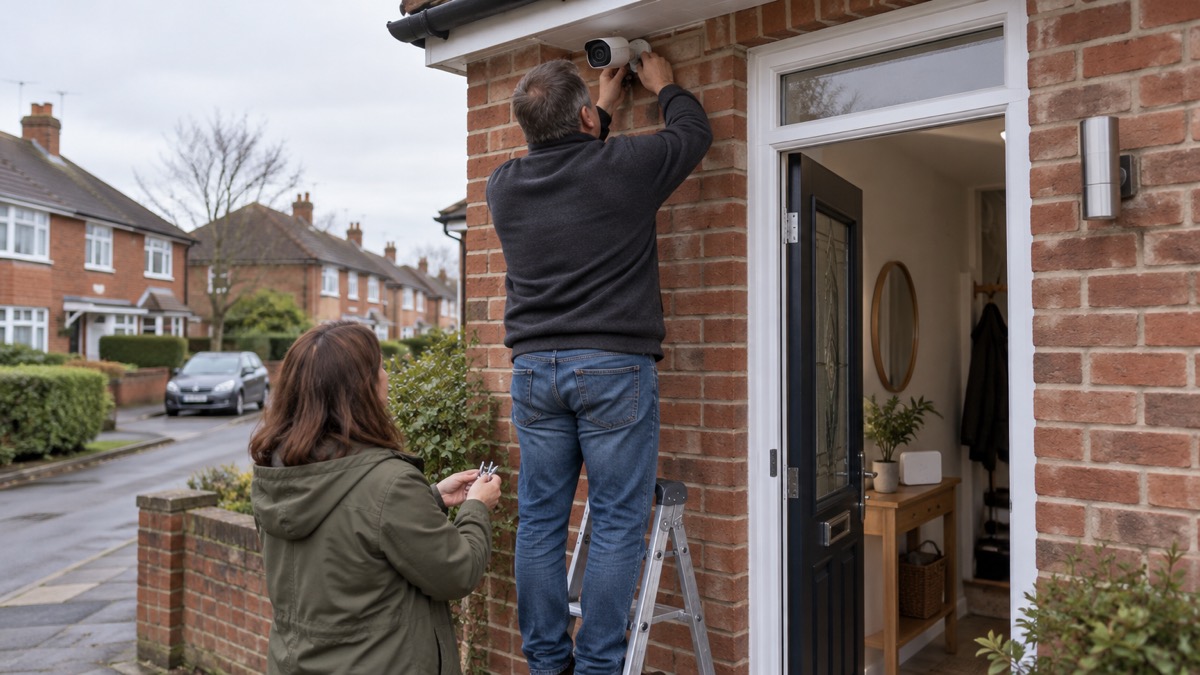
The Reolink Home Hub 2 is a small box that sits between your Reolink cameras and your home router. It records what your cameras see onto a drive you fit yourself, rather than pushing it to a subscription cloud, and it keeps the cameras working on a local network even when the internet is down1. If you already own Reolink cameras and want the footage kept in the house, it is the piece that makes that happen.
Three numbers decide whether it suits your home. It works with up to 8 Reolink cameras at up to 16MP resolution1. It takes a 2.5-inch drive of up to 16TB, and separately a microSD card of up to 1TB1. And it is not a universal hub: it works with Reolink Wi-Fi and PoE cameras, but not 4G cameras, cameras that came in an NVR kit, or add-on cameras2.
Set-up is three steps: power it, connect it to your router with the supplied Ethernet cable, then configure it in the Reolink app and add your cameras1. Before you buy, check the cameras you already own against the compatibility list, because that is the one thing that cannot be fixed afterwards.
What the Home Hub 2 does for your cameras
The hub's job is to take the recording and the account management off the camera and off the cloud. Reolink describes it as a wireless security centre with AI video search, and the core of that is local storage: all recordings are stored locally, and Reolink states there is no data loss even if the network connection is interrupted1. It creates a local LAN network, so the cameras carry on working without an internet connection1.
That matters in an ordinary UK household for two reasons. The first is reliability: a broadband outage, a router swap or a power cut that takes the internet down does not stop the cameras recording to the hub. The second is cost and control: Reolink sells cameras with local storage through microSD, an NVR, a Home Hub or FTP servers without a subscription, with cloud services optional3. The hub is one of those local options.
It also centralises who can see what. Each device allows one admin account and up to 19 sub-accounts, so 20 users in total1. Reolink states that account access and sharing options for individual devices are only available through the Home Hub 21, and that you can set expiration dates on user permissions and update or remove them at any time1. For a household with a lodger, a cleaner or a carer who needs a view for a while, that is a practical way to give access and take it back.
What it is not is a recorder for any camera you happen to own. It is a Reolink-only device, and the exclusions are specific. If you are still choosing cameras, the wider guide to home cameras and CCTV sets out the types and what each suits.
Cameras it works with: up to 8, at up to 16MP
The headline compatibility is broad and the small print is where people come unstuck. Reolink states the Home Hub 2 is compatible with all Reolink Wi-Fi and PoE cameras, except 4G cameras, cameras in NVR security kits, and add-on cameras2. It supports up to 8 cameras at up to 16MP resolution1.
Battery cameras are a separate case. Reolink lists them as compatible but adds that battery cameras require a firmware upgrade1. In practice that means updating each battery camera before you try to pair it, or you will spend an evening troubleshooting a camera that was never going to connect.
| Camera type | Works with the Home Hub 2? | What to check |
|---|---|---|
| Reolink plug-in Wi-Fi cameras | Yes | Nothing beyond the app set-up2 |
| Reolink PoE cameras | Yes | Nothing beyond the app set-up2 |
| Reolink battery Wi-Fi cameras | Yes, with a condition | Firmware upgrade first1 |
| 4G cameras | No | Not supported2 |
| Cameras supplied in an NVR kit | No | Not supported2 |
| Add-on cameras | No | Not supported2 |
Reolink's own guidance for the wider Home Hub series is slightly different in its wording: it says the series is compatible with all PoE cameras, plug-in Wi-Fi cameras and most recently released battery Wi-Fi cameras, except 2MP battery cameras and 4G cameras4. That is a broader statement covering the range rather than the Home Hub 2 alone, and it names 2MP battery cameras as an exclusion the Home Hub 2 page does not. If you own an older 2MP battery camera, check with Reolink support before buying.
If your cameras are spread across a house and garden, the practical limit is usually Wi-Fi reach rather than the eight-camera cap. The guide to alarms and cameras on a weak mobile signal or slow broadband covers what to do when the signal at the far end of the garden is the problem.
Storage: up to 16TB on a 2.5-inch drive, plus microSD
Storage is the reason most people buy a hub, so it is worth being precise about what fits. The Home Hub 2 takes a 2.5-inch drive only, up to 16TB, and Reolink lists it as accepting either an HDD or an SSD1. Separately there is one microSD card slot, taking up to 1TB1.
Two things follow from that. First, the drive is not included: the box contains the hub, a 1m Ethernet cable, the instructions, a power adapter and a reset needle, and nothing else1. Second, the hub takes only a 2.5-inch drive, up to 16TB, so check the format of any spare drive before you rely on it fitting1.
| Specification | Figure |
|---|---|
| Drive bay | One 2.5-inch drive, HDD or SSD1 |
| Maximum drive capacity | 16TB1 |
| microSD slot | One, up to 1TB1 |
| Encryption | AES-1281 |
| Recording when the network drops | Stored locally, no data loss stated1 |
How much recording time that gives you depends on how many cameras you run, their resolution and whether they record continuously or only on motion, and Reolink does not give a figure for hours per terabyte. What can be said is that the drive capacity, not the hub, is the limit you will hit first, and that a larger drive is the straightforward way to extend it.
The microSD slot is best thought of as a second location rather than a substitute. Reolink's camera pages show the same pattern across the range: doorbells and Wi-Fi cameras record to microSD, an NVR or a Home Hub, with cloud optional3, and the no-Wi-Fi cameras take microSD up to 256GB or an indoor NVR7. The hub's own card slot goes far beyond that at up to 1TB1, but a card is a small object that is easy to lose and easy to remove. For the main archive, the drive is the sturdier choice.
Setting up the Home Hub 2 in three steps
Reolink sets the installation out as three steps, and they are worth following in order rather than improvising1.
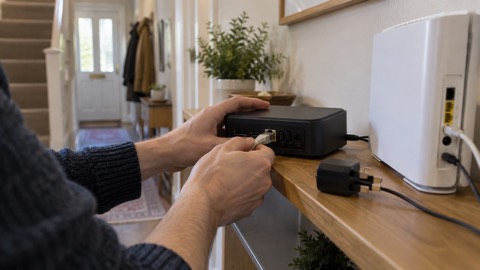
- Power and network. Connect the Home Hub 2 to the power supply, then to your home router with an Ethernet cable1. The hub has a single 10M/100M RJ45 port for WAN1, so it wants a free port on the router or a spare switch port, not a Wi-Fi password.
- Configure and add cameras. Set the hub up in the Reolink app and add your devices to it1. This is where the battery camera firmware upgrade matters: do it before this step, not after1.
- View the feed. Open the Reolink app to see your cameras and the live view1.
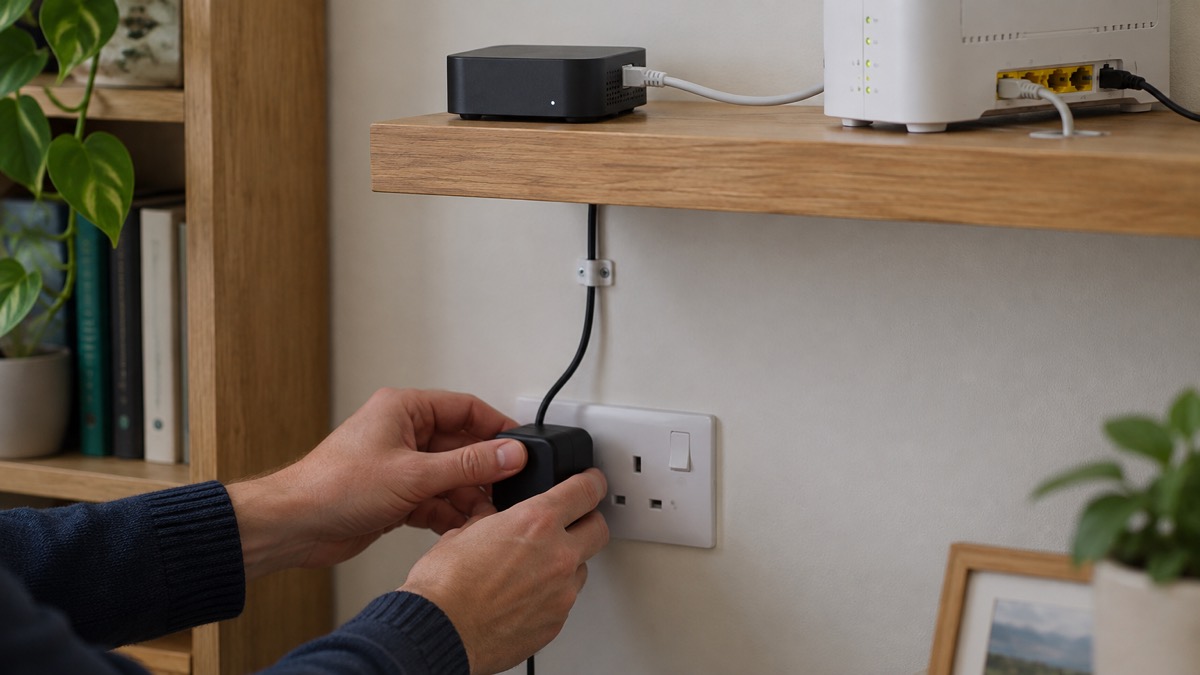
A few practical points sit around those steps. The hub supports Windows and Mac on a PC and iOS and Android on a phone1, and it previews through the app and the PC client2. It uses Wi-Fi 6 (IEEE 802.11 a/b/g/n/ac/ax) on 2.4 and 5 GHz with WPA, WPA2 and WPA3 security1, which matters for the cameras that connect to it wirelessly rather than by cable. It is rated to run between -10℃ and +45℃ at 10% to 90% humidity1, so a cupboard or a shelf indoors is fine and a shed is not.
Physically it is small: 123 by 96 by 168mm and 518g1, powered by a DC 12V/2A adapter1. That is roughly the footprint of a hardback book standing up, which is worth knowing before you clear a shelf for it.
Alarm, AI video search and other features
Beyond recording, the hub adds a handful of features that change how you use the cameras day to day.
The alarm. Reolink states the Home Hub 2 will sound an alarm when any connected IP camera is triggered, providing comprehensive protection, with a variety of alarm ringtones or custom ringtones1. The speaker is rated at a maximum of 115dB1. That is loud enough to be noticed, and it is a siren on the hub itself rather than a monitored alarm: nobody is called. If what you want is a response rather than a noise, the difference between a burglar alarm and CCTV is the place to start, and monitored alarms explains who responds when an alarm is professionally watched.
AI video search. You can search locally stored recordings with simple keywords to find the footage you need1. In practice that turns an hour of overnight footage into a short list of clips, which is the difference between reviewing an incident in minutes and giving up.
Statistics and playback. The Reolink app shows daily, weekly or monthly statistics of motion detection events1, and playback runs as smart playback or event history2. Over a month that gives you a sense of when your front path is busy, which is useful for judging whether a camera is pointed well.
Timelapse. Long-term events such as a sunrise or building work can be compressed into minutes or seconds2.
Voice assistants. Reolink lists Google Assistant and Alexa under smart home compatibility1, and gives the example of saying "Hey Google, show me the Front Door" to see the camera on a Google Nest Hub or a Chromecast-enabled TV1. Reolink's camera and doorbell pages describe the same integration across the range3. Note that the hub has no HDMI output1, so a television is reached through a Chromecast device, not a cable.
Keeping the hub and its footage secure
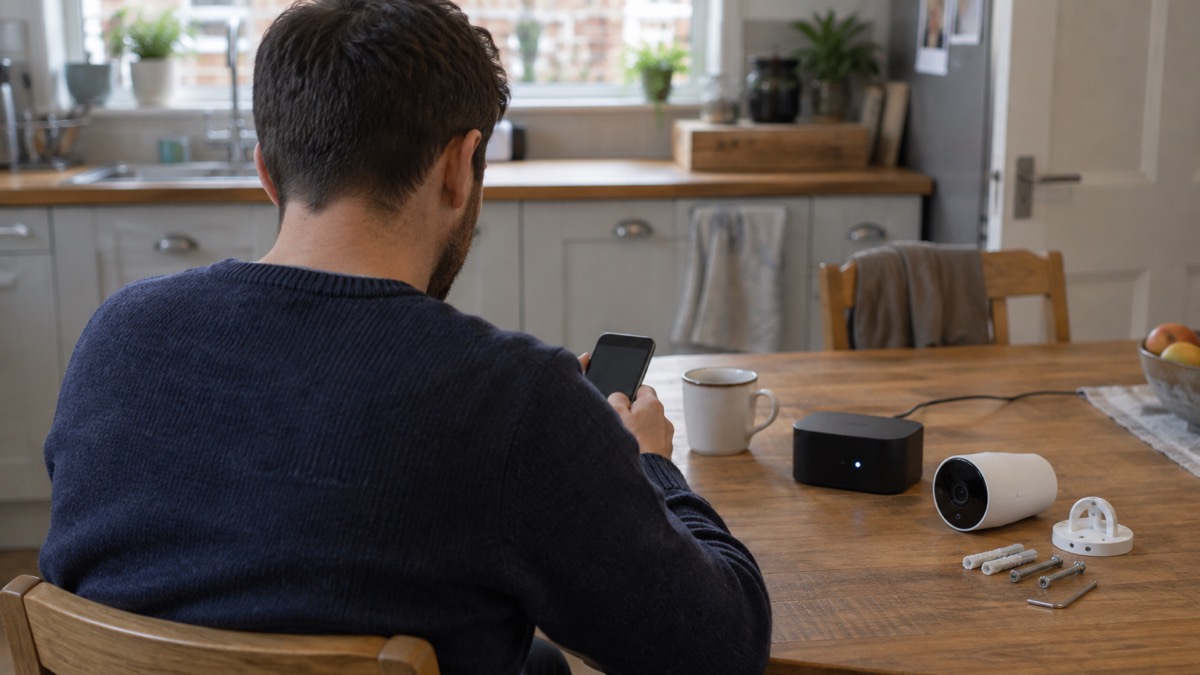
A hub that holds weeks of footage of your home deserves the same care as the front door. The Reolink Home Hub 2 lists storage encryption using the AES-128 encryption algorithm1, which protects footage held on the drive. It does not protect against someone logging into your account, so the account is the weak point. The hub allows 20 users in total, one admin account and 19 shared accounts1, and account access and sharing options for individual devices are only available through the Home Hub 21, so keep the admin account to yourself and share sparingly.
- Use the admin account for administration only. Reolink allows one admin account and up to 19 sub-accounts1; give family members their own sub-account rather than sharing the admin login.
- Set expiry dates on access. Reolink states you can set expiration dates on user permissions and update or remove them at any time1. Use that for anyone whose access is temporary.
- Keep the hub indoors and out of sight. It is a 518g box with a drive in it, and it is the thing an intruder would want to take1.
- Check the encryption setting is on. The specification lists AES-128, but confirm it in the app rather than assuming.
The wider question of who can get into a camera account, and how to stop them, is covered in camera and doorbell accounts and how to stop your security camera being hacked. If you view your cameras while away from home, is it safe to view your home camera remotely sets out the checks worth making first.
Support, warranty and how long it stays updated
Reolink offers a 2-year limited warranty on the Home Hub 2 and a 30-Day Money Back Guarantee1, and directs support queries to its support site1. Keep the order confirmation: a guarantee claim is quicker with proof of purchase, and the 30 days run from delivery, not from the day you get round to setting it up.
The harder question is how long the software will be supported, because a hub is only as useful as the app that runs it. Reolink has not published a support period for the Home Hub 2 itself. Which? reports two statements from the company that do not match: that Reolink said it will support cameras for at least two years after the product is last for sale8, and, in separate guidance, that it will support cameras for at least three years after the product's end-of-life date9. Both are about cameras rather than hubs, and the two figures differ, so the honest answer is that the support period is reported rather than fixed. The general guide to how long cameras and doorbells get software updates explains why this matters more for a hub than for a camera.
Reolink sells to the United Kingdom among other countries1, and takes PayPal or credit and debit cards including Visa, MasterCard, American Express and Discover1. If you are weighing the hub against a recorder with its own drive bay, the Reolink Home Hub page covers the earlier model, and the Reolink RLN4E recorder covers a wired recording option. For the wider picture of what cameras can and cannot do without an internet connection, see can security cameras record without the internet.
Sources (9)
- Reolink Home Hub 2 product page, Reolink, 2026-11-02
- Reolink Home Hub 2 (UK product page), Reolink, 2026-11-02
- Reolink Wi-Fi security cameras, Reolink, 2026-11-03
- Reolink Home Hub TrackMix WiFi Kit, Reolink, 2026-11-02
- Reolink Home Hub, Reolink, 2026-11-02
- Reolink video doorbells, Reolink, 2026-11-03
- Reolink security cameras without Wi-Fi, Reolink, 2026-11-03
- How to buy the best smart video doorbell, Which?, 2026-10-16
- Best indoor security cameras, Which?, 2026-08-18

 Eufy HomeBase S380
 Reolink Home Hub Storage