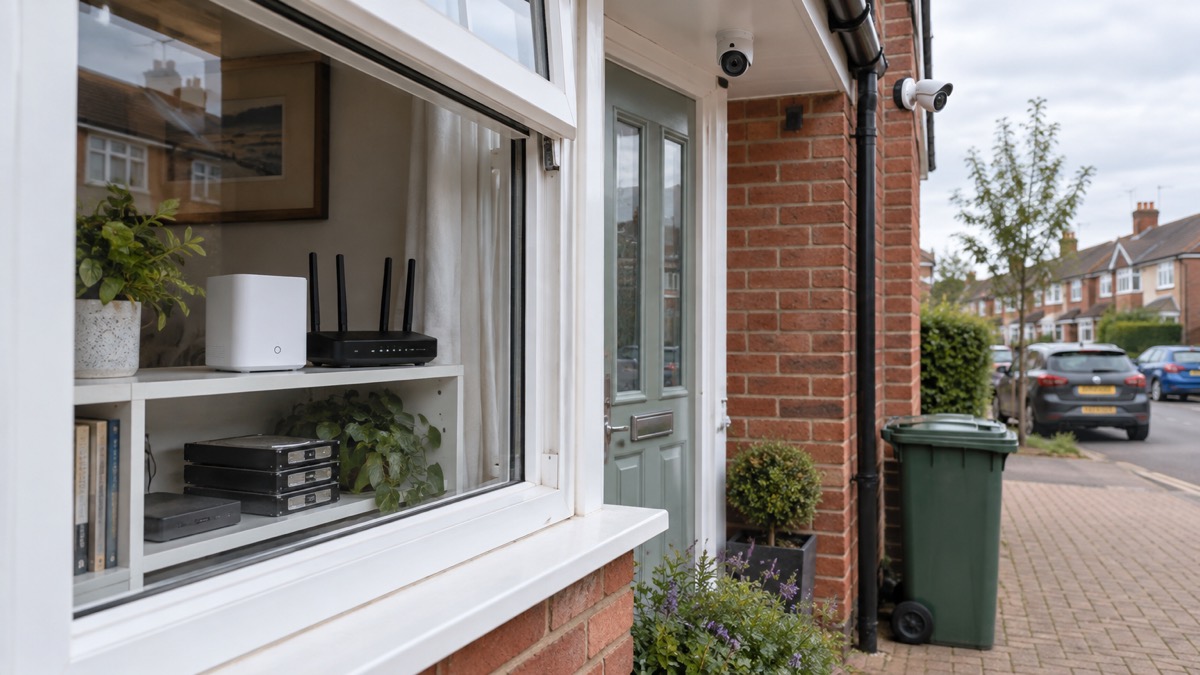
The Reolink Home Hub is a small box that sits on your home network and gives a set of Reolink cameras somewhere to store their recordings inside your own house. Reolink describes it as a wireless security centre with encrypted local storage and multi-device management1. In plain terms: it holds the footage, it keeps the cameras talking to each other when the internet drops, and it gives you one place to manage who can see what.
For a household, the useful part is the storage. The hub takes two microSD cards of up to 1TB each, so up to 2TB in total, and keeps the recordings at home rather than in someone else's data centre1. Reolink states there are no monthly fees for this1. It supports up to 8 Reolink cameras and resolutions up to 16MP1.
It is not a burglar alarm and it is not a replacement for one. It is the recording and management layer underneath a camera system you have already decided to fit. If you are still choosing cameras, start with our guide to home cameras and CCTV, and if you want to understand what cameras can and cannot do without an internet connection, read can security cameras record without the internet.
What the hub does for a home camera system
A camera on its own records to its own card, or to nothing. The Home Hub changes that in three ways. First, it collects recordings from every connected camera into one place, so you are not hunting through separate cards. Second, it creates a local network of its own, which Reolink says lets the cameras "function seamlessly without the need for an internet connection"1. Third, it gives you a single dashboard in the Reolink app for live view, playback and event history4.
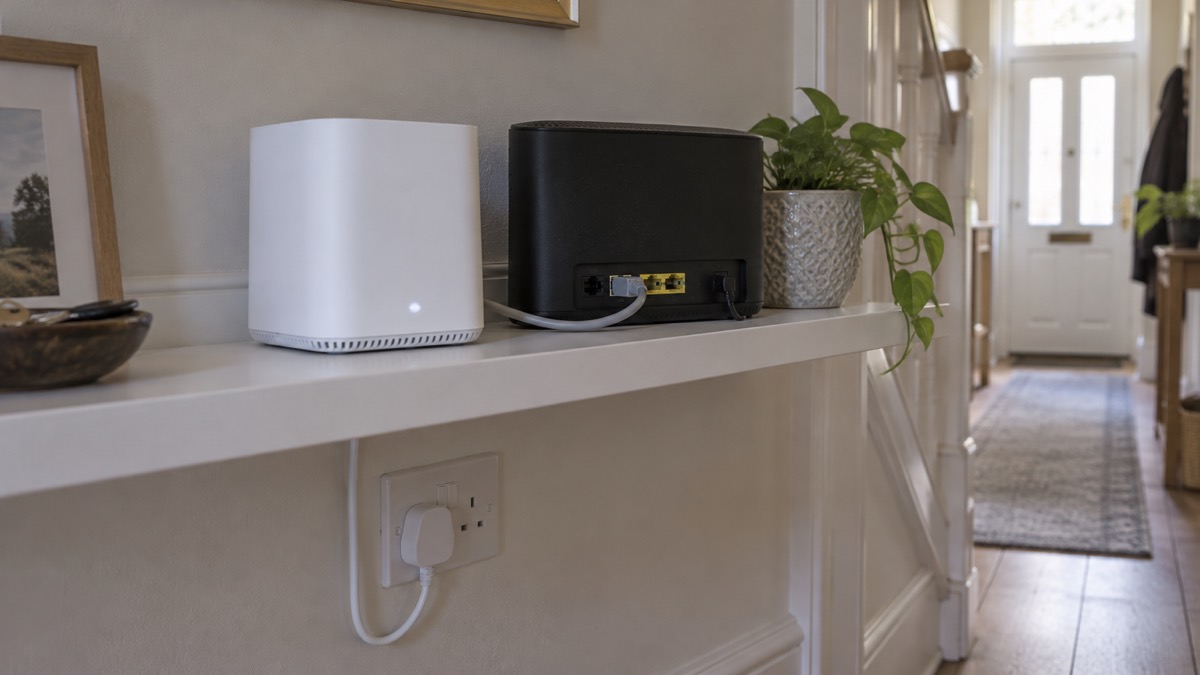
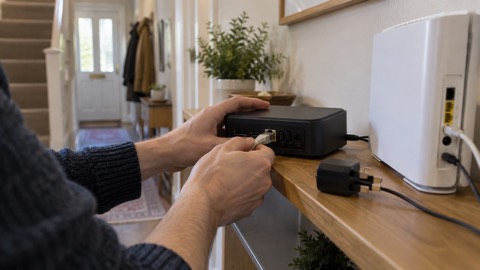
The hub is a wired device in one respect that matters: it connects to your router with an Ethernet cable, and Reolink lists a single 10M/100M RJ45 port for that wide area connection1. It then talks to the cameras over Wi-Fi, using the 2.4GHz and 5GHz bands and the Wi-Fi 6 standard1. It is powered by a 12V 1A adapter1.
Physically it is modest: 95 by 95 by 161.8mm and 441g, so it will sit on a shelf beside the router without trouble2. Reolink gives its operating temperature as -10℃ to +45℃ and humidity of 10% to 90%, which covers an ordinary British hallway or cupboard1.
What it is not: it has no HDMI output, so you cannot plug it straight into a television1. Viewing is through the app or the PC client. It also does not replace your broadband router; it sits behind it.
Storage: up to 2TB on two microSD cards, kept at home
The hub's storage is the reason most people buy it. Reolink lists two microSD card slots, each taking a card of up to 1TB, and states a maximum storage capacity of 2TB1. The cards are not included, so you buy them separately and fit them yourself.
Recordings are encrypted on the hub using AES-128, which Reolink describes as protecting privacy and preventing theft4. That matters in a domestic setting: if the hub were taken, the footage on the cards is not readable without the key. It does not make the hub theft-proof, and it does not stop someone taking the whole unit, so treat the hub as you would any other piece of valuable equipment and keep it out of easy view.
Local storage is one of several options across the Reolink range, and the hub is not the only one. Reolink cameras support microSD cards, compatible NVRs, Home Hubs and FTP servers without a subscription, alongside optional cloud services5. Video doorbells vary: battery and wired Wi-Fi models take a microSD card up to 512GB and work with a compatible NVR and Home Hub, while PoE doorbells take up to 256GB and work with an NVR, the Home Hub Pro, or FTP and NAS storage6. Cameras without Wi-Fi of their own take a card up to 256GB or record to an indoor NVR7.
| Storage route | What it suits | Reolink's stated limit |
|---|---|---|
| Home Hub (two cards) | A household wanting one local store for several cameras | Up to 1TB per slot, 2TB total1 |
| microSD in the camera | One or two cameras, simplest set-up | Up to 512GB on battery and Wi-Fi doorbells, 256GB on PoE doorbells and no-Wi-Fi cameras6 |
| NVR | Larger systems, continuous recording | Compatible NVR required5 |
| Cloud (optional) | Remote access convenience | Optional service, separate from the hub5 |
If you are weighing up how much recording you need and where it should live, our guide to camera and doorbell accounts covers the account side, and is it safe to view your home camera remotely covers remote access.
Cameras keep recording when the internet goes down
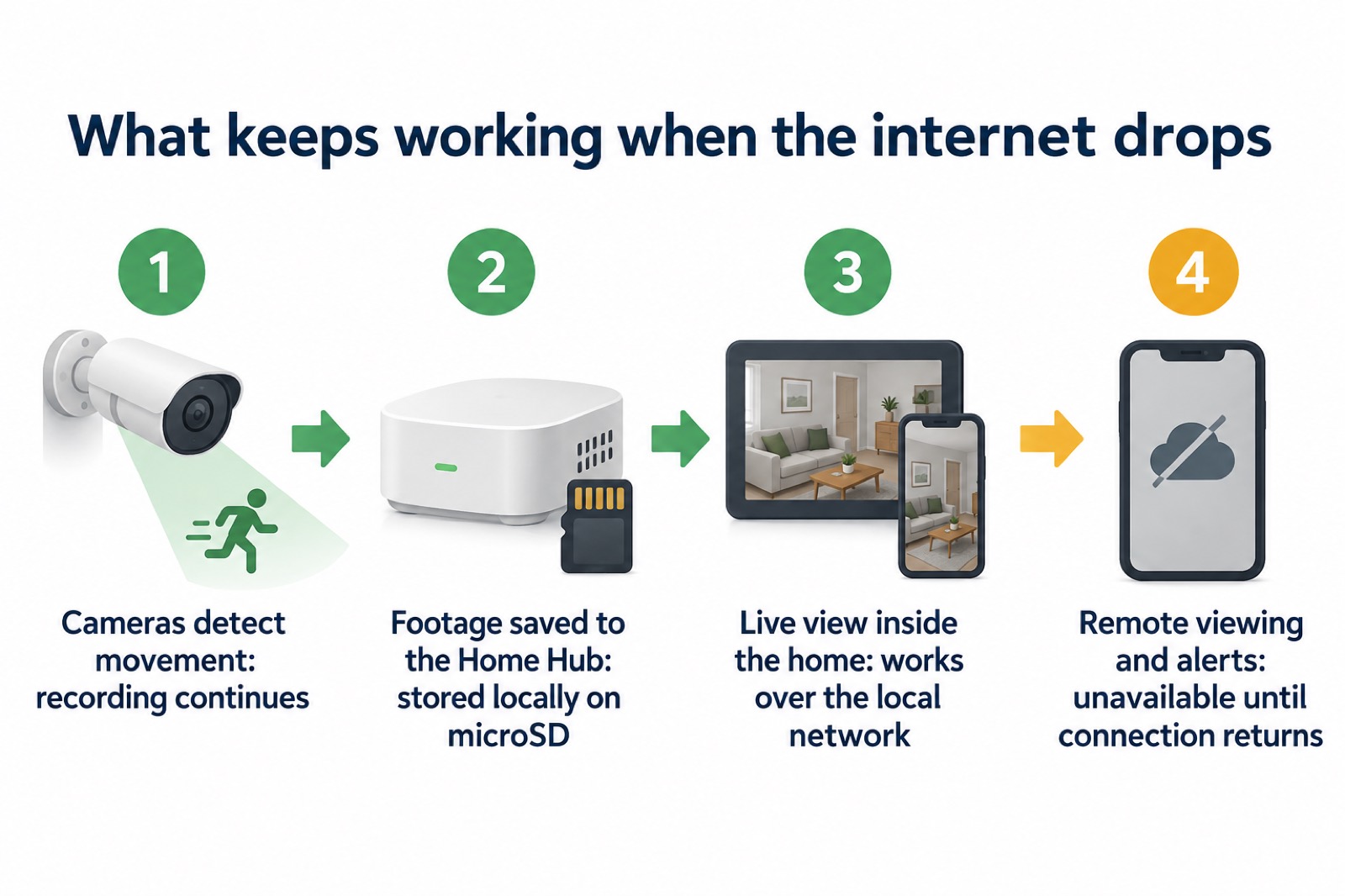
This is the hub's second practical benefit, and the one that matters most in a power cut or a broadband outage. Reolink states that with the hub, "all your recordings [are] stored locally" and there is no data loss if the network connection is interrupted1. The hub builds a local network so the cameras carry on working without the internet1.
What that means in practice: the cameras keep recording to the hub, and you can still watch them from inside your home network. What stops is anything that needs the outside world. Reolink is explicit that remote viewing, cloud storage and mobile notifications are unavailable until the connection is restored7. So if you are away from home and the broadband fails, you will not get alerts, and you will not be able to check in remotely until it comes back.
Two further points for a household planning around outages. The hub itself needs mains power, through its 12V 1A adapter, so a power cut takes it down unless you have thought about backup power; our guide to keeping your home protected in a power cut covers that ground. And the hub is not a mobile device: it has no battery and no cellular connection of its own. If your broadband is slow or your mobile signal weak, read alarms and cameras on a weak mobile signal or slow broadband before you commit.
Which Reolink cameras work with the Home Hub
Reolink's compatibility statements are not identical across its pages, so it is worth reading them together. The product page for the hub says it is compatible with all Reolink Wi-Fi and PoE cameras, except 4G cameras, cameras in NVR security kits, and add-on cameras1. The same wording appears on the kit page3. A separate page for the Home Hub series says those products work with all Reolink PoE cameras, plug-in Wi-Fi cameras, and most recently released battery Wi-Fi cameras, except 2MP battery cameras and 4G cameras2.
The two statements overlap but are not the same. The first excludes add-on cameras and NVR kit cameras without mentioning 2MP battery models; the second excludes 2MP battery cameras without mentioning add-on cameras. If you own an unusual model, check it against the current compatibility list on Reolink's support site before buying the hub.
| Camera type | Works with the Home Hub? |
|---|---|
| Reolink PoE cameras | Yes1 |
| Reolink plug-in Wi-Fi cameras | Yes1 |
| Reolink battery Wi-Fi cameras | Yes, most recently released models, after a firmware upgrade1 |
| 2MP battery cameras | No, per the Home Hub series page2 |
| 4G cameras | No1 |
| Cameras supplied in NVR security kits | No1 |
| Add-on cameras | No1 |
Reolink also states that all Reolink battery cameras, PoE cameras and plug-in Wi-Fi cameras connected to the same router can connect to the hub1. That is a useful rule of thumb: if the camera is on your home network, it is a candidate.
Setting up the hub and adding cameras
Reolink's own sequence is short. Connect the hub to the power supply, then to your home router with an Ethernet cable1. Configure it with the Reolink app and add your devices, then use the app to access the cameras and view the live feed1. To add a camera, Reolink says you can do it through the Reolink app or client to the Home Hub, Home Hub Mini or Home Hub Pro9.
- The hub has two microSD card slots, each taking a card of up to 1TB, for a maximum storage capacity of 2TB10.
- Connect the hub to the power supply, then to your home router with an Ethernet cable1.
- Add each camera to the hub through the Reolink app or client, checking first that any battery camera has its firmware upgraded11.
- Set up recording and check live view and playback in the app, then confirm the same on the PC client if you want a desktop view1.
A kit version bundles the hub with cameras. The Home Hub with E1 Outdoor Pro Kit, for example, contains two E1 Outdoor Pro cameras, two security brackets, the hub, a 1m network cable and three power adapters, and Reolink states it is expandable up to 8 Reolink cameras3. If you are starting from nothing, a kit saves matching parts; if you already own Reolink cameras, the hub on its own is the piece you need.
Sharing access: one admin and up to 10 other users
The hub is unusual among consumer camera set-ups in having proper account sharing built in. Reolink states that each device allows one admin account and up to 10 sub-accounts, giving 11 users in total1. The admin can customise preview and access permissions for each user, set expiration dates, and update or remove access at any time1.
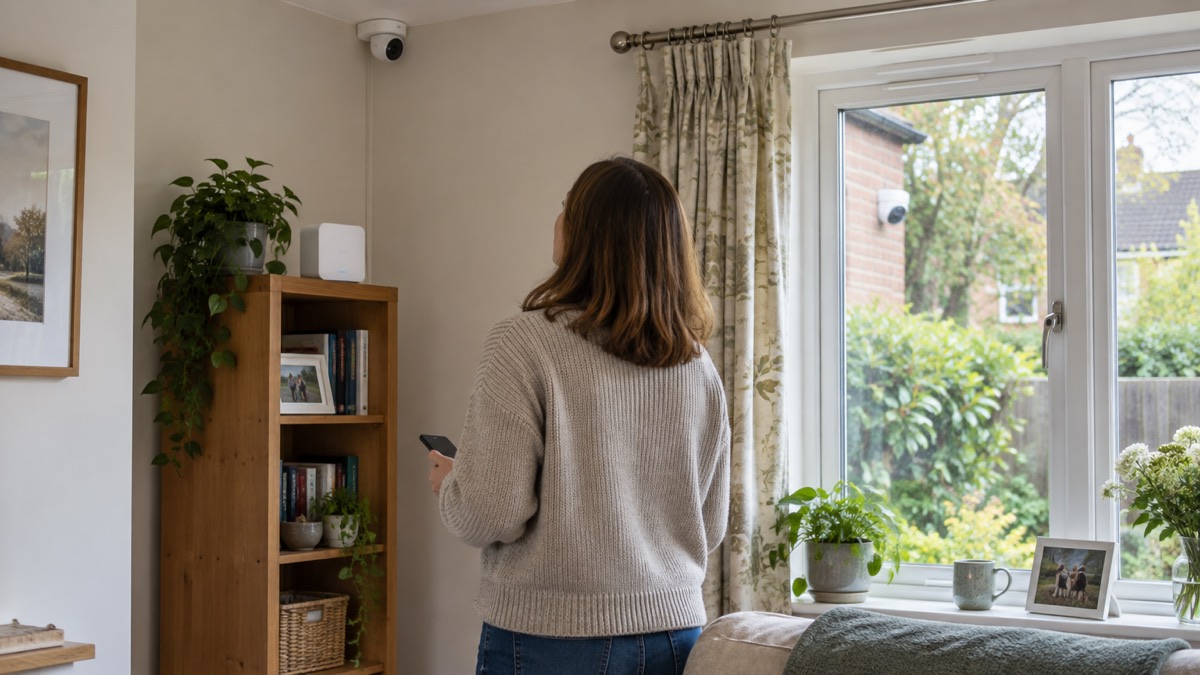
That is genuinely useful for a household with a carer, a grown-up child who checks in, or a neighbour who watches the house when you are away. It is also a responsibility. Reolink states that account access and sharing options for individual devices are only available through the Home Hub1, which means the hub is the control point: if you want to limit what someone can see, this is where you do it.
A few practical rules follow from that:
- Give each person their own sub-account rather than sharing the admin login, so you can remove one without disturbing the others1.
- Set an expiration date for temporary access, such as a house-sitter's week, rather than relying on remembering to switch it off1.
- Review the list of sub-accounts after any change of circumstances, and remove anyone who no longer needs it1.
For the wider question of who can see your footage and how to keep strangers out of camera accounts, our guide to camera and doorbell accounts goes further. If your cameras look beyond your boundary, filming beyond your boundary explains the data protection rules that apply.
Warranty, support and software updates
Reolink offers a 2-year limited warranty on the hub and a 30-day money back guarantee1. Support is listed as 24/6 online support, one to one1. The support site is at support.reolink.com, where model-specific instructions, including how to reset the hub, are published1.
The hub has a reset button on the unit itself1. Reolink does not spell out the reset procedure on the product page, so use the support site's instructions for your model. A reset can clear settings and pairings, so read first and press second.
Software support is the part worth thinking about before you buy, because a camera hub that stops receiving updates becomes a liability rather than an asset. Reolink has given Which? two statements on the point. It said it will support cameras for at least two years after the product is last for sale11, and separately that it will support them for at least three years after the product's end-of-life date10. The two figures are not the same measure, so treat the shorter as the floor and check the support site for your model's status. Our guide to how long cameras and doorbells get software updates explains why this matters.
The hub supports Windows and Mac OS on a computer, and iOS and Android on a phone1. Live view is available on the app and the PC client1. It works with Google Assistant, so you can say "Hey Google, show me the Front Door" and watch on a Google Nest Hub or a Chromecast-enabled television1. Reolink's Wi-Fi cameras more generally work with Alexa and Google Assistant9, and compatible Reolink video doorbells work with Amazon Alexa and Google Assistant6.
If you are comparing the hub with the newer model, our page on the Reolink Home Hub 2 sets out what changed. For a camera that pairs well with a hub in a garden or on a driveway, see the Reolink Argus 4 Pro.
Sources (11)
- Reolink Home Hub product page, Reolink, 2026-11-02
- Reolink Home Hub 2 product page, Reolink, 2026-11-02
- Home Hub with E1 Outdoor Pro Kit, Reolink, 2026-11-02
- Home Hub with TrackMix WiFi kit, Reolink, 2026-11-02
- Security cameras without subscription, Reolink, 2026-11-03
- Video doorbells, Reolink, 2026-11-03
- Security cameras without WiFi, Reolink, 2026-11-03
- Reolink E1 Swift, Reolink, 2026-11-02
- WiFi security cameras, Reolink, 2026-11-03
- Best indoor security cameras, Which?, 2026-08-18
- How to buy the best smart video doorbell, Which?, 2026-10-16

 Eufy HomeBase S380
 Reolink Home Hub 2