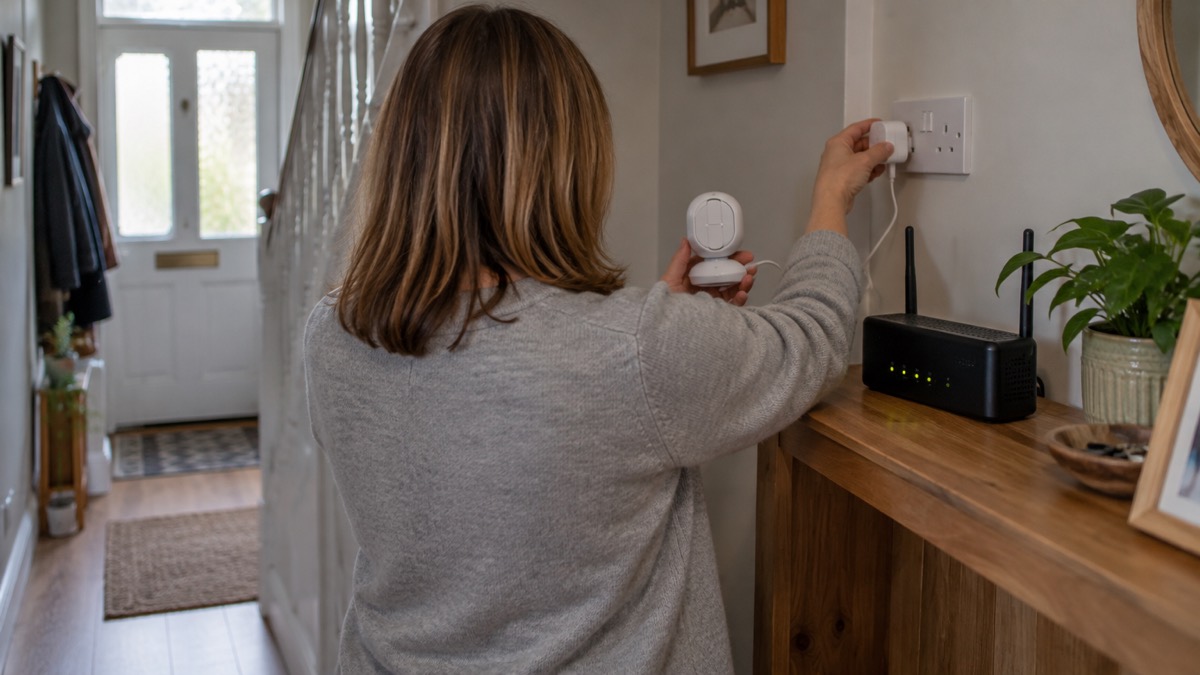
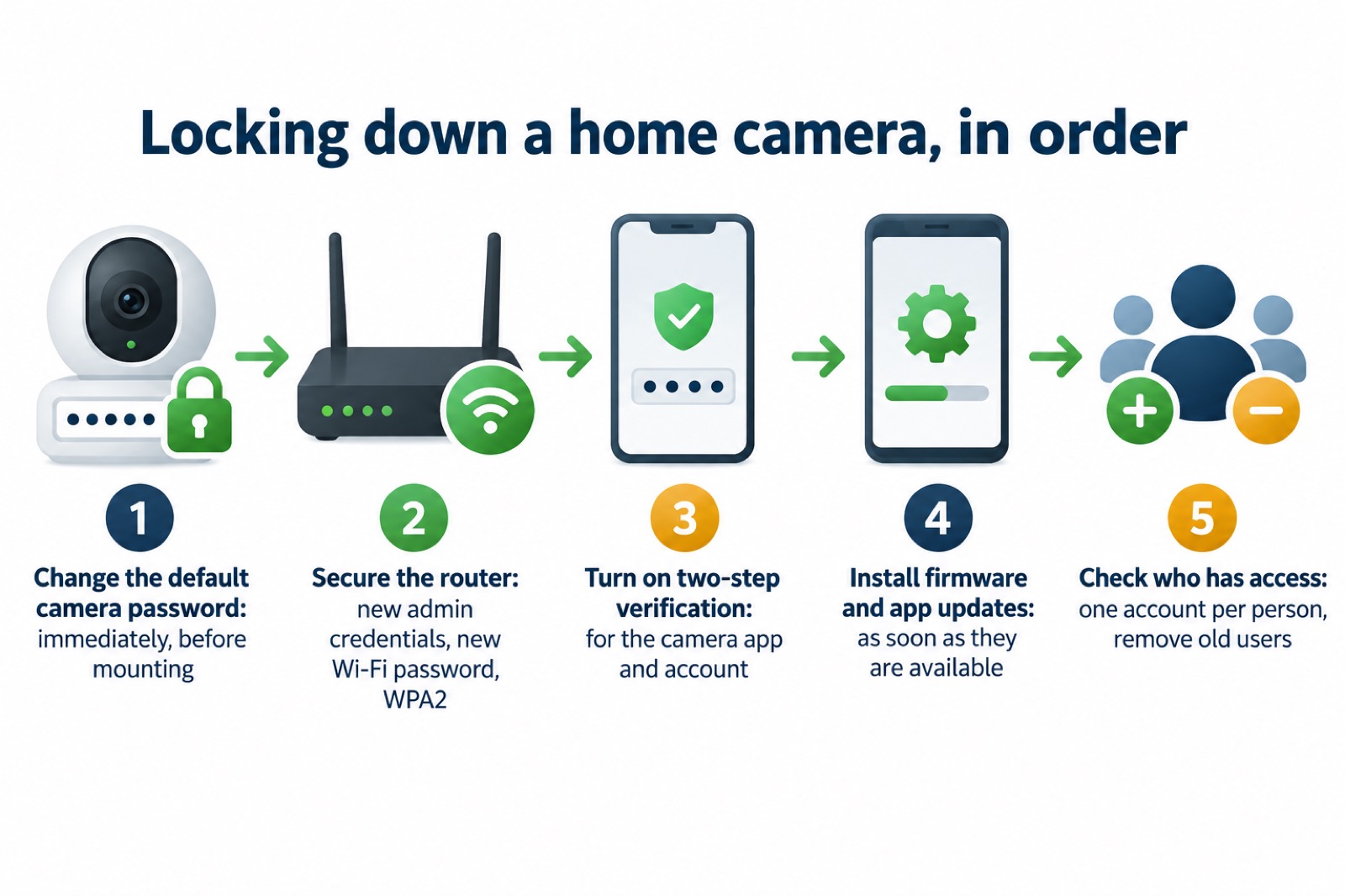
A security camera is only as private as the account behind it. If you have just bought one, or you have had one running for years without touching the settings, the first job is to change the default password before anything else. The National Cyber Security Centre is blunt about it: if your smart device comes with a default password, like 0000, change it immediately1. Police Scotland adds that a smart device without a strong password or regular updates is more likely to be hacked2.
After the password, three things do most of the work. Turn on two-step verification for the camera app and its account, so a criminal who learns your password still cannot get in3. Keep the camera's firmware up to date, because updates fix the flaws attackers rely on4. And secure the home Wi-Fi the camera sits on, including the router's own administrator password5.
None of this is difficult, and most of it takes minutes. What follows sets out each step in the order to do it, how to tell whether someone has already got in, and what to do if they have.
Change the default password before anything else
Every camera arrives with a factory password, and those passwords are published in manuals and shared online. The National Cyber Security Centre's instruction is to change it immediately1. Do this before the camera is mounted, before it is connected to your Wi-Fi, and before anyone else in the household is given access.
A strong password for a camera account should be unique to that account. Police Scotland advises avoiding repeated passwords for different accounts7, and warns that a password should be unique to you to avoid identity fraud8. The practical way to manage this is a password manager, which remembers long, different passwords for you. If you use one, switch on two-step verification on the password manager account itself, so that a criminal who knows the primary password still cannot reach the rest9.
Your router needs the same treatment. Secured by Design, the police crime prevention initiative, advises changing the default administrator credentials for the router settings and the issued Wi-Fi password, and using WPA2 encryption5. A camera on a network with the router's factory password is exposed no matter how good the camera's own password is.
- Camera account: a new, unique password, not reused anywhere else7
- Router: new administrator credentials and a new Wi-Fi password, WPA2 encryption on5
- Password manager: two-step verification switched on for the manager itself9
- Written record: keep any recovery codes somewhere locked away, not on the camera app
If several people in the house need access, give each their own account rather than sharing one login. That way, removing someone's access does not mean changing the password for everyone.
Turn on two-step verification for the camera app and account
Two-step verification, also called two-factor authentication or 2FA, is the single most effective protection after a strong password. Avon and Somerset Police describe it as an extra layer of security that asks for more information to prove your identity before letting you into your account3. The National Cyber Security Centre explains that it gives you a code to enter from an app or SMS, so that even if a criminal knows your password, they will not be able to access your accounts1.
Police Scotland's advice is to turn on 2FA or multi-factor authentication for all devices and accounts7. For a camera, that means the app account you use to view the feed, and any manufacturer account tied to the device. The National Cyber Security Centre lists turning on 2SV for your most important accounts among its top tips for staying secure online10.
"Enabling 2SV is an easy and effective way to protect your accounts from unauthorised access, so even if a criminal knows your password, they will not be able to access your accounts."
The usual method is a code sent by SMS or email, or generated by an authenticator app6. Whichever your camera app offers, set it up before you rely on the camera. Keep the recovery codes somewhere separate from the phone you use to view the feed, so that losing the phone does not lock you out of your own account.
Keep the camera's firmware up to date
Camera firmware is the software built into the device. Manufacturers issue updates to close security flaws, and attackers depend on householders ignoring them. Essex Prepared, quoting national cyber security advice, puts it plainly: software and app updates contain vital security updates to help protect your devices from cyber criminals4. The same guidance notes that hackers rely on you to ignore those update notifications so they can get in before the update is made4.
The Royal National Institute of Blind People makes the same point in its online safety guidance: hackers often use outdated software to hack devices, and updates fix known security issues and add new security features11. The National Cyber Security Centre's recovery guidance says to apply updates to your apps and device software as soon as they are available, because updates include protection from viruses6.
Some cameras build checks into the update process itself. Ajax, for example, states that its IndoorCam has protection against firmware spoofing and a secure automatic firmware update12. That helps, but it does not remove the need to install updates when they arrive.
- Turn on automatic updates in the camera app if the option exists
- Check monthly for firmware updates on the camera and its hub or recorder
- Update the app on your phone at the same time, not weeks later
- Replace, do not ignore, a camera the maker has stopped supporting
That last point matters. Which? records that Yale lists a software update period of four years after the end-of-sale date for its Smart Indoor Camera, and that the Nest Cam Indoor 3rd Gen (Wired) has a software update period until at least January 203013. When a maker stops issuing updates, the camera stops receiving security fixes. Our guide to how long cameras and doorbells get software updates explains how to check a model's support period before you buy.
Secure the home Wi-Fi the camera connects to
A Wi-Fi camera is only as safe as the network it joins. Reolink describes its Wi-Fi indoor cameras as connected to your home or office Wi-Fi network, powered from a nearby wall outlet via an adapter14. That means anyone who gets onto your Wi-Fi can potentially reach the camera, so the router is part of the camera's security.
Secured by Design's advice covers the essentials: change the default administrator credentials for the router settings, change the issued Wi-Fi password, and use WPA2 encryption5. Do this once, and every device on the network benefits.
A few practical points follow from this. Put the camera on your main home network only if the router is secured; a guest network isolates it from your computers but may limit app features. Keep the router's firmware updated as well as the camera's. And if your broadband is slow or unreliable, think carefully before choosing a camera that depends on the cloud, because the National Cyber Security Centre notes that cloud storage requires a reliable internet connection and is not suitable if yours is slow, unreliable or metered15.
Most wireless security cameras are plugged into the mains, with a few offering some back-up battery time in case of power failures13. A power cut therefore takes most cameras offline, which is a reliability question rather than a security one, but it is worth knowing before you rely on one.
Local storage or cloud storage: what each means for privacy
Where the footage goes decides who can reach it. A camera that records to a card or a recorder in your home keeps the footage under your roof. A camera that records to the cloud sends it to the manufacturer's servers, reachable from anywhere with the account login.
Which? sets out the difference model by model. It lists the Yale Smart Indoor Camera as offering local storage, cloud storage for a subscription, motion detection, customisable privacy zones, and a software update period of four years after the end-of-sale date13. The Nest Cam Indoor 3rd Gen (Wired) has no local storage, cloud storage for a subscription, motion detection, and a software update period until at least January 203013.
| What it means for you | Local storage | Cloud storage |
|---|---|---|
| Where footage sits | A card or recorder in your home | The maker's servers |
| Internet needed to record | No | Yes, and it must be reliable15 |
| If the camera is taken | Footage may go with it | Footage remains in the account |
| If the account is breached | Limited to what is on the card | Everything the account can reach |
| Subscription | Usually none | Often required13 |
Neither is automatically safer. Cloud storage keeps a copy if the camera is stolen, but it widens what a compromised account exposes. Local storage keeps footage in the house, but a thief who takes the camera takes the card. The National Cyber Security Centre's caution about unreliable connections is the deciding factor for many rural households15. Our guide to cameras that record without the internet covers the local-only options in more detail.
Signs your camera may have been hacked
Camera intrusions often show up first as small oddities. The National Cyber Security Centre lists the signs of unauthorised activity on an account: changes to your security settings, messages or notifications sent from your account that you do not recognise, logins or attempted logins from strange locations or at unusual times, and unauthorised money transfers or purchases6.
Translated to a camera, watch for:
- Settings you did not change, such as motion alerts switched off or privacy zones moved6
- Notifications you did not trigger, or alerts arriving when nobody is home
- The camera moving on its own, where it has pan and tilt
- Login alerts from places or times that do not match your use6
- A password that no longer works, or a reset email you did not request
Some of these have innocent explanations. A camera that reboots after a firmware update may reset a setting, and a shared household account will show logins you did not make yourself. Check with everyone who has access before assuming the worst.
What to do if someone has got into your camera
Act in order. The National Cyber Security Centre's recovery guidance starts with the password: change the password for the hacked account immediately, and change the password for any accounts where you use the same password16. Then force all devices and apps to log out, usually from the Settings menus of the app or website, so that anyone attempting to use the account is prompted to supply the new password6. Set up two-step verification if it was not already on6.
Police Scotland's advice for a hacked account is to follow the National Cyber Security Centre's recovery steps, read how to protect the account from future hacks, and follow its own guidance on what to do when an account is hacked17. Avon and Somerset Police advise checking your account settings for unauthorised changes, enabling 2SV if it is not already on, and reporting the compromise to Report Fraud3.
For the device itself, Police Scotland advises resetting it to factory settings and asking the manufacturer what extra steps to take2. A reset clears any changes an intruder made, but it also wipes your settings, so note your configuration first.
- Change the camera account password, and any account that shared it16
- Force all devices and apps to log out6
- Turn on two-step verification6
- Reset the camera to factory settings2
- Ask the manufacturer what else to do2
- Report it: to the police, and to Report Fraud3
If the intrusion involved someone watching or recording inside your home, treat it as a police matter. In Scotland, Police Scotland's own hacked accounts guidance is the route17; our guide to reporting crime and getting support in Scotland and Northern Ireland sets out how the arrangements differ from England and Wales.
Cameras, neighbours and the law
A camera that records beyond your boundary raises questions that go past account security. Avon and Somerset Police warn that once you share an image, you lose control of who can see it and may be breaking the law18. That applies to footage of a neighbour's garden or a public street as much as to a family photo.
Police Scotland advises putting a camera 3 metres above the ground, because it is more likely to record faces and stops thieves from breaking the camera19. Height also affects what the camera sees over a fence. If a neighbour's camera overlooks your home, raise it with them first; our guide to filming beyond your boundary explains the data protection rules that apply to domestic CCTV.
For the wider picture on choosing and siting cameras, see home cameras and CCTV, and for the account side specifically, camera and doorbell accounts.
Sources (19)
- Using passwords to protect your devices and data, National Cyber Security Centre, 2026
- Smart devices, Police Scotland, 2026
- Keeping yourself safe online, Avon and Somerset Police, 2026
- Protecting your family: cyber security, Essex Prepared, 2026
- Cyber security advice, Secured by Design, 2026
- Recovering hacked accounts, National Cyber Security Centre, 2026
- Passwords and two-factor authentication, Police Scotland, 2026
- Priority services, Wessex Water, 2026
- Password managers, National Cyber Security Centre, 2026
- Top tips for staying secure online, National Cyber Security Centre, 2024
- Staying safe online, RNIB, 2026
- IndoorCam specifications, Ajax Systems, 2026
- Best indoor security cameras, Which?, 2026
- Indoor security cameras, Reolink, 2026
- Backing up your data, National Cyber Security Centre, 2026
- Hacked accounts, National Cyber Security Centre, 2026
- Social media, Police Scotland, 2026
- Protect yourself and others, Avon and Somerset Police, 2026
- Break-in and housebreaking, Police Scotland, 2026
 Moving Home Locks Checklist
 After a Break-In Checklist
 Holiday Security Checklist
 Camera Software Updates
 Cameras Without Internet
 Remote Camera Viewing