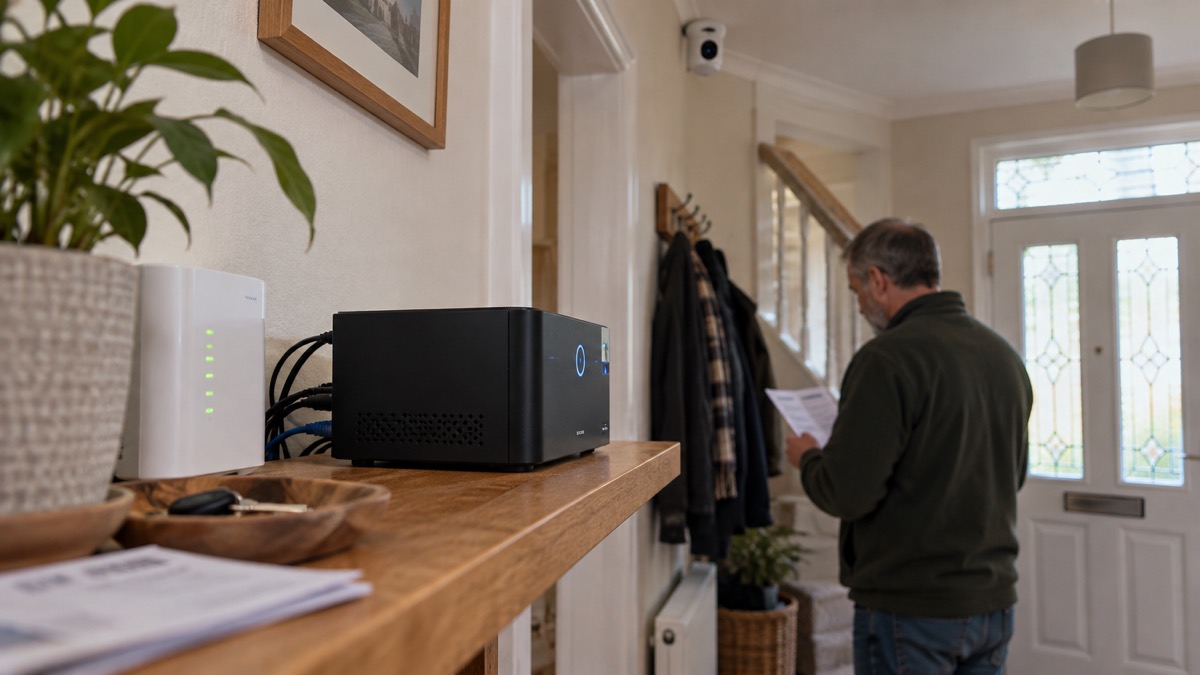
An Ajax NVR is a network video recorder for home and office video surveillance: a box that sits on your network and stores the footage from the cameras you have added to it1. It works with Ajax video devices and with third-party IP cameras that support the ONVIF and RTSP protocols, so it is not limited to one maker's cameras1. For a household, the appeal is straightforward: recordings stay on a drive in your own home rather than in a cloud subscription, and the recorder keeps working as part of the same Ajax system as your alarm.
The drive is not included. You fit a hard disk drive or solid-state drive yourself, up to 16 TB, and the recorder can run without one, in which case it only integrates third-party cameras into the Ajax system and stores nothing1. It is designed for indoor installation on a flat horizontal or vertical surface, with passive cooling and a casing you must not cover1. It needs an internet connection to reach Ajax Cloud, and it runs solely from an external power supply, so a backup power source is essential if you want it to keep recording during an outage1.
This page covers what the recorder does, the versions available, storage, camera compatibility, installation, setup, the LED colours, the tamper alarm, support and the two-year warranty. It is written for a household planning for emergencies as much as for everyday security.
What the Ajax NVR does for a household
The recorder's job is to take the video from cameras on your network and store it. The maker's manual for the Ajax TurretCam puts it plainly: recorded videos can be stored on an Ajax NVR added to the same network, or on a memory card installed in the camera3. That choice matters for a household, because a recorder gives you one place where footage from several cameras is kept, rather than a card in each camera that has to be retrieved and read separately.
It is a network video recorder for home and office video surveillance, and it connects third-party IP cameras that have ONVIF and RTSP protocols as well as Ajax video devices1. The same compatibility statement appears in the Ajax Hub manual: third-party cameras and video recorders can be added either directly to the hub or to an Ajax NVR, and they must support the RTSP protocol4. In practice, if you already have a mix of cameras, the recorder can bring them together under one interface.
Two limits are worth knowing before you plan around it. First, the recorder only works with one space, so it belongs to one Ajax system and one property1. Second, it is not a standalone box that records to nothing: without a storage device installed it is used only for integrating third-party IP cameras into the Ajax system1. If you want a record of what happened, you need a drive.
For emergency planning, the recorder is the part of a camera system that lets you go back and check. After a storm, a break-in or a flood, being able to review footage from the hours before is often more useful than a live view. That makes the drive, the power supply and the network connection the three things to get right.
Versions: NVR and NVR DC, in 8 and 16 channels
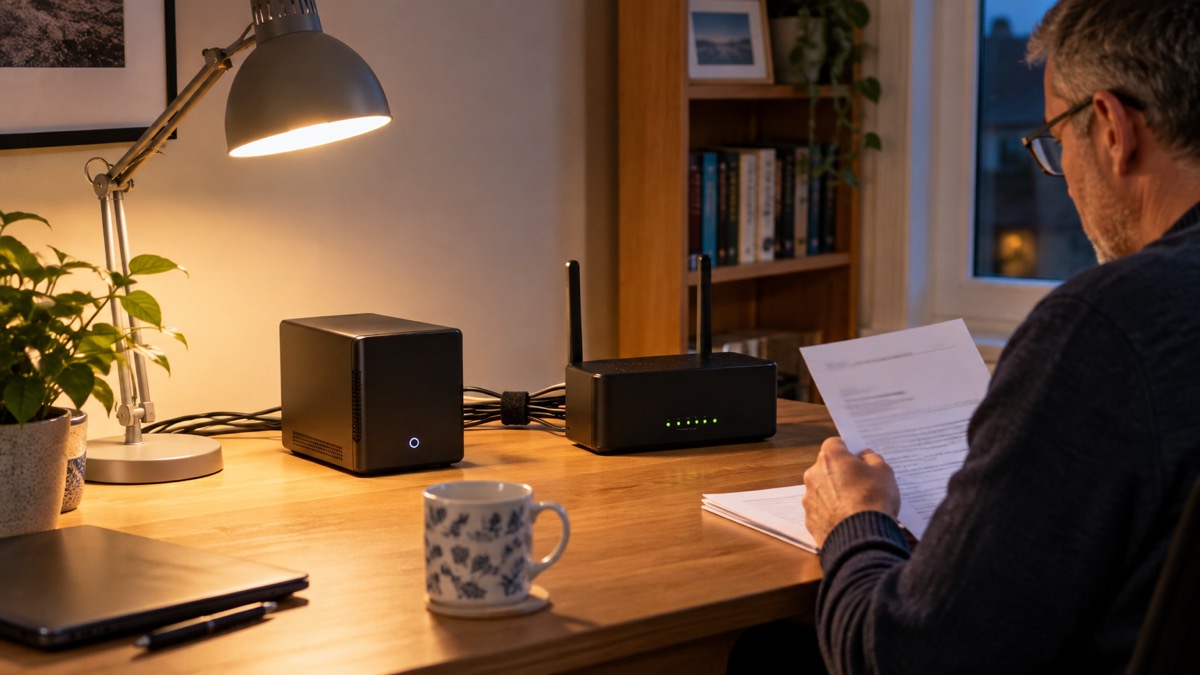
Ajax lists the recorder in several versions: NVR (8-ch), NVR (16-ch), NVR DC (8-ch) and NVR DC (16-ch)1. The channel count is the number of cameras the recorder is built to handle, so an 8-channel unit suits a smaller installation and a 16-channel unit a larger one. The DC versions are listed as separate variants in the same manual.
There is also a second family, the NVR H series, listed as NVR HAC (8-ch), NVR HAC (16-ch), NVR HDC (8-ch) and NVR HDC (16-ch)5. The H series manual describes it as a video recorder for connecting third-party IP cameras that have ONVIF and RTSP protocols and Ajax video devices, the same role as the standard NVR5. The two families share much of their behaviour, including the storage ceiling and the warranty, but they differ in some details, notably the LED sequence and the tamper method.
| Version family | Models listed | Channels | Notes |
|---|---|---|---|
| NVR | NVR (8-ch), NVR (16-ch), NVR DC (8-ch), NVR DC (16-ch) | 8 or 16 | Tamper reacts to breaking or opening the lid1 |
| NVR H | NVR HAC (8-ch), NVR HAC (16-ch), NVR HDC (8-ch), NVR HDC (16-ch) | 8 or 16 | Built-in accelerometer detects movement5 |
One maker instruction applies to the H series specifically: the NVR HAC (8-ch and 16-ch) is not intended for disassembly or board replacement5. If a unit fails, that is a support matter rather than a repair job for the household.
Storage: up to 16 TB on a drive you buy separately
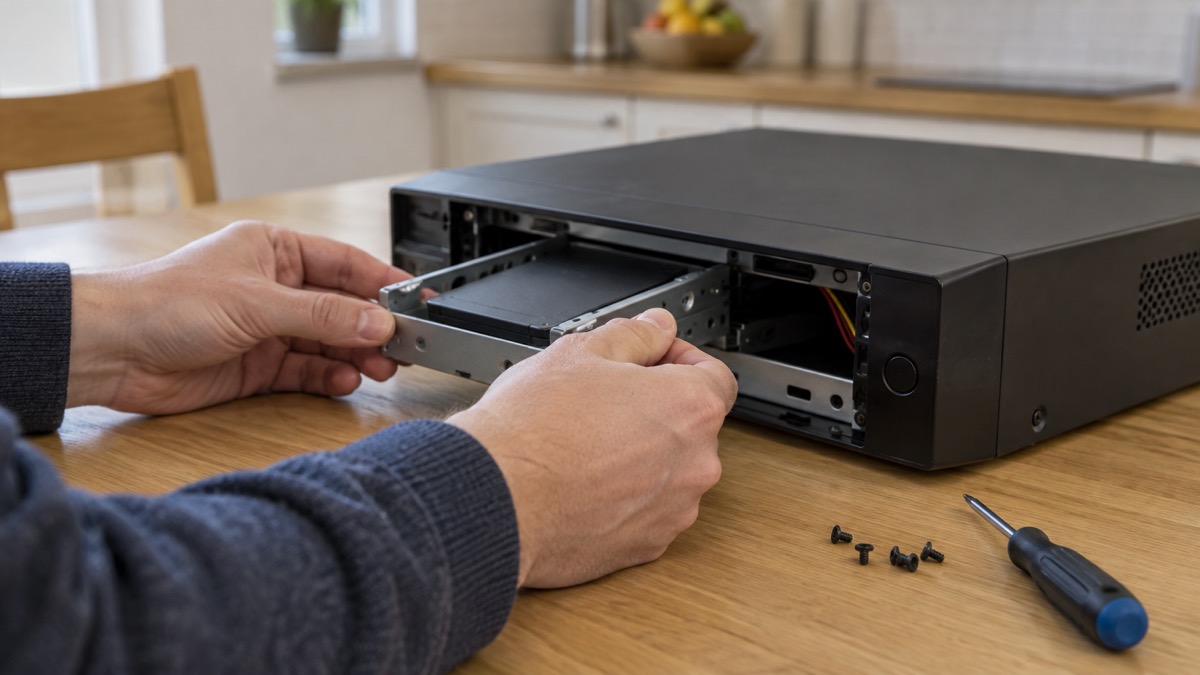
The recorder allows you to install a storage device with a memory capacity of up to 16 TB, and that drive is not included in the package1. The H series carries the same ceiling, again with the drive not included5. You choose between a hard disk drive and a solid-state drive, and the maker gives a power limit: use a storage device with a power consumption of no more than 7 W1.
If you fit an SSD, the manual says to use a 2.5 inch to 3.5 inch mounting adapter to securely install it1. That adapter is the difference between an SSD that sits properly in the bay and one that does not.
How long recordings are kept is a setting, not a fixed figure. The archive depth can be set in the range of 1 to 360 days, or set to unlimited1. The setting is a ceiling: the actual retention depends on the drive size, the number of cameras and how much they record. A 16 TB drive and a single camera will hold far more than the same drive with eight busy cameras.
That warning matters in an emergency. If you are moving the recorder because of a flood warning or a power cut, shut it down and let the drive stop before you lift it.
Cameras it works with: ONVIF, RTSP and Ajax video devices
The recorder connects third-party IP cameras that have ONVIF and RTSP protocols and Ajax video devices1. The H series manual uses the same wording5. The hub manual adds that third-party cameras and video recorders can be added either directly to the hub or to an Ajax NVR, and they must support the RTSP protocol4.
ONVIF is the common language that lets cameras and recorders from different makers talk to each other. RTSP is the protocol that carries the video stream. If a camera supports both, it is a candidate for the recorder. If it supports neither, it is not.
For ONVIF setup, the maker lists the app versions you need: Ajax Security System app version 3.25 or later, Ajax PRO: Tool for Engineers app version 2.25 or later, Ajax PRO Desktop app version 4.20 or later, and Ajax Desktop app version 4.21 or later1. ONVIF authorization is supported by NVR with a firmware version 2.289 or later1. Check the firmware before you buy cameras on the strength of ONVIF support.
One camera can be paired with several video recorders in one space at the same time1. That is useful if you want a second copy of footage on a separate drive, but it also means a camera is not tied to a single recorder. If you rely on footage, check which recorder is capturing what.
Where to install it: indoors only, on a flat surface with room to cool
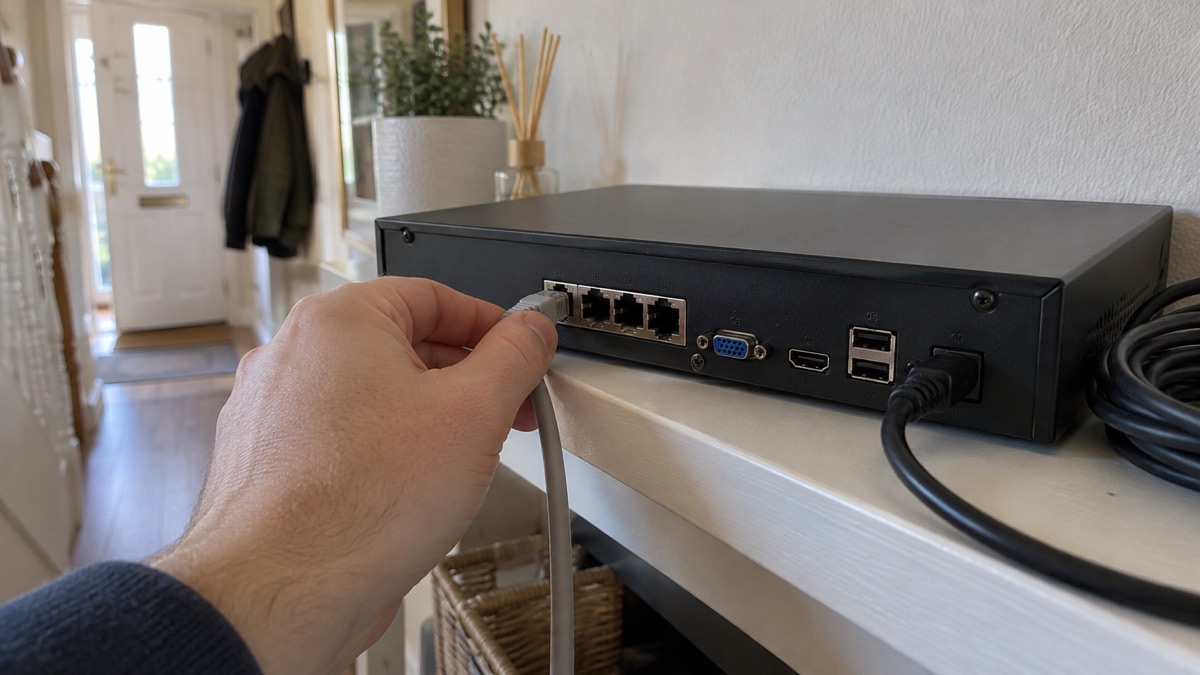
The recorder is designed for indoor installation1. The maker recommends installing it on a flat horizontal or vertical surface, and says not to cover it with other items1. The H series manual adds that a flat horizontal or vertical surface gives better heat exchange, and repeats the instruction not to cover the device5. The casing is compact with passive cooling, so it relies on air moving around it rather than a fan1.
Outdoor installation is not an option: the manual lists outdoors as a location that may cause the breakdown of the video recorder1. A shed, garage or outbuilding is outdoors for this purpose unless it is dry and frost-free, and the maker does not offer that as a location.
The H series manual offers a practical tip that applies to any recorder: choose an installation site where the device is hidden from prying eyes, for example in the pantry, to reduce the likelihood of sabotage5. A recorder that can be seen and unplugged is a recorder that stops recording.
If you mount it, the manual says to secure the SmartBracket to a hard, flat surface with the bundled screws, use at least two fixation points, and fix the enclosure at a point with a perforated area so the tamper can respond to disassembly attempts1.
- Indoors only, on a flat horizontal or vertical surface1
- Do not cover it with other items1
- Leave room for air to move around the casing5
- Keep it out of sight where practical, to reduce the risk of sabotage5
- Use at least two fixation points if mounting on the bracket1
Setting up and connecting it to Ajax Cloud
Setup needs an internet connection. The recorder connects to the Ajax Cloud service via Ethernet, and it requires internet access to connect to that service1. The H series manual says the same: an internet connection is required to set up NVR H, and it connects to Ajax Cloud via Ethernet5. Available connection types are DHCP and Static1.
Only a PRO installer or a space admin with the rights to configure the system can add the device to the space1. If you are installing it yourself, you need admin rights in the Ajax app. The H series manual goes further and says the security system should be designed and installed by professionals, with a list of authorised Ajax partners on the Ajax website5. That is the maker's advice for the H series, not a legal requirement.
The Bluetooth of the video recorder is enabled within three minutes after the power is on1. If the connection fails, reboot the NVR and try again1. That three-minute window is the one to watch during first setup: have the app open and the phone ready before you power the unit on.
Updates are not automatic. By default, NVRs are not automatically updated6. To check for updates manually, select NVR from the list of devices6. Before the update, ensure the NVR has an internet connection and the system is disarmed6. The maker releases security updates for cameras and NVRs for at least two years of the warranty period6.
What the LED colours mean
The LED on the front of the recorder tells you what state it is in. On the standard NVR, it lights up yellow when the unit boots after connecting to power, and changes to green if the NVR is connected to Ajax Cloud1. It lights up green when the NVR has power and is connected to the internet1. It lights up red when the NVR is not connected to the internet or there is no communication with the Ajax Cloud server1.
The H series uses a slightly different sequence: the LED lights up yellow and turns white after the connection to the internet, and lights up red if the connection to the Ajax Cloud server fails5.
There is also a storage signal. On the standard NVR, the LED flashes green or red every second when no storage device is installed or the storage device does not work correctly, until the storage device is formatted or installed, or all cameras are configured not to record to the NVR storage device1. That flashing is the one to watch after a power cut: it tells you the recorder is up but not recording.
| LED state | What it means (standard NVR) | What it means (NVR H) |
|---|---|---|
| Yellow on boot | Booting after power on1 | Booting after power on5 |
| Green | Power on and connected to the internet1 | Not listed; turns white after internet connection5 |
| White | Not listed | Connected to the internet5 |
| Red | No internet or no communication with Ajax Cloud1 | Connection to Ajax Cloud server failed5 |
| Flashing green or red every second | No drive installed or drive not working correctly1 | Not listed |
Keeping it recording through a power cut
This is the part that matters most for a household preparing for emergencies. Ajax NVRs function solely with an external power supply, and cameras can be powered by external supply or PoE2. The maker's own advice is direct: a backup power source is essential so the system functions during an outage2.
That means the recorder is not a device that keeps going on its own. If the mains goes off, the recorder stops unless you have something between it and the wall. The same support article covers how an Ajax system operates in a power outage more broadly, and it is worth reading alongside the recorder manual if you are planning for outages2.
For a household, the practical steps are:
- Decide what the recorder is for. If it is for reviewing events after the fact, a short outage may only cost you the minutes it is down. If it is for monitoring while you are away, a backup supply matters more.
- Check the drive is healthy. A recorder that comes back from an outage with a failed drive is worse than one that was never recording, because you may assume footage exists when it does not. The flashing LED is your warning1.
- Let the drive stop before moving it. If you are moving the recorder because of a flood or storm warning, shut it down and wait before lifting it1.
- Check the LED after power returns. Green means power and internet; red means no cloud connection; flashing means a storage problem1.
If you want the wider picture on keeping a home protected when the power goes, our guide to keeping your home protected in a power cut covers alarms, cameras and lighting together.
Tamper alarm and moving it to a new space
The recorder is equipped with a tamper that reacts to attempts to break or open the lid of the casing, reporting the activation through the Ajax apps1. The H series adds a built-in accelerometer that detects if the device has been moved, sending a notification when its position changes, configured in the Tampering attempt notifications settings5. For a household, that means a recorder tucked in a pantry or cupboard will tell you if someone disturbs it.
Moving the recorder to a new space is not a simple unplug and replug. The NVR only works with one space, and to connect it to a new space you must remove it from the device list of the old one manually in the Ajax app1. The H series carries the same rule5. Only a PRO or a space admin with the rights to configure the system can add the device to the space1.
If you are moving house, plan the sequence: remove the recorder from the old space in the app, pack it with the drive secured, and add it to the new space once the internet is live at the new address. If you are handing the property over, remember that a factory reset returns a device to its original settings and removes your personal data, which is the advice the National Cyber Security Centre gives before selling or giving a device to someone else7.
Support and the 2-year warranty
The warranty for products of Ajax Systems Manufacturing is valid for 2 years after purchase1. That applies to the standard NVR and to the H series1. The maker also states that it releases security updates for cameras and NVRs for at least two years of the warranty period6.
If the device does not function correctly, the maker asks you to contact Ajax Technical Support first, and says that in most cases technical issues can be resolved remotely1. Support is available 24/71. The H series manual gives the same advice5.
A factory reset is available if support asks you to try it. Turn the recorder off, press and hold the reset button, then power it on while still holding. Wait until the LED lights up violet; the LED lights yellow, goes off, then turns violet when default settings are restored1. The H series follows the same pattern5. To reset the screen resolution, reboot the video recorder and, once it boots, press and hold the right and left mouse buttons simultaneously for 5 seconds5.
The recorder does not require maintenance1. Beyond checking the LED, keeping the drive healthy and checking for firmware updates, there is little to do.
Where it fits a household plan
An Ajax NVR is one part of a camera system, not a whole security plan. It stores footage from cameras on your network, works with Ajax devices and third-party ONVIF and RTSP cameras, and needs a drive, an internet connection and a power supply to do its job1. For a household, the sensible approach is to decide what you want the footage for, size the drive accordingly, put the recorder somewhere dry, indoors and out of sight, and give it a backup power source if you want it to keep recording when the mains goes off2.
If you are still choosing cameras, our guide to home cameras and CCTV sets out the types and what each suits. If you are weighing up whether to record locally or rely on a subscription, can security cameras record without the internet covers the options. And if you are building the wider Ajax system, the Ajax brand page lists the devices that work together.
Sources (7)
- NVR user manual, Ajax Systems, 2026-10-27
- How an Ajax system operates in case of a power outage, Ajax Systems, 2026-08-19
- TurretCam HL user manual, Ajax Systems, 2026-10-28
- Hub 2 Plus user manual, Ajax Systems, 2026-09-25
- NVR H user manual, Ajax Systems, 2026-10-27
- How to update the firmware on Ajax cameras and NVRs, Ajax Systems, 2024-10-16
- Smart devices in the home, National Cyber Security Centre, 2024-02-23

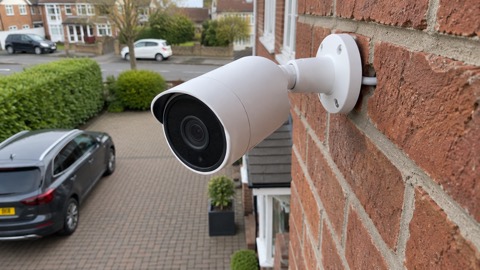 Ajax BulletCam
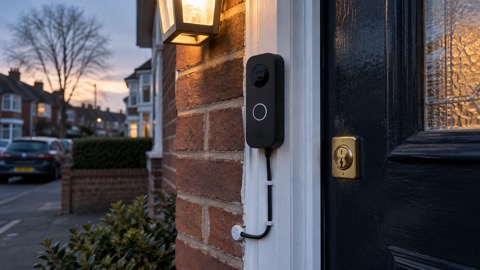 Ajax DoorBell
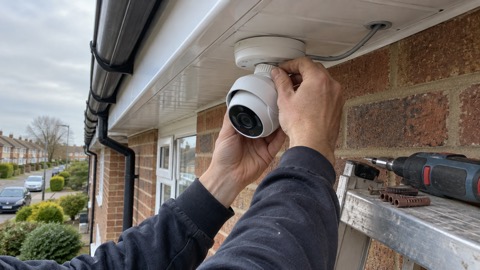 Ajax TurretCam
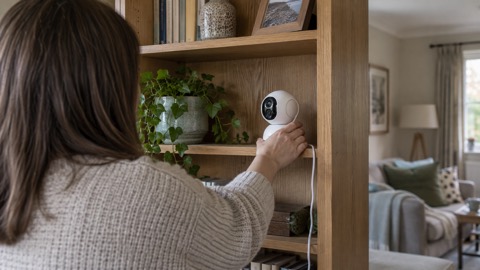 Aqara Camera Hub G350
 Arlo Essential 2K Doorbell
 Arlo Essential 3 2K
 Arlo Essential 3 Indoor
 Arlo Pro 6
 Arlo Ultra 2
 Arlo Ultra 3
 Blink Battery Doorbell 2K+
 Blink Outdoor 4