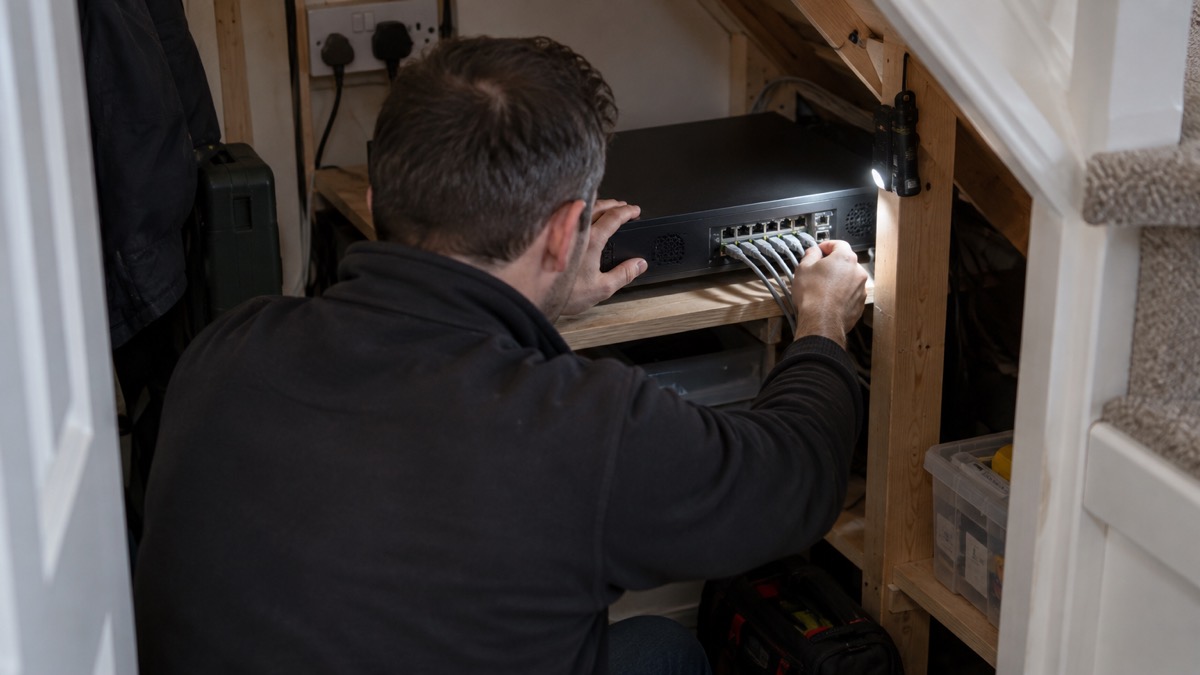
A UniFi network video recorder is the box that sits between your cameras and your recordings. The cameras send video over your home network, the recorder writes it to hard drives you fit yourself, and you watch it back through the UniFi Protect software. For a household, that means footage stays in your own home rather than in a subscription cloud, and it keeps recording when the internet goes down, as long as the recorder and the network switches still have power.
The model most UK buyers will find is the UNVR: four drive bays, a 100W maximum power draw, and a datasheet claim of up to 30 days of 4K storage for 15 cameras using four 8 TB drives in a RAID 5 configuration1. The newer G2 and G2 Pro add built-in AI event analytics and HDMI output, with the G2 Pro taking eight drives and up to 50 4K cameras2. The G2 is listed as Coming Soon rather than on sale3.
Before buying, decide three things: how many cameras you need to cover, how long you want to keep footage, and where the unit will sit. A recorder is a small computer with spinning drives in it, so it wants a dry, ventilated, indoor spot, and it wants to be somewhere a burglar will not find it in the first minute.
The UniFi recorder range and how the versions differ
Ubiquiti sells three recorders that matter to a household, and they differ mainly in how many cameras they take and how many drives they hold. The original UNVR is the established model, described as an enterprise network video recorder that integrates an NVR, the UniFi Protect software and a 4-drive bay1. The UK store lists it with four 2.5 or 3.5 inch HDD bays4.
The G2 is the middle model. It is described as a 1U UniFi Protect NVR with built-in AI event analytics, HDMI output, four 2.5 or 3.5 inch HDD bays, and support for up to 30 4K or 60 Full HD cameras6. The G2 Pro steps up to a 2U chassis with eight 2.5 or 3.5 inch HDD bays and support for up to 50 4K or 100 Full HD cameras2.
| Recorder | Form factor | Drive bays | Camera capacity | Notable features |
|---|---|---|---|---|
| UNVR | Rack unit, 442.4 x 325 x 43.7 mm1 | Four 2.5 or 3.5 inch4 | Up to 30 days of 4K for 15 cameras on four 8 TB drives in RAID 51 | UniFi Protect software built in1 |
| G2 | 1U3 | Four 2.5 or 3.5 inch6 | Up to 30 4K or 60 Full HD6 | Built-in AI event analytics, HDMI output6 |
| G2 Pro | 2U2 | Eight 2.5 or 3.5 inch2 | Up to 50 4K or 100 Full HD2 | Built-in AI event analytics, HDMI output2 |
| NVR Instant (in the kit) | Compact, 3.5 inch HDD support7 | Not stated in the listing | 15 HD or 6 4K7 | Integrated PoE switch7 |
The practical difference is headroom. A four-bay unit with four drives is enough for a typical semi-detached house with four to eight cameras. The eight-bay G2 Pro is for someone covering a larger property, outbuildings or a long perimeter, where the camera count and the retention period both climb.
Camera capacity: how long footage lasts
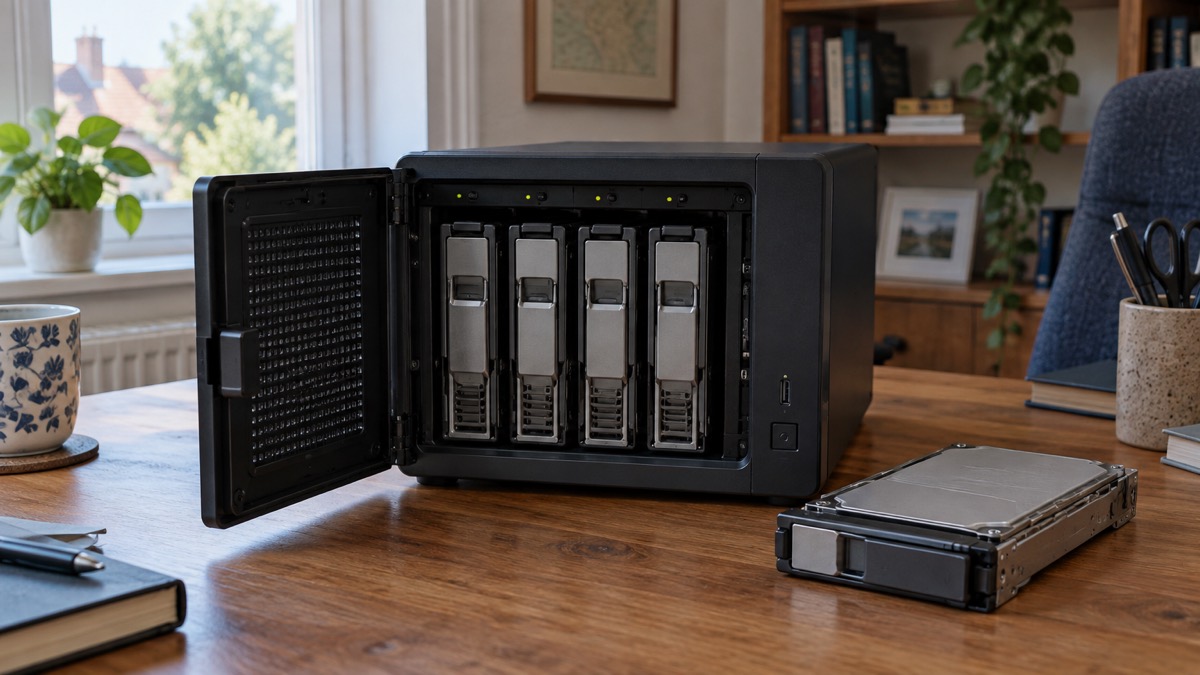
Storage is the question that decides most purchases. The UNVR datasheet gives a worked example: using four 8 TB drives in a RAID 5 configuration, the unit can provide up to 30 days of 4K video storage for 15 cameras, or Full HD video storage for 50 cameras1. The UK store repeats the same headline figure of up to 30 days of storage for 18 4K cameras or 60 Full HD cameras4.
Those two figures do not match, and the two documents disagree on the camera count. The datasheet, which is the more detailed document, says 15 4K cameras and 50 Full HD cameras on four 8 TB drives1. The store listing says 18 4K and 60 Full HD4. Treat the datasheet figure as the planning number and expect the real figure to depend on your camera settings, motion levels and how much of the day is recorded.
The G2 and G2 Pro listings give camera counts but not retention periods2. The G2 Pro's larger drive count is what buys you a longer retention period at the same camera count, because more drives means more total capacity in the same RAID array.
A RAID 5 array spreads your recordings across all the drives with one drive's worth of capacity set aside for recovery. If a single drive fails, the array keeps working and you replace the failed drive. That is why the datasheet example uses four drives rather than one large one: it is about surviving a failure, not just about capacity.
Drive bays and storage: four bays on the UNVR and G2, eight on the G2 Pro
The UNVR and the G2 both take four 2.5 or 3.5 inch HDD bays4. The G2 Pro takes eight2. The NVR Instant in the kit is described as a compact UniFi Protect NVR with 3.5 inch HDD support and an integrated PoE switch, and the kit ships with a single 1TB HDD7.
Two things follow from the bay count. First, the more bays, the more drives you can add later without replacing the unit, which matters if you start with two cameras and add four more over a couple of years. Second, the UNVR sets a maximum power budget for drives of 75W1, so the drives you choose need to sit within that budget across all four bays.
The UNVR also carries 8 GB of on-board flash storage1. That is for the system itself, not for video, so do not count it towards your retention period.
UNVR specifications: processor, memory, networking and size
The UNVR is a rack-width box. Its dimensions are 442.4 x 325 x 43.7 mm, it weighs 5.11 kg without rackmount brackets and 5.20 kg with them, and the enclosure is SGCC steel1. That is a 1U height, so it fits a standard equipment rack or a shelf deep enough to take 325 mm.
Inside, the processor is a quad-core ARM Cortex-A57 at 1.7 GHz with 4 GB of system memory1. Networking is one 10/100/1000 Mbps RJ45 Ethernet port and one 1/10 Gbps SFP+ Ethernet port, with Ethernet in-band management1. The SFP+ port is there for a fibre or high-speed uplink if you have one; most homes will use the RJ45.
| Specification | UNVR figure |
|---|---|
| Processor | Quad-Core ARM Cortex-A57 at 1.7 GHz1 |
| System memory | 4 GB1 |
| On-board flash | 8 GB1 |
| Networking | One 10/100/1000 Mbps RJ45, one 1/10 Gbps SFP+1 |
| Dimensions | 442.4 x 325 x 43.7 mm1 |
| Weight | 5.11 kg without brackets, 5.20 kg with1 |
| Enclosure | SGCC steel1 |
| ESD/EMP protection | Air plus or minus 12kV, contact plus or minus 8kV1 |
The ESD and EMP protection figures are about electrical surges on the network cabling, not about lightning protection for the building. If your cameras run on long outdoor cable runs, surge protection at the building entry is a separate question.
Power: 100W maximum, with a backup DC input
The UNVR draws a maximum of 100W1. Its power method is one universal AC input at 100-240VAC, 2A maximum, 50/60 Hz, plus one USP-RPS DC input at 11.5VDC, 10.43A1. The internal power supply is AC/DC, 120W1.
That backup DC input is the part that matters in a power cut. It lets the recorder run from a compatible DC supply rather than the mains, so the recorder can keep writing to its drives while the rest of the house is dark. Whether your cameras keep recording depends on how they are powered: cameras fed by a PoE switch will go down with the switch unless that switch is also on backup power.
For scale, Electrical Safety First lists a laptop as using up to 100 watts8, which is the same order as the UNVR's maximum. A recorder is not a heavy load, but it is a load that needs to run continuously, so size any backup supply for continuous operation rather than a short burst.
Where the recorder can run safely
The UNVR's operating temperature range is -5 to 40 degrees Celsius, and its operating humidity range is 5 to 95 percent noncondensing1. That is a wide band, but it assumes air can move around the unit. A cupboard with the door shut, next to a boiler or a hot water cylinder, will run hotter than the room.
The maker's installation advice for comparable recorders is worth following. Ajax's manual for its NVR H says the unit is designed for indoor installation, should sit on a flat horizontal or vertical surface for better heat exchange, and should not be covered with other items9. It also advises choosing an installation site where the recorder is hidden from prying eyes, for example in the pantry, to reduce the likelihood of sabotage9.
"It is advisable to choose an installation site where NVR H is hidden from prying eyes, for example, in the pantry."
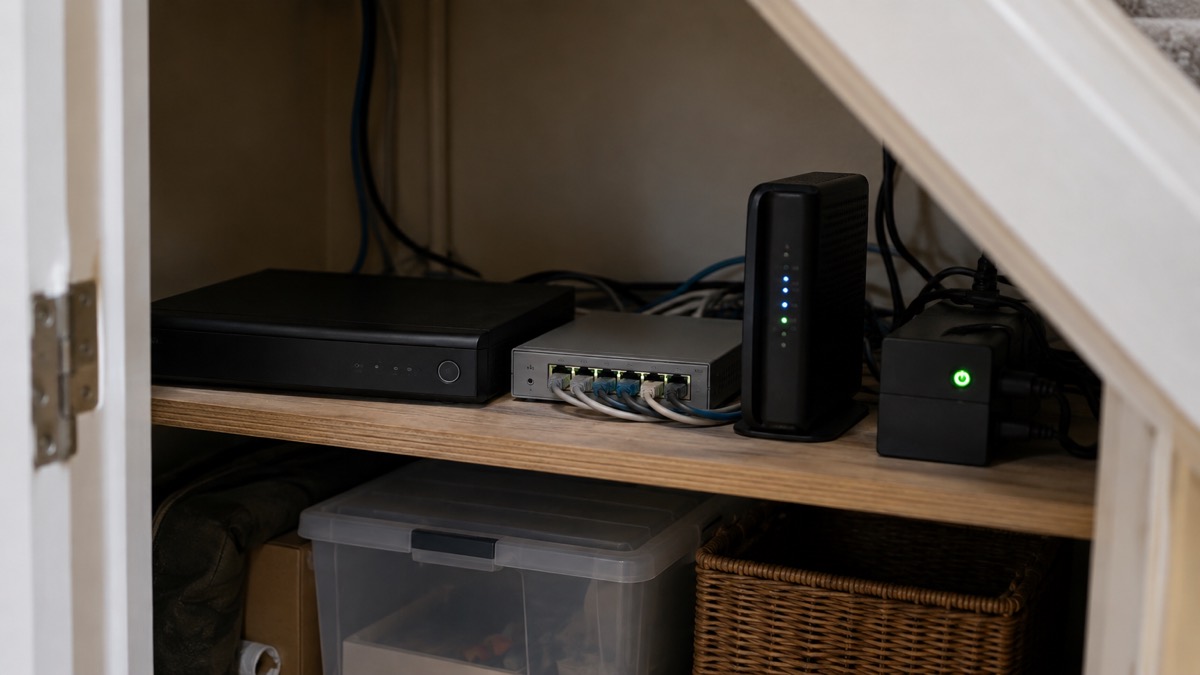
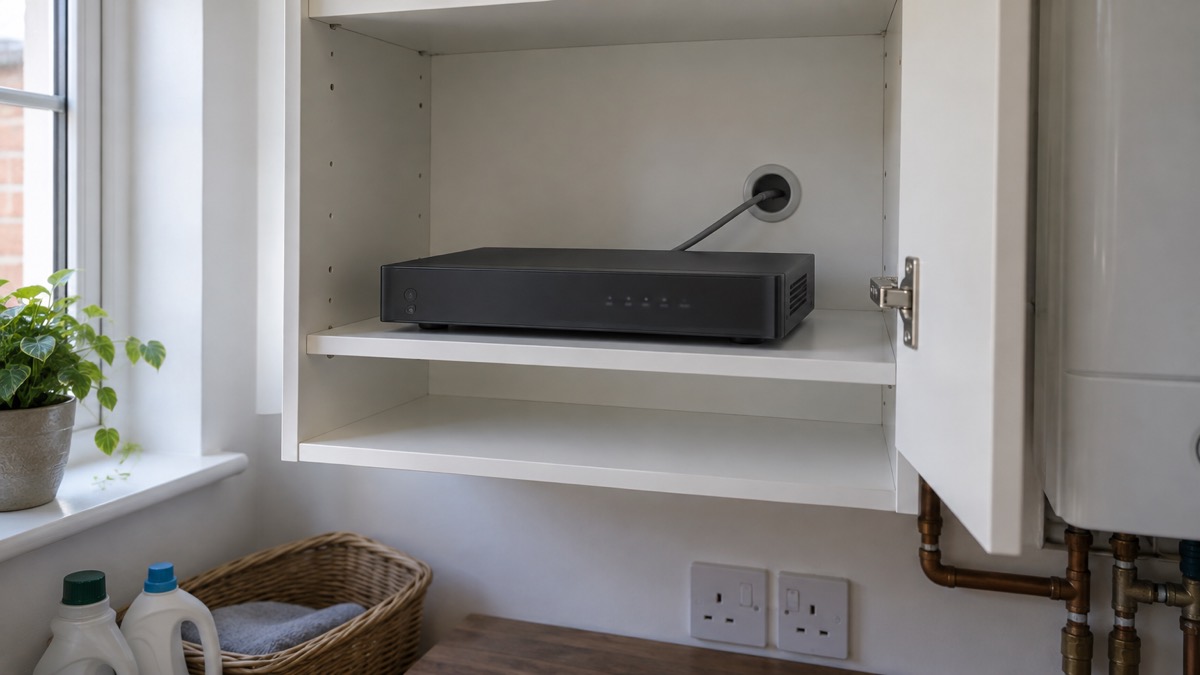
That advice applies to any recorder, including a UniFi unit. A recorder in plain view in a hallway is the first thing an intruder takes. A recorder in a locked cupboard or a utility space is harder to find and harder to remove.
Keep the unit out of damp and frost-prone spaces. Vaillant's installation instructions for its cylinders state that the product must only be installed in a dry, permanently frost-free room10, and the same principle holds for a recorder with spinning drives: a garage that drops below freezing in winter is not a good home for it.
Reading the system and drive lights
The UNVR has a system LED and a drive LED for each bay, and the states are specific. The system LED flashes white during bootup, flashes blue and white during a firmware upgrade, shows steady white when the unit is at factory defaults and awaiting adoption, and shows steady blue when the device is adopted1. The drive LEDs show amber for a disk error and white for a disk detected1.
| Light | State | What it means |
|---|---|---|
| System | Flashing white | Bootup in progress1 |
| System | Flashing blue and white | Firmware upgrading1 |
| System | Steady white | Factory defaults, awaiting adoption1 |
| System | Steady blue | Device is adopted1 |
| Drive | Amber | Disk error1 |
| Drive | White | Disk detected1 |
An amber drive light is the one to act on. It means the recorder has flagged a disk error, and in a RAID array that is the moment to replace the drive before a second failure puts the array at risk. Check the Protect software for which bay is affected, then swap that drive.
The recorder's storage can also be set to read and write, or to read-only. Ajax's manual describes the two modes: read and write allows the recorder to record new footage and read existing files, while read-only restricts access to viewing and playback only, so new recordings will not be saved9. If you ever find footage missing after a date, check that the storage has not been left in read-only mode.
The Instant Kit: a recorder, four cameras and a drive in one box
The Instant Kit bundles one UniFi Protect NVR Instant with four G5 Turret Ultra cameras and one 1TB HDD, described as an all-in-one solution for fast and effortless setup5. It is sold as a single unit kit5. The NVR Instant itself is a compact UniFi Protect NVR with 3.5 inch HDD support and an integrated PoE switch7, and the kit listing gives a camera capacity of 15 HD or 6 4K7.
The integrated PoE switch is the useful part for a household: the four cameras plug straight into the recorder, so you do not need a separate switch for a small system. The kit listing carries a note that it requires connection to a Gateway or Layer 3 switch5, so the recorder still needs to sit behind your router or gateway on the home network.
The kit arrives as a single unit: one UniFi Protect NVR Instant with four G5 Turret Ultra cameras and a 1TB hard drive, described by the maker as an all-in-one solution for fast and effortless setup11. The recorder itself is a compact UniFi Protect NVR with 3.5" HDD support and an integrated PoE switch11, so the cameras draw their power and send their video over the same cabling. If you later want longer retention, the recorder's drive can be changed: the separate UNVR model, for comparison, is specified for Full HD video storage for 50 cameras using four 8 TB drives in a RAID 5 configuration1.
Setting it up and keeping it ready
Set the recorder up on the bench first, before it goes into its final home. Connect it to your network, power it on, let it boot, and adopt it in the Protect software. The system LED will flash white during bootup and settle to steady blue once adopted1. Fit the drives before you power on, and check that each drive light shows white for disk detected1.
Then plan the power. Put the recorder, the router and any PoE switch on the same backup supply, so a power cut does not split the system in half. The UNVR's 100W maximum draw1 is the figure to size against, and the backup DC input at 11.5VDC, 10.43A1 is the connection to use if you have a compatible supply.
Keep the recorder's software current. The system LED flashes blue and white during a firmware upgrade1, so if you see that pattern, leave the unit alone until it settles. Do not power it off mid-upgrade.
For the wider picture on cameras, placement and what they can and cannot do, see our guide to home cameras and CCTV. If your broadband or mobile signal is weak, our page on alarms and cameras on a weak signal covers what changes. And if you want to know whether a camera system can record without an internet connection at all, our page on cameras that record without the internet sets out the options.
Support and warranty
The UNVR datasheet states that Ubiquiti products are sold with a limited warranty described at ui.com/support/warranty1. The datasheet does not give a length, so read the current terms on that page before you buy, and keep your proof of purchase.
Warranty practice across the industry varies, and it is worth knowing how. SimpliSafe offers up to a 2-year extension, giving a total of up to a 3-year warranty, for customers who subscribe to its Pro Monitoring Plan or a Camera-Only plan before the original hardware warranty expires, while the subscription remains uninterrupted12. Champion Power Equipment states that an exchange unit is subject to the warranty of the original unit, calculated by reference to the original purchase date13. The principle in both cases is the same: the clock usually starts at the original purchase, not at the replacement.
For the recorder itself, the practical steps are to register the product if the maker asks you to, keep the receipt, and note the date you installed it. If a drive fails inside its own warranty period, deal with the drive maker separately from the recorder maker, because they are separate products.
Ubiquiti's own product pages are the place to check current specifications and support articles. Our Ubiquiti brand page collects the UniFi products covered on this site, including the UniFi G6 Turret, the UniFi G6 Bullet and the UniFi G6 Dome, so you can see how the cameras pair with a recorder.
Sources (13)
- UniFi NVR Datasheet, Ubiquiti, 2020
- Network Video Recorder G2 Pro, Ubiquiti, 2026-11-03
- Network Video Recorder G2 (Singapore store), Ubiquiti, 2026-11-03
- Network Video Recorder (UNVR), Ubiquiti, 2026-11-03
- Network Video Recorder Instant Kit, Ubiquiti, 2026-11-03
- Network Video Recorder G2, Ubiquiti, 2026-11-03
- All Physical Security, Ubiquiti, 2026-11-03
- Ratings of Electrical Appliances, Electrical Safety First, 2026-10-25
- NVR H Manual, Ajax Systems, 2026-10-27
- uniSTOR pure and uniSTOR plus Operating Instructions, Vaillant, 2026-03-24
- Dome and Turret Cameras, Ubiquiti, 2026
- SimpliSafe Home Security Systems | Wireless Home Security Alarms, SimpliSafe UK
- Champion 2200 Watt LPG Dual Fuel Inverter Generator, Champion Power Equipment, 2026-10-25