
An iPhone or an Apple Watch is not emergency kit in the way a torch or a first aid kit is, but for most UK households it is the piece of equipment that carries the phone numbers, the warnings and the way to call for help. Used deliberately, it does three jobs: it receives the government's Emergency Alerts, it can place a 999 call through any network that is available, and it can hold the medical and contact details that a stranger needs if you are hurt.1
The single most useful thing you can do today is check that your device runs iOS 14.5 or later, because that is the version from which iPhones receive emergency alerts.1 Then set up Emergency SOS and your Medical ID, and keep a charged power bank with the rest of your household kit.3
What an iPhone cannot do is replace a plan. Mobile networks fail in storms and power cuts, batteries run down, and a device that has been in flood water is a damaged device. The sections below set out what each piece of Apple kit does, how to set it up, how to keep it running, and where it must not be your only option.
What Apple makes for UK households in an emergency
Apple's contribution to a household emergency kit is the phone in your pocket and, for some households, the watch on a wrist. Official household kit lists include a mobile phone charger as standard, and the Scottish Government's emergency kit guidance treats the phone as part of the same kit as the torch and the first aid kit.7 The device is not separate from your preparations; it sits inside them.
The reason it matters is the Emergency Alerts service. The UK Government runs a service that warns you if there is a danger to life nearby, sending alerts to your phone or tablet with an audio and vibration signal to get your attention.2 In Wales the same system may be used to warn the public by mobile phone if there is a life-threatening emergency nearby.9 Most emergencies in the UK are handled locally by the emergency services, councils and utility companies, and the alert is how national warning reaches a household quickly.10
That makes three practical jobs for an Apple device:
- Receive the warning. An iPhone on iOS 14.5 or later will take the alert, and other phones that do not run iOS or Android may also receive alerts.1
- Hold the information. Emergency contacts, medical details and the numbers you would need if the phone's own address book were unavailable.11
- Make the call. A 999 or 112 call, by voice, by Emergency SOS, or by satellite on devices that support it.2
The rest of this page takes each of those in turn, then covers keeping the battery alive, charging safely, the limits of the device, and support.
iPhone: calling for help when the network is down
The reassuring fact about a mobile phone in an outage is that emergency calls are treated differently from ordinary ones. Ofcom's advice is that even if you have no signal on your usual mobile network, calling 999 will automatically connect through another network if one is available.2 Your iPhone shows this state as SOS only.2
The same principle applies in a power cut. Official advice for households is that if you have a power cut, no back-up power to your landline and a life-threatening emergency, you should attempt to call 999 or 112 using a mobile, because emergency calls automatically roam onto all available networks.13 You may get a signal from a nearby area that is unaffected.13
There are three further routes worth knowing:
- Wi-Fi calling. If your mobile network is down but your broadband is working, turn on Wi-Fi calling in your settings and you may still be able to make calls over your internet connection.2
- Satellite. Some mobile devices can use Emergency SOS on iOS, or Satellite SOS on Android, to contact the emergency services by satellite when no mobile networks are available.2
- Both phones. If you cannot reach 999 or 112, try calling from both a mobile and a landline, because if one is disrupted the other may be available.15
If you cannot speak, do not simply stay silent on a mobile. Official guidance explains that the Silent Solution system is not used for landline calls, because accidental 999 calls from landlines are less likely, and a silent landline call is connected to a police call handler as doubt exists.16 On a mobile, the silent option exists precisely so that a caller who cannot speak can still be found. The Staying Informed and in Touch in an Emergency guide covers the wider picture of networks and radios.
Apple Watch: alerts and emergency calls from your wrist
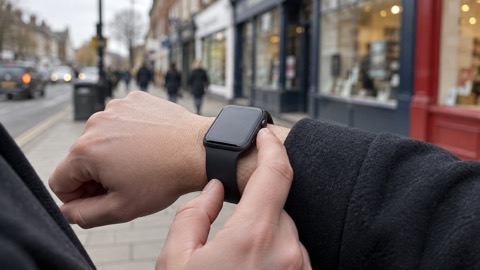
An Apple Watch can place an emergency call without you needing to reach a phone. Apple's own instruction is to press and keep holding the side button until the watch issues a warning sound and starts a countdown; when the countdown ends it calls the emergency services.4 That is useful if you have fallen, if your phone is in another room, or if you are unable to hold a phone to your ear.
The watch is a companion to the phone, not a substitute for it. The full detail of what the watch can do, including satellite messaging and calls when networks fail, is on the Apple Watch: Emergency SOS, Satellite Messaging and Calls When Networks Fail page. Read it before you rely on the watch, because what it can do depends on the model and on the phone it is paired with.
For a household, the sensible approach is to treat the watch as a second route to help for the person most likely to need it, and to make sure that person knows the side-button action by heart. Practise the countdown once, so that the warning sound is familiar rather than alarming.
Emergency SOS: how to set it up before you need it
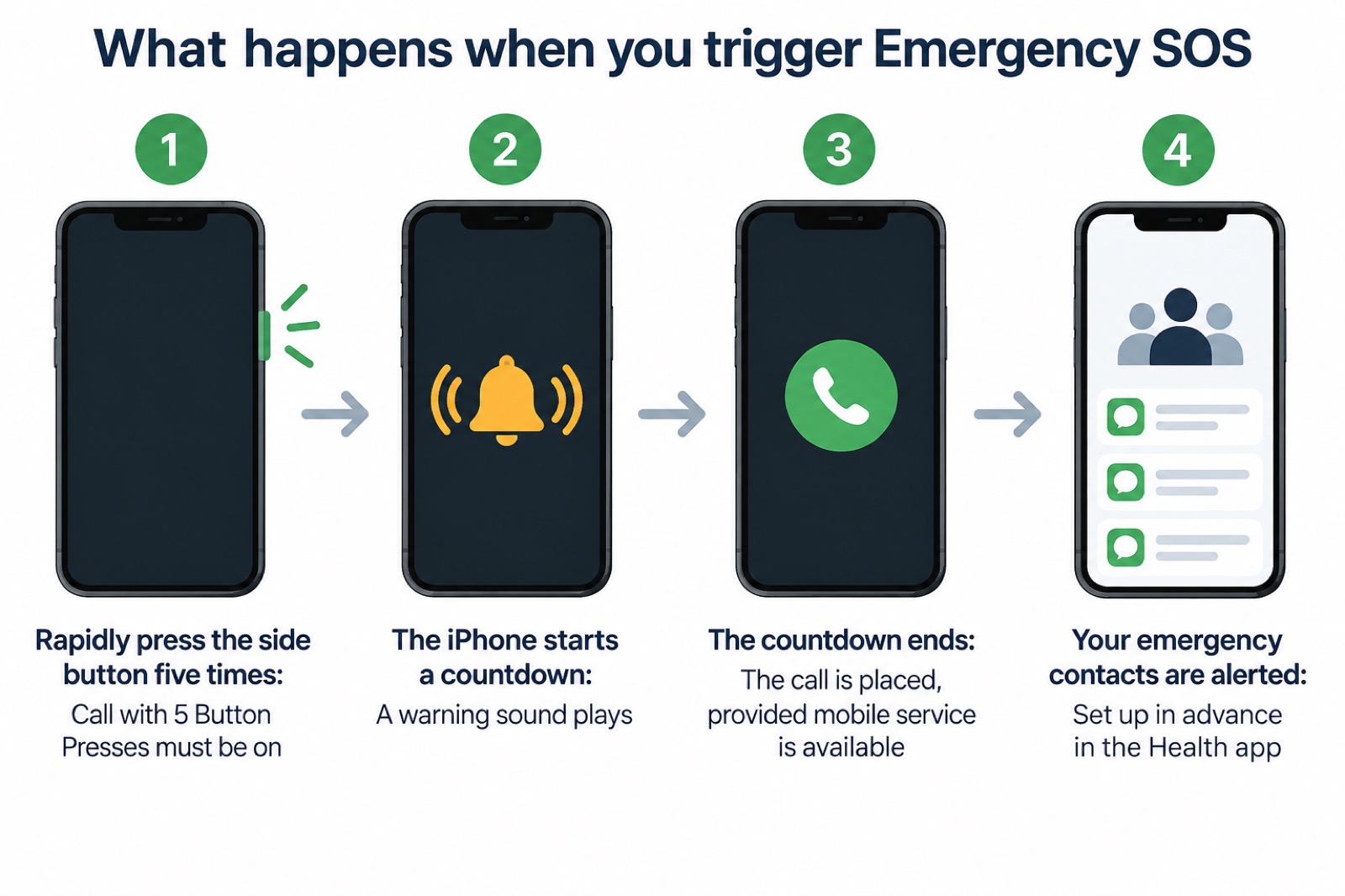
Emergency SOS is the feature that turns a few seconds of button pressing into a call for help and a message to your emergency contacts. Apple's guidance is that you use your iPhone to call for help and alert your emergency contacts, provided that mobile service is available.4 Set it up now, while the network is working.
To check or change the settings, go to Settings > Emergency SOS.4 From there you can confirm that Call with 5 Button Presses is switched on. With it on, rapidly pressing the side button five times starts a countdown to call the emergency services.4
The sequence, in order:
- Open Settings and go to Emergency SOS.4
- Check that Call with 5 Button Presses is on.4
- Add your emergency contacts in the Health app (see the next section).4
- Tell the people you live with what the countdown sounds like and what to do if it starts by accident.
Medical ID and emergency contacts
If you are injured and cannot speak, the information on your phone may be the most useful thing about you. Official advice is to add "in case of emergency" (ICE) contacts that can be easily found on your phone, and to enable the safety and emergency features your device offers, including the Health app on iOS.2
The lock screen is the point of it. Once an emergency contact is set up, ICE numbers can be seen and called from the lock screen by selecting Emergency call, which is useful if you are injured and someone else needs to contact your family or friends.11 That is the difference between a phone that is locked to a stranger and a phone that can summon the right person.
To set your emergency contacts on iPhone, open the Health app, tap your profile picture, tap Medical ID, scroll to Emergency Contacts, tap Edit, then add or delete a contact and save.4 Apple also states that if you choose to share your Medical ID, iPhone can send your medical information to the emergency services when you call or text 911 or use Emergency SOS, though that sharing is marked as US only.4
The Extra Help in an Emergency guide covers households where a phone is the main link to a carer or a medical device.
Making your battery last in a power cut
A power cut is the situation in which your phone matters most and is most likely to run out. Official household advice is to keep a small power bank, charged regularly, which can help power your mobile phone in a power cut.17 A fully charged power bank should be part of the kit, in case you need to charge your phone, tablet or other devices.5
The practical discipline is simple: charge the phone and the power bank whenever the forecast warns of storms, and keep the power bank charged rather than draining it on ordinary days. The Power Cuts: A Household Guide and Backup Power at Home pages set out the wider arrangements.
What you do with the phone during an outage matters as much as what you carry:
- Turn the screen down and shorten the time before it locks. Every minute of screen time is battery spent.
- Use one device. If a tablet and a phone are both charged, keep the tablet for later and run the phone down first.
- Send a message rather than making a call where you can, and keep calls for the emergency services and for arranging help.
- Keep the phone warm and dry. Cold drains a battery faster, and a wet phone is a dead phone.
Safe charging during an emergency
Charging a phone from a power bank is low risk, but charging anything from a generator, a car or a improvised supply is not, and the fire and rescue services are clear about why. Lithium batteries can fail, and official fire safety guidance for workplaces asks for clear charging procedures, supervision, designated charging zones, staff training in battery safety and a plan for battery fires or thermal runaway incidents.18 The same principles apply at home in miniature: charge on a hard, non-flammable surface, stay in the room, and never charge a device that is damaged, swollen or wet.
For the household side of this, the Emergency Kit guide covers what to keep ready, and Lighting covers torches and lanterns so that you are not relying on a phone torch. Fire and rescue services also advise checking that your appliances are not subject to a product recall, using the Office for Product Safety and Standards alerts and recalls page.19
Where an Apple device must not be your only plan
A phone is a single point of failure, and official advice assumes it may fail. Household preparation is explicitly framed around loss of telephone or internet services as one of the disruptions to plan for.20 The device is part of the plan, not the plan.
The clearest example is travel. Official advice is to think through how you would get home without relying on mobile apps: know your usual route, and be aware of at least one alternative, such as a different train line, bus route or road.15 If you are regularly away from home for work or travel, plan how you would manage without your phone.15
The same applies to the landline transition. Businesses are advised that handsets and other devices that use the landline for data, such as older payment systems and lift phones, need to be checked for compatibility.21 In a household, that means checking anything that depends on the phone line, including a telecare kit, before you need it.14
The Staying Informed and in Touch in an Emergency guide sets out the full picture of alerts, radios and networks, and Self-Reliance at Home covers living without mains power.
Safety notices and recalls
A product recall is when an item or items must be returned to the manufacturer because there is a safety problem.19 Manufacturers issue recall notices if an electrical appliance could develop a fault, including a risk of electric shock or fire.23 When a recall happens, the manufacturer is expected to contact anyone who has purchased the faulty product where possible, publish details of the recall and the risk, and set out what steps they are taking alongside it.19
For a household, the actions are:
- Check before you rely on it. Check your appliances against the Office for Product Safety and Standards alerts and recalls page.19
- Register the device. Registering with the maker means manufacturers can contact you if a safety repair is needed.19
- Ask if you are unsure. If an appliance is not listed as recalled it should be safe to use, and if you have concerns about its safety, contact the retailer or manufacturer.23
- Recycle batteries properly. All local authorities in Wales provide battery recycling facilities at their household waste and recycling centres.18
Apple support and warranty in the UK
Apple's own support pages are the place to start for settings, features and model differences, and the Emergency SOS and Medical ID instructions on this page come from Apple's personal safety guide.4 Where a feature depends on the model or the software version, Apple's guidance is the authority, and it is worth checking it against your own device rather than assuming.
Two habits keep a device dependable:
- Update the software. Emergency alerts need iOS 14.5 or later, so an update is not housekeeping, it is part of being reachable.1
- Check the settings after an update. Emergency SOS, Medical ID and alert settings can all be reviewed in a few minutes, and the alert settings on other phones and software versions may be called different names, such as wireless emergency alerts or emergency broadcasts.2
If you have opted out of alerts, you can turn them back on: on iPhone, search your settings for emergency alerts and switch Severe alerts and Emergency alerts back on.24 The government's position is that emergency alerts contain life-saving information and should be kept switched on for your own safety.2 To see an alert again after dismissing it, go to current alerts or past alerts, or search for emergency alerts on your phone.1 On iPhone the alert will be in your notifications.24
Sources (24)
- How emergency alerts work, GOV.UK, 2026
- Stay connected in severe weather, Ofcom, 2026-10-13
- Opting out of emergency alerts, GOV.UK, 2026
- Personal Safety User Guide, Apple, 2026
- 12 tips to prepare for a power cut, Horsted Keynes Parish Council, 2026
- Emergency-Alerts-Factsheet.pdf, Saltford Parish Council
- Emergency kit, Ready Scotland, 2026-10-22
- Prepare for emergencies, Dumfries and Galloway Council, 2026-10-28
- Resilience risks in Wales, Welsh Government, 2026-09-07
- What is a local resilience forum?, Essex Prepared, 2026-10-29
- Personal resilience: yourself, Wiltshire and Swindon Prepared, 2026-10-25
- Personal resilience, Wiltshire and Swindon Prepared, 2026-10-25
- Loss of essential services, Greater Manchester Combined Authority, 2026-10-29
- Power cuts, Prepare (UK Government), 2026-10-21
- Phone and broadband outages, Prepare (UK Government), 2026-10-12
- If you can't speak when you call 999, Bath and North East Somerset Council, 2026
- Be more resilient in 30 simple ways in 30 days, Scottish Borders Council, 2026-10-29
- Lithium battery fire safety, Tandridge District Council, 2026-10-29
- Product recalls, Bath and North East Somerset Council, 2026-10-29
- Protecting your family, Essex Prepared, 2026-10-29
- The digital switchover, Suffolk County Council, 2026-10-29
- Information for sign language users, North Yorkshire Fire and Rescue Service, 2026-03-11
- Maintain appliances and recalls, Greater Manchester Fire and Rescue Service, 2025-02-27
- National Emergency Alerts, Warwick District Council, 2026-10-29
 Apple Watch: Emergency SOS, Satellite Messaging and Calls When Networks Fail